
How to Back Up and Restore NovaLCT Configuration Files
To back up NovaLCT configuration files, read the working settings from the connected display, export the receiving-card parameters and screen connection separately, and save a system configuration file where supported. To restore them, match the files to the hardware, load the appropriate configuration, send it to the intended devices, and complete the hardware-save operation. Verify the image and test an approved restart before accepting the recovery.
This guide is for HonghaiLED customers, AV integrators, distributors, and contractors responsible for keeping an LED display serviceable. A useful backup must tell the next technician which cabinet, controller, wiring layout, and software version it belongs to. A folder containing an unidentified file is a weak maintenance handover.
The steps focus on conventional RCFG/RCFGX-based NovaLCT workflows. Button labels vary by version and hardware. NCP-based cabinets require their corresponding workflow. The checklists below are recommended project practices, not a claim that every system has been tested with every software release.
1. Understand what each NovaLCT file protects
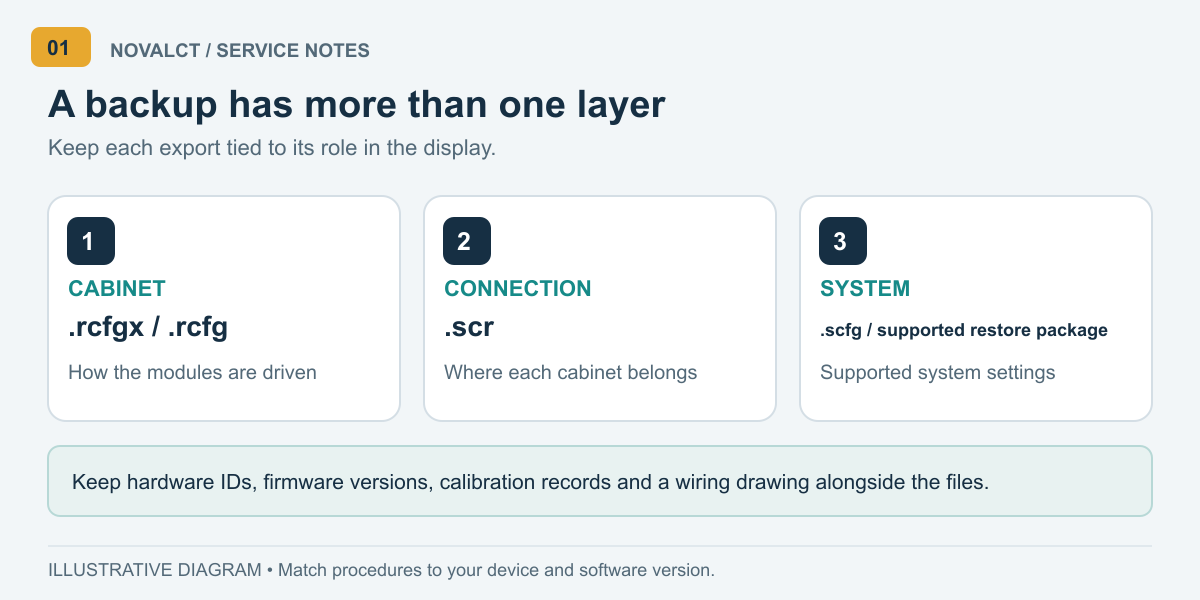
Think of recovery as several related tasks: restoring how a cabinet drives its modules, restoring where that cabinet belongs in the picture, and recovering the wider supported system configuration. Identify the missing layer before choosing a file. This prevents a cabinet repair from becoming an unnecessary whole-screen rewrite.
| File or record | Main purpose | Important boundary |
|---|---|---|
| .rcfgx / legacy .rcfg | Receiving-card and cabinet parameters | Does not replace the whole-wall connection record |
| .scr | Screen connection arrangement | Must match the physical output-port wiring |
| .scfg | Local system configuration | Do not assume it includes every device function |
| Supported restore .zip | Packaged configuration accepted by Local Restore | An ordinary ZIP of project documents is different |
| Calibration and version records | Preserve image-quality context and software identity | Track separately; verify the applicable export procedure |
NovaStar documents receiving-card, screen-connection, and version files as distinct components of its cloud configuration workflow, with a local .scfg system file. That distinction explains why keeping only an RCFGX file leaves gaps in a project archive. See the official file-saving documentation.
NovaLCT also has device-specific features. The V5.9.2 synchronous manual limits the .pbk system-backup operation to MCTRL660 PRO and describes NCP configuration separately. Do not apply those instructions universally. Its receiver interface uses labels including Readback, Import, and Export; older NovaLCT interfaces may show longer read, load, and save labels. Check the V5.9.2 manual against your screen.
2. Prepare a reliable backup record
Start while the display works correctly. If you are investigating a fault, label the new export as the current faulty state; preserve the last accepted backup separately. Otherwise, the most recent file can accidentally replace the only trustworthy recovery point.
Open the project’s supported NovaLCT version and confirm the intended device is connected. Use the appropriate synchronous-system or multimedia-player login. On a site with several controllers, compare the device identity with your equipment schedule before reading or sending parameters.
| Record | What to capture | Why it matters |
|---|---|---|
| Project and screen | Site, screen identifier, date, working or faulty status | Separates similar installations |
| Hardware | Controller, receiver, module and hub-board identification | Supports replacement matching |
| Software | NovaLCT version and relevant firmware versions | Documents the known-working environment |
| Geometry | Cabinet pixel dimensions, layout, port routes | Supports mapping verification |
| Appearance | Reference patterns, brightness setting, calibration records | Defines an observable recovery target |
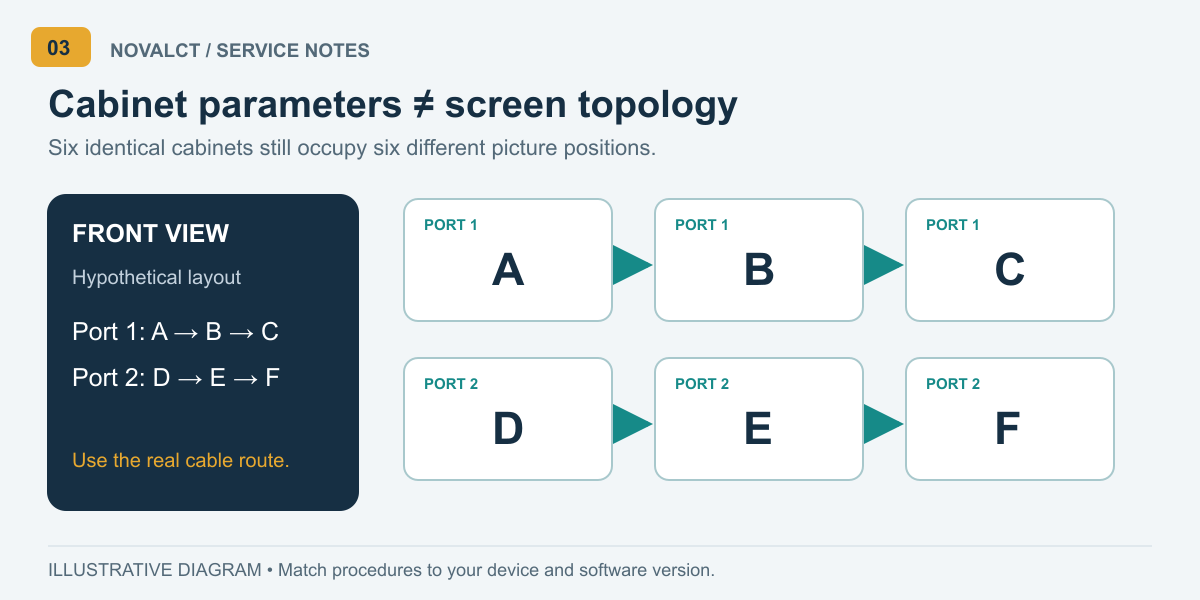
Photograph cable labels and cabinet positions, especially where different cabinet sizes share a display. Record the viewing convention on your drawing: front view and rear view can reverse an apparently obvious route.
Agree on a maintenance window and a person who can observe the screen during testing. Keep the last accepted package read-only, then work from a copy. For software references, use the HonghaiLED NovaLCT download and manual archive. Record the actual version used rather than describing it merely as “latest.”
3. Back up the receiving-card configuration
01. Read the working hardware first
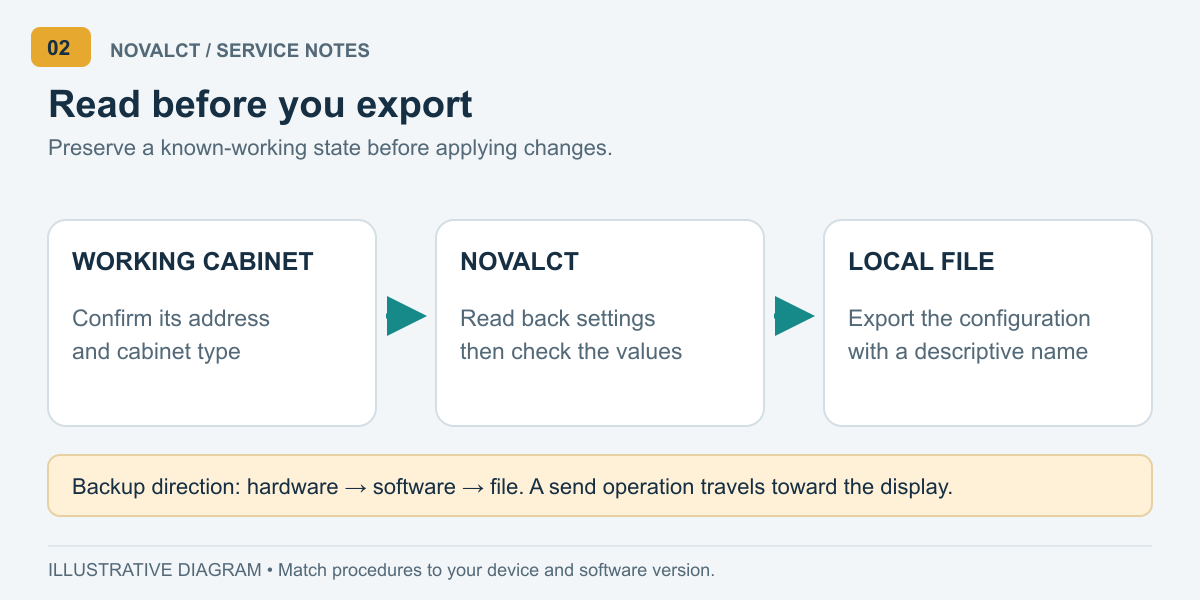
In NovaLCT, open Screen Configuration, select the correct communication port and device, and enter the Receiving Card area. Use the receiving-card readback command before exporting. In older versions, this is commonly labeled Read from Receiving Card.
Where the dialog asks for a target, select a known-working cabinet and record its address. Check that the displayed dimensions and module information are plausible for that cabinet. A successful read from the wrong cabinet is still the wrong backup for a replacement.
Avoid using a send command to obtain a backup. Reading brings hardware information into NovaLCT; sending moves software settings toward the display. Keep that direction clear whenever a newly opened configuration window contains values you have not verified.
02. Export and identify each cabinet type
Use Export, or Save to File in the applicable older interface, to save the receiving-card configuration. Keep the extension produced by NovaLCT. For a mixed display, create a separate file for each genuinely different cabinet configuration and document which positions use it.
Use a descriptive filename such as Lobby_Cabinet-A_ReceiverModel_2026-10-14.rcfgx. This is an example naming convention, not a required NovaLCT format. Include the actual model and project identifiers in your files.
Confirm the file exists in the intended folder and retain the original export. HonghaiLED’s RCFG/RCFGX selection guide explains why matching pixel pitch alone is insufficient: module design, driver IC, scan mode, receiver, and data flow also matter.
Check the archive on a second authorized computer before the next service visit. Confirm that the files can be copied and identified, and that the matching NovaLCT installer and manual are available. File accessibility is a useful preliminary check; it does not replace a controlled hardware restore test.
4. Save the screen connection and system configuration
01. Preserve the whole-screen map
Open Screen Connection in NovaLCT. Use Read from HW to retrieve the existing connection information, review the screen and output-port arrangement, then use Save to File for the connection file. Keep a screenshot or drawing with the export so another technician can compare it with the installed cables.
Readback and file saving are described alongside mapping operations in the NovaStar screen-connection documentation. Exporting an existing map does not require deliberately changing or resending it.
Check every used port, not just the first visible route. In a hypothetical wall with six identical cabinets, the receiving-card file could be shared across the cabinets while the connection map still needs to distinguish all six positions. Identical electronics do not make their picture coordinates interchangeable.
02. Add the supported system backup
Use Save System Configuration File where available. Follow the local or cloud path presented for the device and NovaLCT version. For the documented offline-screen route, select a local destination and save the .scfg file. Verify the location before closing the session.
Cloud saving introduces account, network, server-node, and device-support requirements. NovaStar also documents automatic registration and monitoring-setting changes when an unregistered screen is saved to its cloud workflow. Review that behavior with the project owner before enabling it; see the applicable save procedure.
Keep an accessible local recovery package even when the project uses cloud storage. Separately retain calibration material, controller-specific presets, and player content where relevant. Treat the inclusion of those items as something to verify, not something the words “system configuration” guarantee.
Make the missing items explicit in the handover record. For example, if the commissioning contractor holds the calibration database, record its custodian and retrieval process. If a video processor has its own preset export, keep that export with its corresponding instructions. This prevents a future technician from discovering an incomplete archive only after replacing equipment.
5. Restore NovaLCT configuration files
01. Choose the smallest appropriate recovery
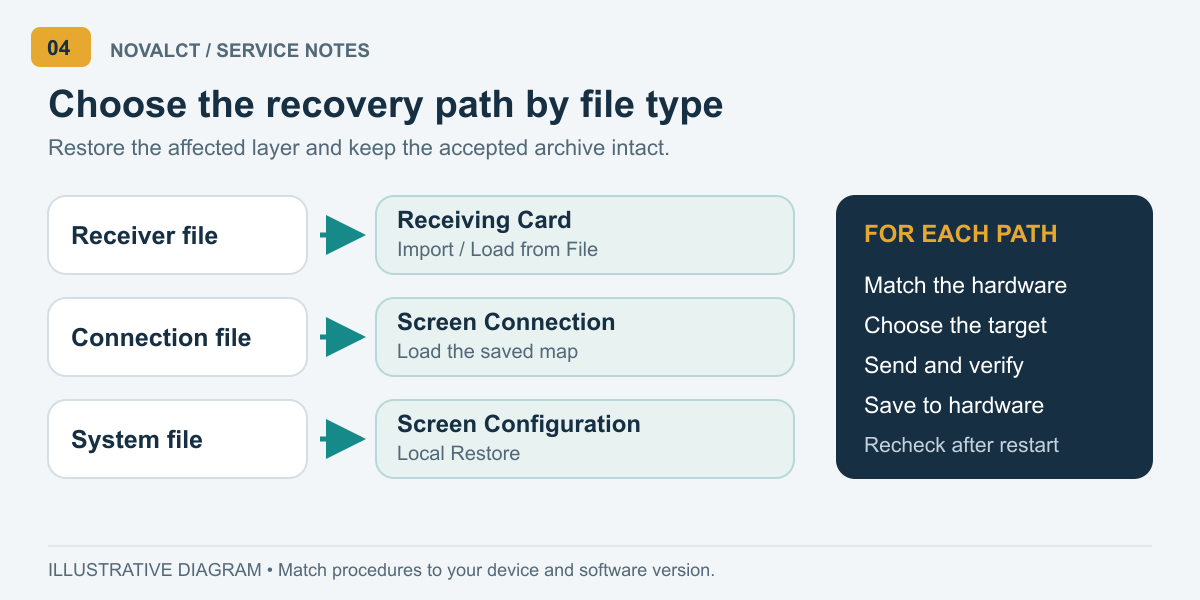
First identify what changed. A replaced receiving card, a rewired display, and a replaced controller present different recovery tasks. Preserve a readable snapshot of the current state when possible, then select the last accepted package that matches the intended hardware and layout.
For a receiver repair, load the approved .rcfgx or .rcfg through the receiving-card import/load command in NovaLCT. Compare the loaded information with your cabinet record. Send to one identified replacement or controlled test area first. Expand only after checking the result and confirming that the remaining cabinets need the same configuration.
Do not select all receiving cards merely because the option is convenient. A screen containing multiple module batches or cabinet types may need separate operations. The scope of the repair should determine the send range.
02. Restore mapping when required
If screen topology needs recovery, load the matching connection file in Screen Connection, compare it with the physical cable routes, and send the verified map to hardware. Recheck cabinet dimensions, orientation, output assignments, and coordinates before saving.
Some receiving-card send dialogs offer a starting-coordinate reset. NovaStar documents that enabling it can make all receivers show the source’s upper-left image. Use it only when the commissioning procedure requires rebuilding coordinates; an unexpected repeated image is a reason to inspect mapping, not immediately replace every parameter file.
03. Use Local Restore for supported system files
For a system file, enter Screen Configuration in NovaLCT, choose Local Restore, browse to the supported .scfg or restore .zip, and continue with Next. Review the loaded configuration and follow the applicable send/save steps. Do not assume that closing a loading-progress window proves hardware persistence.
NovaStar distinguishes editable .scfg loading from its packaged ZIP/cloud restore flow. Multimedia players also require their own device login. Follow the appropriate multimedia-player restore instructions or synchronous-system manual. Keep a transport ZIP of your documents separate from a ZIP that NovaLCT itself supports for restoration.
After confirming correct operation, use the relevant Save or Save to HW control. Saving a file on the computer and retaining settings in the display hardware are separate acceptance items. Record both before leaving the site.
6. Verify recovery and troubleshoot problems
A normal photograph on the screen is a useful first sign, but it can hide swapped cabinets, weak grayscale performance, or unsaved settings. Use repeatable checks and record the result. The following acceptance sequence is a recommended maintenance checklist, not an automated NovaLCT certification.
| Check | Look for | Keep as evidence |
|---|---|---|
| Solid colors and grayscale | Correct colors, consistent cabinet behavior, visible tonal steps | Pattern photographs and settings |
| Numbered grid and borders | Correct order, orientation, edges, and complete image | Grid photograph and cable map |
| Normal source content | Correct crop, position, and expected appearance | Source format and comparison image |
| Hardware save and restart | Accepted settings remain after an approved restart | Save result and restart checklist |
Schedule the restart with the operator and use the equipment’s normal shutdown/startup procedure. Do not interrupt an active write. Once the screen returns, reconnect NovaLCT, inspect the relevant information, and repeat the visual checks. A successful file load alone does not complete this test.
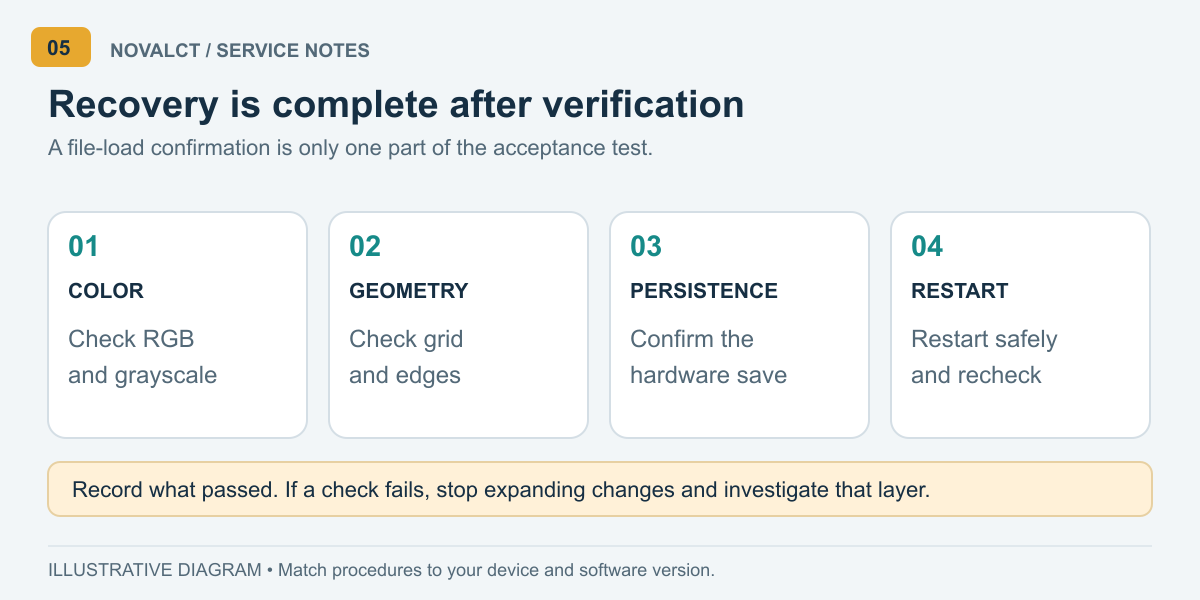
If the result is wrong, stop expanding the change. Keep the known-good archive intact and investigate one layer at a time. These are diagnostic starting points, not definitive causes.
| Symptom | Check first | Next action |
|---|---|---|
| File will not load | File type, extraction, NovaLCT version, hardware match | Preserve the file; compare with its original environment |
| Wrong colors or scrambled cabinet | Receiver-file match and module identification | Stop broad sends; test the approved file on one target |
| Repeated or misplaced image | Coordinates, port order, and physical cables | Compare the map with the installed route |
| Problem returns after restart | Hardware-save result and actual target device | Verify persistence before another restart |
| One cabinet looks different | Module batch, calibration, and local settings | Preserve coefficients; request a focused technical review |
When escalating, provide the exact symptom, what changed, the files used, the NovaLCT version, and before/after images. This is more useful than repeatedly loading unrelated downloads and losing track of the original state.
7. Build a maintenance handover package
Keep one accepted project folder with receiver files, the screen connection, supported system backups, a hardware list, version records, and verification evidence. Include a short restore note identifying which file belongs to each cabinet type and which settings need separate attention.
Maintain at least two independently accessible copies, with one away from the service laptop. A synced folder can be useful, but accidental deletion or overwriting may propagate. Retain dated revisions and confirm that another authorized technician can actually retrieve the package.
For procurement, ask suppliers to identify configuration delivery and recovery assistance in the handover scope. For a replacement purchase, submit the existing module, receiver, hub-board, and cabinet information before accepting an “equivalent” part. The cost of a spare is only one part of the maintenance decision.
After approved changes, export a new NovaLCT recovery set and document why it supersedes the old one. Preserve the previous accepted revision for rollback; avoid filenames such as “final-new-latest” that give the next technician no reliable history.
A simple change log should name the person responsible, the affected cabinets, the reason for the change, and the tests completed. Record unresolved limitations as well. If a contractor tested only one port, the archive should not describe the entire screen as verified. Tie each NovaLCT backup revision to the evidence actually collected.
8. Frequently asked questions
1. What should a buyer request before the LED display ships?
Request the approved cabinet files, wiring and port map, hardware list, software/firmware version record, and relevant calibration material. Ask who maintains the NovaLCT recovery package after installation, because the final site topology may differ from the factory test layout.
2. Can a replacement cabinet use the backup if its pixel pitch matches?
Not on that information alone. Confirm module resolution, driver IC, scan design, receiver, hub-board arrangement, and data flow. Ask the supplier to confirm file compatibility against the actual replacement parts before sending settings.
3. Is configuration recovery included with a replacement receiving card?
Do not assume so. Ask whether the quotation covers the hardware only, remote configuration assistance, calibration work, or on-site commissioning. Request a clear acceptance test and identify who supplies the approved files. Scope and pricing depend on the specific service agreement.
4. How often should we refresh the NovaLCT backup?
Create a new accepted revision after commissioning and after approved changes to cabinet configuration, port wiring, supported system settings, or the software environment. Also capture the pre-change state. A useful schedule follows configuration changes rather than relying only on a calendar interval.
5. What if the original commissioning technician is unavailable?
Start with project records and a readback from compatible, known-working hardware where possible. Preserve the current condition and ask the display supplier to identify missing files. Avoid making a working cabinet unavailable by experimenting with unverified settings.
6. Who should own the cloud backup account at handover?
Agree on an organization-controlled owner, recovery contact, and access arrangements. Verify that authorized maintenance staff can retrieve the relevant screen’s configuration. Keep credentials out of broadly shared project folders, and retain a usable local recovery package for offline service.
7. Does a redundant controller eliminate the need for NovaLCT file backups?
No. Redundancy and archived configuration address different maintenance needs. A backup controller does not, by itself, document cabinet compatibility or preserve a history of accepted settings. Test the project’s redundancy separately and retain the recovery files.
9. Conclusion
A dependable NovaLCT recovery package combines correctly identified files with a clear hardware record and a verified restore procedure. Read the working display before exporting, retain both cabinet parameters and screen topology, add supported system backups, and check hardware persistence after recovery.
For an HonghaiLED installation or replacement-parts enquiry, contact HonghaiLED with your project or order reference, controller and receiving-card models, module details, NovaLCT version, existing files, and a description of the issue. Those details provide a practical starting point for checking configuration compatibility and the support your project requires.
Related Posts
LED Display Redundancy: A Buyer’s Failover Test Guide
LED display redundancy is a planned alternative path that keeps…
NovaStar H Series vs VX Series: Which Controller Is Right for You?
NovaStar H Series vs VX Series comes down to architecture…
NovaStar TB50 Multimedia Player: Specs, Setup and Software
The NovaStar TB50 multimedia player is an all-in-one Taurus-series controller…

No Comments