
Colorlight X20 Manual & Full Setup Guide (2026)
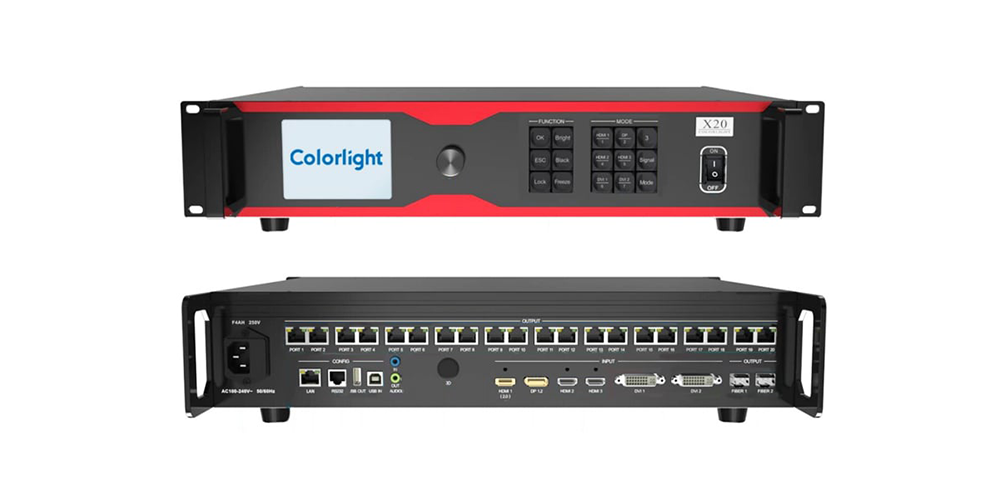
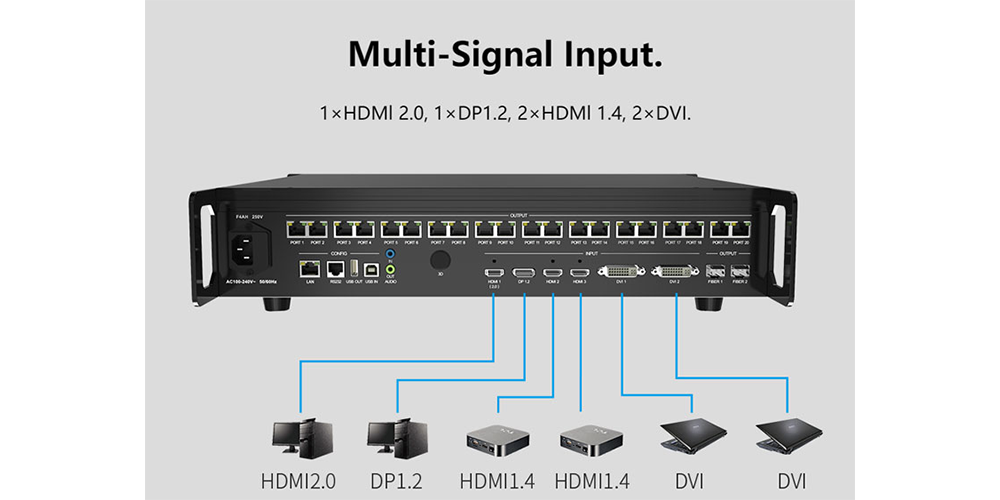
Quick answer: The Colorlight X20 is a 4K LED video processor (LED display controller) with 1× HDMI 2.0, 1× DP 1.2, 2× HDMI 1.4 and 2× DVI inputs, 20× Gigabit Ethernet outputs plus 2× 10G fiber ports, and a maximum load of 13 million pixels (up to 16,384 px wide and 8,192 px high). It is configured with Colorlight iSet and updated with LEDUpgrade. The X20 user manual, the X20 specification and the X20 firmware package are hosted on this page.
The Colorlight X20 is built for jobs where a wall has to be driven from several high-resolution sources at once — rental stages, broadcast studios, exhibitions, control rooms and large fixed LED screens. It takes 4K inputs, splits and scales them into up to six windows, and pushes the result to the receiving cards over 20 Gigabit Ethernet ports or 2 × 10G fiber.
This guide covers the three things X20 users actually need: the manual, specification and firmware downloads, the verified technical data, and the step-by-step setup process in iSet — followed by troubleshooting for the faults that stop a screen from displaying.
What this Colorlight X20 guide covers
- Colorlight X20 at a glance
- Colorlight X20 technical specifications
- X20 manual, specification and firmware downloads
- Before you start: five checks
- X20 setup steps in Colorlight iSet
- How to check the 13-million-pixel load limit
- Troubleshooting the Colorlight X20
- Colorlight X20 vs VX20
- Colorlight X20 FAQ
1. Colorlight X20 at a glance
| Item | Detail |
|---|---|
| Product type | 4K LED video processor / LED display controller |
| Inputs | 1× HDMI 2.0, 1× DP 1.2, 2× HDMI 1.4, 2× DVI |
| Outputs | 20× Gigabit Ethernet; 2× 10G fiber (SFP+ modules optional) |
| Maximum load | 13 million pixels |
| Maximum canvas | 16,384 px wide × 8,192 px high |
| Windows | Up to 6 windows, freely positioned and scaled; minimum window 64 × 64 px |
| Audio | Independent audio in/out; embedded HDMI and DP audio can be separated |
| Control | LAN (TCP/IP); third-party control over TCP/UDP/RS-232 |
| Software | Colorlight iSet for screen setup; Colorlight LEDUpgrade for firmware |
| Typical use | Rental stages, broadcast, exhibitions, control rooms, large indoor and outdoor walls |
| Documents on this page | X20 user manual V2.0, X20 specification, X20 firmware (PCB1.1 V2.40) |
2. Colorlight X20 technical specifications
The table below lists the published X20 data. If a feature depends on the receiving card (for example a special display mode), the receiving card must support it as well.
| Category | Specification |
|---|---|
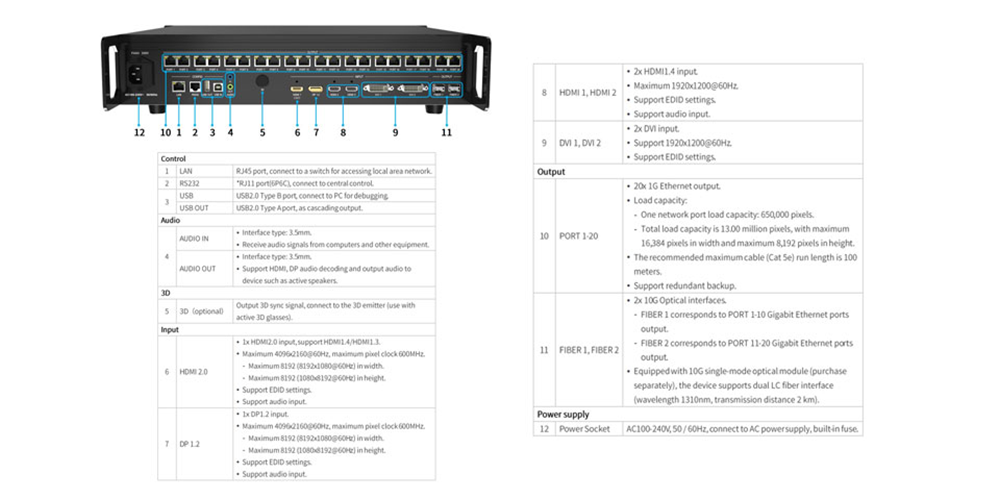
| Input connectors | 1× HDMI 2.0, 1× DP 1.2, 2× HDMI 1.4, 2× DVI |
| Input resolution | Up to 4096 × 2160 @ 60 Hz |
| Loading capacity | 13,000,000 pixels |
| Maximum width | 16,384 pixels |
| Maximum height | 8,192 pixels |
| Output connectors | 20× Gigabit Ethernet (RJ45) |
| Optical output | 2× 10G fiber ports (optical modules optional) |
| Output limitation | Ethernet port output and optical port output cannot be used at the same time |
| Windows / layers | Up to 6 windows with free position and size; minimum window size 64 × 64 px |
| Video processing | Seamless source switching, cropping, splicing and broadcast-grade scaling |
| Audio | Independent audio input and output; HDMI/DP embedded audio can be separated |
| Control interfaces | LAN (TCP/IP); third-party control over TCP/UDP/RS-232 |
| Cabling guidance | Use standard Gigabit Ethernet cabling to the receiving cards (≈100 m maximum per copper run); use the 10G fiber ports for longer distances |
Figures above follow the Colorlight X20 specification. Product batches and firmware can change; always confirm the model and revision printed on your unit before ordering spares.
3. X20 manual, specification and firmware downloads
Download the documents you need before you start. The manual is the reference for menu items and connection diagrams; the specification is the reference for the numbers in this article.
| File | Version hosted here | What it is for |
|---|---|---|
| Colorlight X20 user manual (PDF) | V2.0 | Front and rear panel layout, menus, connection examples and configuration steps |
| Colorlight X20 specification (PDF) | X20 specification | Inputs, outputs, loading capacity and supported features |
| Colorlight X20 firmware (ZIP) | PCB1.1 V2.40 (main ARM 51.92 / FPGA 11.92 / FPGA2 1.20 / front ARM 52.22 / output board 1.60) | Firmware upgrade package for the X20 |
| Colorlight software: iSet and LEDUpgrade | Current versions listed on the download page | iSet for screen setup and control, LEDUpgrade for firmware installation |
Version note: Colorlight’s own download centre also lists a newer PCB1.1 V2.60 package for the LAN version of the X20. Check the PCB revision and the current firmware on your processor (status screen) before upgrading, and keep the version that matches your approved project or service record.
4. Before you start: five checks
- Screen size in pixels. Multiply the cabinet resolution by the number of cabinets in each direction. The result must fit the X20’s 13 million pixel budget.
- Receiving card model. Note the card type and how many pixels each card handles, so the port plan in iSet matches the hardware.
- Cable plan. Count how many cabinets sit on each output. Keep copper runs inside the Gigabit Ethernet limit and use the 10G fiber ports when the distance or cable count grows.
- Sources and resolutions. List every source and its resolution and frame rate (for example 3840 × 2160 @ 60 Hz) and decide which input each one uses.
- Firmware and software versions. Record the firmware on the processor and install the current iSet version so screens and parameter files stay compatible.
5. X20 setup steps in Colorlight iSet
The sequence below follows the way the X20 is normally commissioned: connect the video chain, bring the processor onto the network, build the screen in software, then add windows and audio.
Step 1 – Download the manual, specification and firmware
Download the files from the download table above. Install iSet and LEDUpgrade from the Colorlight software download page rather than from an unknown mirror, and keep the firmware version that matches your processor revision.
Step 2 – Connect the video inputs
Match each source to the right input. A practical mapping for the X20’s four input types:
| Source | Use this input | Notes |
|---|---|---|
| 4K / UHD player or PC | HDMI 2.0 or DP 1.2 | Up to 4096 × 2160 @ 60 Hz |
| 1080p / 2K playback | HDMI 1.4 or DVI | Keep HDMI 2.0 and DP free for the 4K sources |
| Camera or switcher output | HDMI 2.0 or HDMI 1.4 | Match the frame rate to the on-camera refresh you use for the wall |
| Audio feed | Independent audio in, or embedded HDMI/DP audio | The X20 can separate embedded audio and output it independently |
Step 3 – Connect the outputs to the receiving cards
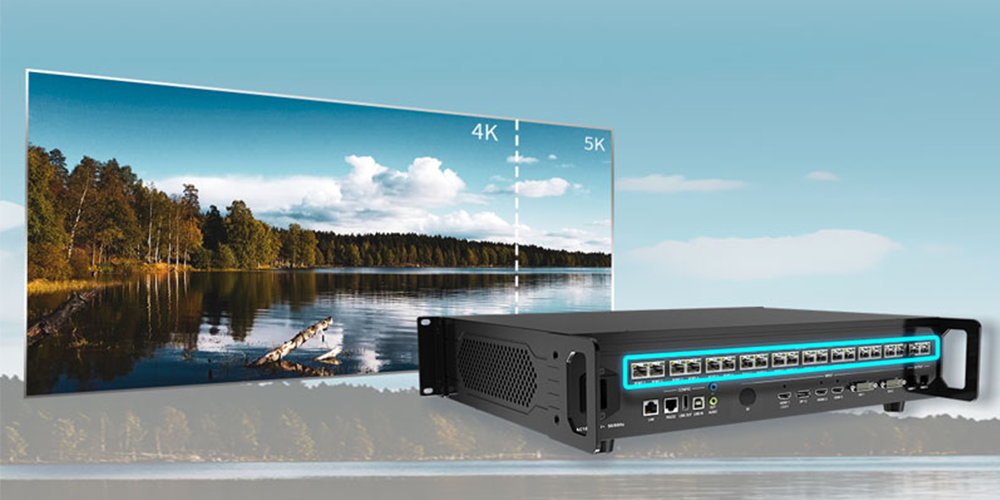
- Copper: run CAT5e or better from the X20’s 20 Gigabit Ethernet ports to the first receiving card in each chain.
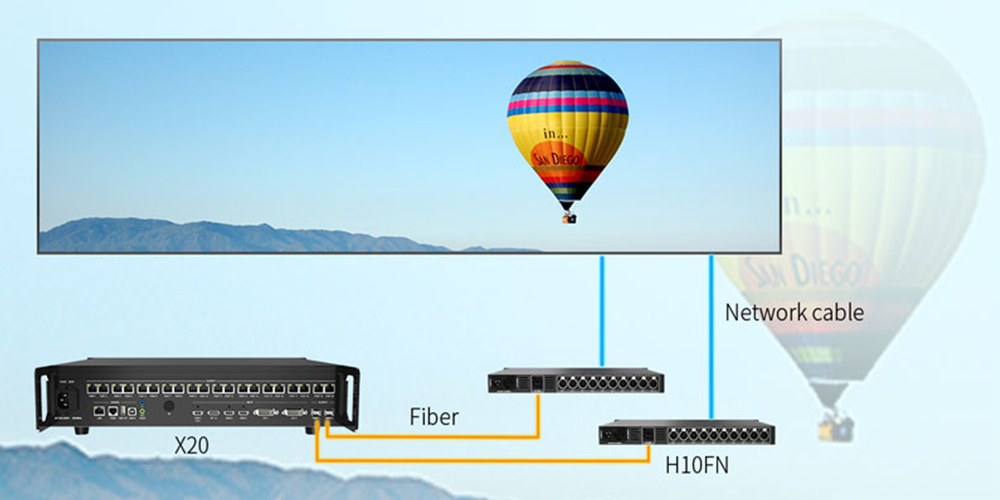
- Fiber: use the 2 × 10G fiber ports for long spans or high port counts.
- Important: Ethernet output and optical output cannot be used at the same time — decide which path the wall uses before wiring, because the two paths share the same output capacity.
Step 4 – Install iSet and find the processor on the network
Install iSet, connect the processor to the same network as the control PC, and give the PC an IP address in the same subnet as the X20. If the device does not appear in the list, test with a direct cable and check that no other device is using the same address.
Step 5 – Create the screen and enter the parameters
Add a new screen, then enter the parameters that describe the physical wall: resolution, receiving card type, cabinet size and the number of cabinets per port. This step is what stops the wall from showing a scaled or scrambled image.
Step 6 – Map inputs and build the windows
The X20 can display up to six windows at the same time, each with its own position and size (minimum 64 × 64 px). Place the windows you need, then use cropping and scaling to fit the source content exactly on the wall.
Step 7 – Set up audio
Choose the audio source you want — the independent audio input or the embedded audio from the HDMI or DP signal — and set the output level for your speaker system.
Step 8 – Upgrade the firmware with LEDUpgrade
If the project needs a newer firmware, run LEDUpgrade on a stable connection and select the package that matches your processor. Do not interrupt the update, and keep the previous parameter files so you can restore a known-good state.
Step 9 – Test and fine-tune
Feed a test pattern, check every cabinet for correct port mapping, then set brightness and colour temperature for the room. Confirm the total pixel count is still inside the 13 million limit before you finalise the layout.
6. How to check the 13-million-pixel load limit
Loading capacity is about the total number of pixels in the canvas the X20 drives, not the resolution of the input video. Multiply width by height, then compare with 13,000,000:
| Canvas size | Pixels | Fits the X20? |
|---|---|---|
| 1920 × 1080 | 2.07 million | Yes |
| 3840 × 2160 (UHD) | 8.29 million | Yes |
| 5120 × 2880 | 14.75 million | No — reduce the canvas or split the wall |
| 16384 × 512 (wide strip) | 8.39 million | Yes — inside the 16,384 px width limit |
| 512 × 8192 (tall strip) | 4.19 million | Yes — inside the 8,192 px height limit |
The 16,384 × 8,192 figures are the maximum width and maximum height of the canvas — not a canvas you can fill at once. The total is still capped at 13 million pixels.
7. Troubleshooting the Colorlight X20
Most X20 faults come from four things: the input signal, the port mapping, the network settings, or firmware that does not match the hardware. Work through the table in order.
| Symptom | Likely cause | What to do |
|---|---|---|
| No image on the wall | Input not selected, EDID/signal mismatch, or a bad cable | Check the source resolution and frame rate, test the cable and source on a known-good input, then confirm the input is assigned to a window |
| Menus show on the processor but the wall stays black | Output ports not mapped to the screen, or the receiving cards are not in the chain | Re-check the port-to-cabinet mapping in iSet and test the Ethernet chain port by port |
| Image flickers or rolls | Refresh rate not matched to the source or camera | Adjust the output refresh and scan settings until the wall stops beating against the camera |
| Colour differences between cabinets | Wrong cabinet parameter or calibration data | Re-upload the cabinet parameter and calibration file for the affected cabinets so every cabinet uses the same data |
| The wall is cut off at the edges | Canvas exceeds the maximum width, height or total pixel budget | Reduce the canvas, or split the wall across processors so each one stays inside 13 million pixels |
| Fiber output does not work while the Ethernet ports are connected | Ethernet and optical output cannot run at the same time | Choose one output path and disconnect the other |
| Cannot connect to the X20 from the PC | IP addresses on different subnets, an IP conflict, or a firewall | Put the PC and processor on the same subnet, remove conflicts, and test with a direct cable |
| Firmware update fails | Package does not match the model or PCB revision, or the connection dropped | Confirm the exact model and revision, use the matching firmware package, and repeat the update on a stable connection |
8. Colorlight X20 vs VX20
The VX20 is the newer professional processor in the same family. Both share the 16,384 × 8,192 canvas, so the choice usually comes down to input types, optical capacity and redundancy.
| Aspect | Colorlight X20 | Colorlight VX20 |
|---|---|---|
| Inputs | 1× HDMI 2.0, 1× DP 1.2, 2× HDMI 1.4, 2× DVI | 2× HDMI 2.0, 2× DP 1.2, 4× HDMI 1.4, 2× 12G-SDI |
| Ethernet outputs | 20× Gigabit Ethernet | 20× Gigabit Ethernet |
| Fiber outputs | 2× 10G fiber | 4× 10G fiber (2 primary, 2 backup/copy) |
| Maximum load | 13 million pixels | 13.1 million pixels |
| Maximum canvas | 16,384 × 8,192 | 16,384 × 8,192 |
| Work modes | Not documented in the X20 specification | Video processor, fiber optic transceiver, bypass |
| Redundancy | Not documented in the X20 specification | Fiber and Ethernet loop redundancy, processor redundancy |
| Presets | Not documented in the X20 specification | Up to 1,000 presets plus preset loop |
| Control | iSet, LAN (TCP/IP), TCP/UDP/RS-232 | iSet, front touch panel, cross-platform web app |
| Best for | Cost-effective 20-port 4K processing and sending | Redundant shows, SDI workflows and long fiber runs |
Read the full features, specifications and application notes for the newer model in our Colorlight VX20 video controller guide, or check the model against the other processors we cover in the LED control system section, including the NovaStar MCTRL4K and the NovaStar MX2000 Pro.
Note on the name: Colorlight lists an X20m as a separate model in the same family. If you searched for “Colorlight X20m”, check the model printed on the rear panel of your processor — the data on this page describes the X20.
9. Colorlight X20 FAQ
Where can I download the Colorlight X20 user manual?
The X20 user manual (V2.0) is a PDF hosted on this site — use the download table above. It covers the front and rear panel, the menus, connection examples and the configuration steps.
What software does the Colorlight X20 use?
The X20 is configured with Colorlight iSet, and its firmware is installed with Colorlight LEDUpgrade. Both are listed on our Colorlight software download page, with the platforms and versions available for each tool.
How many pixels can the Colorlight X20 load?
Up to 13 million pixels, with a maximum canvas width of 16,384 px and a maximum height of 8,192 px. A 3840 × 2160 UHD canvas (8.29 million pixels) fits comfortably; a 5120 × 2880 canvas does not.
Can I use the 20 Ethernet ports and the fiber ports at the same time?
No. Ethernet port output and optical port output cannot be used at the same time on the X20, so plan the wall around one output path.
How many windows can the X20 display?
Up to six windows, each with independent position and size, down to a minimum window size of 64 × 64 pixels. Windows can be cropped and scaled to fit the wall.
Does the X20 support audio?
Yes. The X20 has independent audio input and output and can separate (de-embed) the audio carried inside the HDMI and DP signals.
What is the difference between the Colorlight X20 and VX20?
The VX20 adds 2 × 12G-SDI inputs, up to 4 × 10G fiber ports, redundant output paths, more presets and web-app control. The X20 keeps the 20-port Gigabit Ethernet design with 4K HDMI/DP inputs at a lower cost.
How much does the Colorlight X20 cost?
Colorlight does not publish a list price, and supplier quotes vary by region, configuration, warranty and whether optical modules or a flight case are included. Ask for a written quote that lists the processor revision, optical modules and warranty so you can compare offers properly — you can send us your project details for a current price.
10. Summary
The Colorlight X20 remains a practical 20-port 4K processor: 1× HDMI 2.0, 1× DP 1.2, 2× HDMI 1.4 and 2× DVI inputs, 20 Gigabit Ethernet outputs, 2 × 10G fiber, six windows and 13 million pixels of loading capacity. Download the manual and firmware from the table above, install iSet, build the screen before you build the windows, and keep the total canvas inside the load limit.
Specification figures on this page follow the Colorlight X20 specification and the X20 user manual hosted on this site. Screen projects also depend on the receiving cards, power and mechanical design — see our LED screen buying guide when you plan a new wall.
Related Posts
Colorlight VX20 4K Video Processor: Specs, Modes and Pixel Capacity
Colorlight VX20 is a 4K video processor with integrated LED…
How to Back Up and Restore NovaLCT Configuration Files
To back up NovaLCT configuration files, read the working settings…
LED Display Redundancy: A Buyer’s Failover Test Guide
LED display redundancy is a planned alternative path that keeps…

No Comments