
NovaStar TB20 Plus: Specifications, Manual, Software & Setup
The NovaStar TB20 Plus is an LED multimedia player for projects that need scheduled content and an occasional live HDMI source. It combines playback and LED sending, making it useful for shop signs, information screens and compact commercial displays. Choosing it correctly means checking the screen’s pixel count, the required input signal and how staff will update content.
This guide explains the NovaStar TB20 Plus specifications, manual and software options, commissioning workflow, model comparisons and purchasing checks. It also separates three frequently confused limits: LED output capacity, HDMI input resolution and stored-video decoding. The engineering examples below are planning calculations, not claims that every cabinet layout or receiving card will work without configuration.
Documentation basis: Hardware details were checked against NovaStar’s TB20 Plus Multimedia Player Specifications V1.0.4, released August 31, 2026. Earlier documents differ in USB, playback and scaling descriptions. Match the documentation to the supplied hardware and firmware before installation; the setup guidance below is a commissioning checklist rather than a substitute for the matching manual.
1. What Is the NovaStar TB20 Plus?
The NovaStar TB20 Plus multimedia player sits between content creation and the receiving cards inside an LED display. A designer prepares the programme, the player stores or receives the picture, and the receiving-card system distributes image data across the modules. The player does not replace cabinet power supplies, receiving cards or the screen’s physical wiring.
For daily advertising, stored playback lets an operator send a new programme and disconnect the computer afterward. For a presentation, HDMI mode supplies a live picture. Decide which workflow matters most before selecting the controller: a shop that changes promotions weekly has different operational needs from a venue switching cameras throughout an event.
Searches such as “NovaStar TB20,” “TB20Plus” and “TB20 Plus NovaStar” may refer to this product, but always confirm TB20 Plus on the device label. A shortened search term is not proof that a different model, older unit or firmware package is interchangeable.
A useful purchasing brief states the exact screen resolution, cabinet arrangement, receiving-card model, content source and update method. Those details reveal compatibility much more reliably than describing a screen only as “large,” “high definition” or “outdoor.”
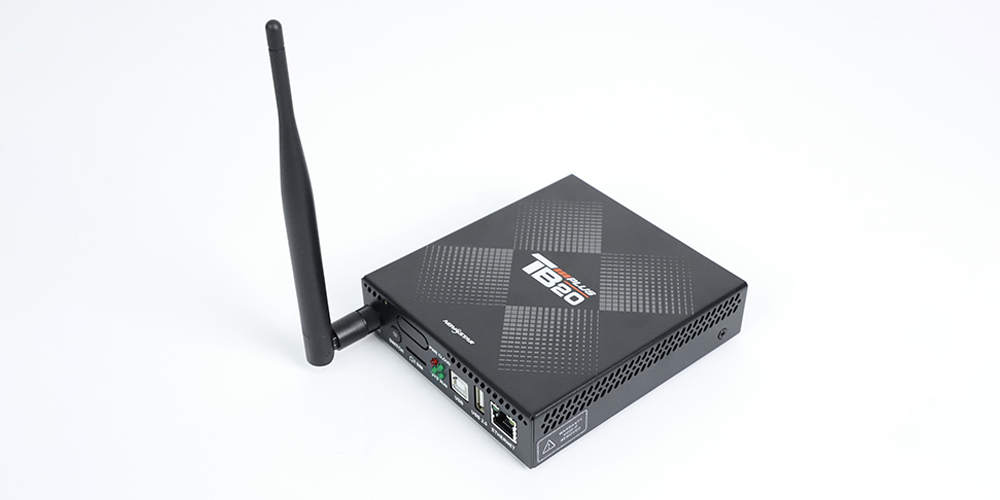
2. NovaStar TB20 Plus Specifications and Pixel Capacity
The NovaStar TB20 Plus has a 650,000-pixel loading limit. The table separates output, input and storage so specifications are easier to apply to a real installation.
| Item | Specification | Planning implication |
|---|---|---|
| LED output | 650,000 pixels; one Gigabit LED OUT | Calculate the complete connected canvas. |
| Canvas dimensions | Normal: up to 2048 wide or high; ultra-long: up to 8192 wide | Dimension limits do not override total pixel capacity. |
| Live source | HDMI 1.3; maximum 2048 × 1024 at 60 Hz | Check source timing separately from media decoding. |
| Memory | 2 GB RAM; 32 GB internal storage | Allow space for system files and programme updates. |
| USB storage | 2–128 GB; FAT32/NTFS; individual files below 4 GB | Use the current specification and test the drive. |
| Power and enclosure | DC 5–12 V; maximum 15 W; IP20 | Protect the player from water and use an appropriate supply. |
01. Calculate the NovaStar TB20 Plus screen load
Multiply horizontal pixels by vertical pixels. A 960 × 540 canvas contains 518,400 pixels; a 1280 × 720 canvas contains 921,600. The first passes the headline capacity check, while the second exceeds it. A wide 1920 × 320 strip contains 614,400 pixels, illustrating why aspect ratio matters more than the word “HD.”
For modular displays, calculate cabinet pixel dimensions first, then multiply by the number of cabinets across and down. Do not use physical metres as pixels. Pixel pitch helps estimate resolution, but the actual module and cabinet matrices determine the final configuration.
02. Treat ultra-long screens as a special layout
An 8192-pixel width allowance does not mean an 8192 × 2048 image can be sent to the LEDs. Even an 8192 × 80 strip would contain 655,360 pixels. Ultra-long content also needs the appropriate layout workflow; confirm it before promising that a normal HDMI desktop can fill the sign.
3. Key Features and Playback Modes
01. Synchronous versus asynchronous playback
On the NovaStar TB20 Plus, synchronous mode uses the live HDMI source, while asynchronous mode uses stored programme content. A live presentation therefore depends on its source device and cable. A stored promotion depends on the published programme, local clock and schedule. Testing one mode does not validate the other.
Write an operating procedure for staff: which mode starts each morning, who can switch it, and what content should appear after an event. Keep a clearly named fallback programme ready. A simple handover document can prevent an empty screen caused by leaving the player on an unused input.
02. Separate management networking from LED data
The ETHERNET control connection and LED OUT have different jobs. One connects management devices or the site network; the other feeds receiving cards. Label both ends of every cable during commissioning. Similar connectors do not make the two signal paths interchangeable, and a successful network login does not prove the display is mapped correctly.
The NovaStar TB20 Plus supports Wi-Fi access-point and station operation together, with optional cellular connectivity. Check coverage where the device will actually sit: a metal cabinet can change wireless performance substantially. Agree network access with the site administrator before installation day.
03. Plan multi-screen timing separately
Multiple players showing coordinated content need matching programme versions, timing and playback settings. Time synchronization does not turn independent players into an unlimited-resolution video processor. Test the complete content sequence across the actual screens, especially transitions and loop boundaries. NovaStar documents reduced decoding capability when synchronized multi-screen playback is enabled, so leave processing headroom.
4. Storage, Media Formats and USB Playback
01. What 4K decoding means
The NovaStar TB20 Plus can decode supported 4K media files, but that does not make its LED output a native 4K canvas. A 3840 × 2160 display contains 8,294,400 pixels. Decoding a large source and driving that many physical pixels are separate tasks, and the HDMI input has its own limit.
Create artwork around the final LED matrix. Large source files may be useful in a production workflow, but oversized text, thin lines and small logos should be judged at the installed viewing distance. Downsampling cannot preserve detail that the physical screen does not have enough pixels to display.
02. Prepare and validate media
A filename ending in MP4 identifies a container, not every property of the video inside it. Codec, resolution, frame rate and bitrate all affect compatibility. Export one short test clip using a supported combination before rendering an entire campaign. Keep the approved export preset with the project files.
For NovaStar TB20 Plus content acceptance, test still images, motion, fine text, gradients and the final audio track. Check the real screen rather than only the design monitor. If playback stutters, simplify the layout and reduce media complexity one change at a time; adding storage capacity does not increase decoding performance.
03. Use USB as a managed publishing workflow
Prepare a USB programme using the workflow supported by the installed software and firmware. Do not assume that dropping arbitrary videos into a folder will create a schedule. Keep a labelled, tested drive for the site and retain the original media elsewhere.
The NovaStar TB20 Plus USB guidance has changed between document revisions. Follow the current compatible instructions, check file sizes and verify the import result before removing the drive. Test a restart afterward: successful playback immediately after insertion is not the same as a confirmed recovery plan after power loss.
5. Application Scenarios and Installation Limits
01. Retail signs and advertising screens
The NovaStar TB20 Plus is a practical candidate for compact LED advertising displays that repeat promotions on a schedule. Plan readable message lengths, viewing distance and update ownership. A reliable small playlist often serves a shop better than a complicated layout that staff cannot maintain.
For multiple branches, give every screen an unambiguous location name and maintain a record of the approved campaign. Verify both publication and on-site appearance. A successful upload alone cannot confirm that a cabinet is powered or that a sign is visible to customers.

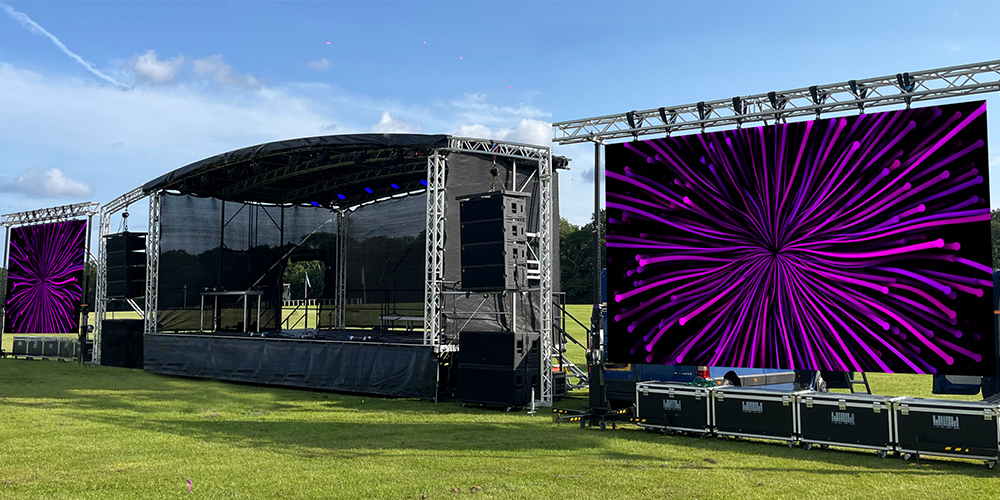
02. Rental events and temporary installations
A NovaStar TB20 Plus can suit a modest event screen after its resolution and source workflow are tested. For rental LED displays, include a rehearsal with the real laptop, adapters and content. Avoid assuming seamless switching, production-grade redundancy or camera latency performance from the presence of an HDMI connector.
03. Churches and meeting rooms
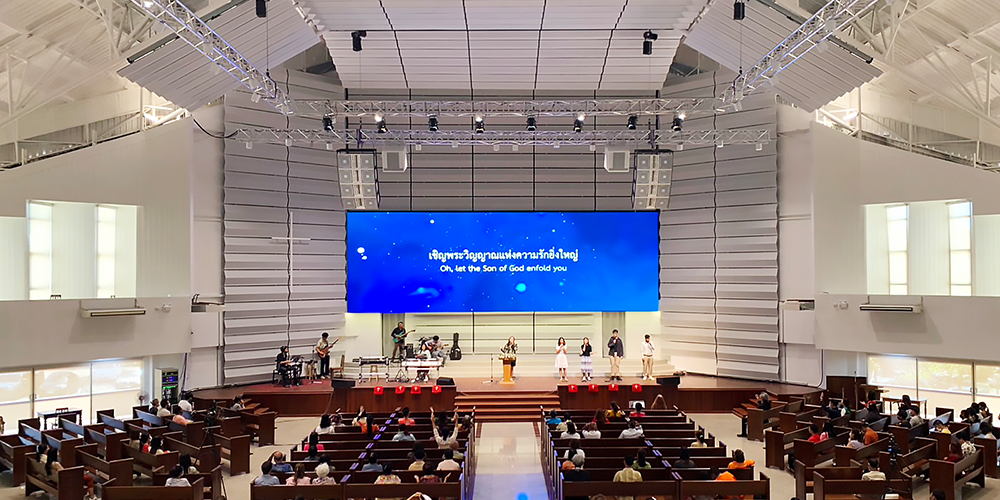
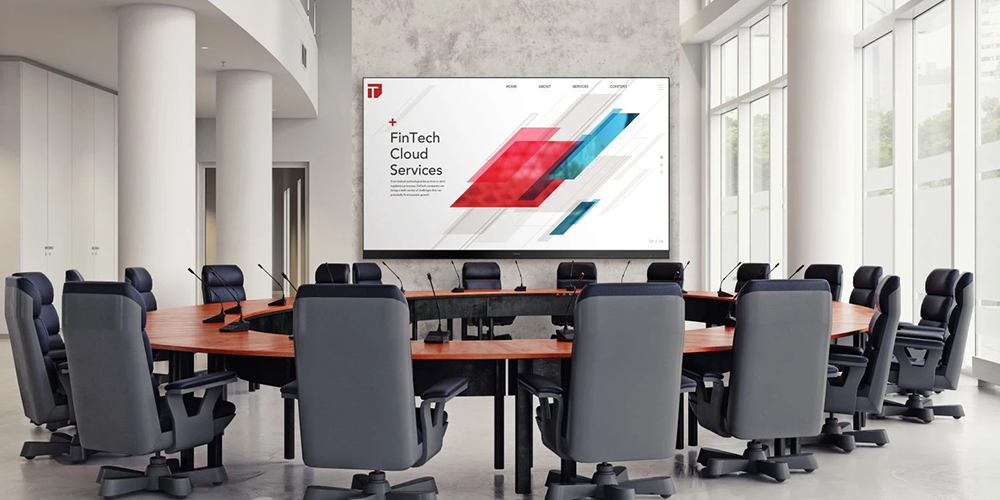
For a church, confirm that lyrics remain readable from the back row and that volunteers can restore the normal programme. For a meeting room, test the expected laptop output before the audience arrives. The NovaStar TB20 Plus may handle these jobs within its limits, but a larger wall or more demanding live workflow needs a different system design.
04. Outdoor cabinets and monitoring rooms
Outdoor signage requires an enclosure designed for rain, condensation, heat and cable entry. The player’s IP20 rating is not outdoor waterproofing. Check conditions inside the cabinet, not only the published weather forecast. Mounting, ventilation and access for maintenance belong in the installation plan.
For operational monitoring, define how failures will be detected and what should happen next. A NovaStar TB20 Plus installation should not be described as a redundant control-room system simply because it supports remote management. Backup signal paths and spare equipment must be designed explicitly.

6. TB20 Plus vs TB10 Plus, TB30, TB50 and TB60
Compare the NovaStar TB20 Plus with alternatives by workflow first, then capacity, interfaces and support requirements. Model numbers alone do not describe whether a player accepts a live source or how its output ports are configured.
| Model | Capacity reference | Live HDMI workflow | Selection point |
|---|---|---|---|
| TB10 Plus | 650,000 pixels | No sync/async switching in the family comparison | Consider for stored-content signage. |
| TB20 Plus | 650,000 pixels | HDMI input and mode switching | Compact signage with a live-source requirement. |
| TB30 | V1.2.4 datasheet: 1,300,000; family webpage: 650,000 | Not listed as an HDMI-switching model | Confirm firmware and primary/backup port configuration. |
| TB50 | 1,300,000 pixels | Supports synchronous and asynchronous switching | Assess for a larger hybrid installation. |
| TB60 | 2,300,000 pixels | Supports synchronous and asynchronous switching | Assess for a higher pixel load and more outputs. |
Comparison sources: NovaStar’s TB-series family page; TB30 Specifications V1.2.4; TB50 and TB60 Specifications V1.2.5. Checked October 10, 2026. The TB30 discrepancy is why a quotation should identify the supported configuration instead of relying on a copied comparison chart.
The TB30 guide, TB50 introduction and TB60 guide provide further background. Check their figures against the current model documentation when ordering. A higher-capacity player is useful only when its inputs, receiving-card compatibility and operating workflow also fit.
For a NovaStar TB20 Plus replacement, record the existing device label, firmware, cabinet map and saved configuration. Replacing a box with a more powerful model is not automatically a plug-and-play upgrade. Budget time to restore mappings, validate colour and brightness settings, and confirm the publishing account can reach the new device.
7. NovaStar TB20 Plus Setup, Software and Manual
01. Find the right manual and software
Start a NovaStar TB20 Plus setup with three document types: the model specification for limits, the compatible software manual for publishing, and the screen configuration supplied by the cabinet manufacturer. A specification PDF is not a full step-by-step operator manual, and firmware is not desktop publishing software.
ViPlex Express provides a Windows workflow for Taurus content publishing; ViPlex Handy supports mobile operation. NovaLCT is used for LED screen configuration where supported by the installed system. VNNOX provides cloud publishing and management workflows. Confirm the supported versions and platform requirements before installation, particularly when servicing an older player.
HonghaiLED’s NovaStar software resource page and NovaLCT download and version archive help identify available tools. Archives may include older installers; do not select one solely because it appears first. Ask for the compatible TB20 Plus package if the listed version does not identify support for your device.
02. Commission the hardware and screen map
Before connecting the NovaStar TB20 Plus, record cabinet resolution, receiving-card type, module arrangement and cable order. Obtain the original configuration files and keep a separate backup. Establish a simple wiring diagram showing power, management network, LED data and any HDMI source.
Connect the screen according to the approved design, then verify one cabinet or a small section before commissioning the whole wall. Use test patterns to check cabinet order, orientation, missing regions and colour channels. A distorted pattern suggests configuration or data-path problems that a different advertising video will not fix.
Save the confirmed mapping and configuration with a meaningful project name. Record what was tested and which files belong to the installation. This is especially useful when another technician must replace a receiving card or restore a player months later.
03. Publish and test a complete programme
For NovaStar TB20 Plus software setup, discover the intended player and verify its identity before sending content. Create a canvas matching the commissioned screen, add a short test programme and publish it. Confirm playback on the physical display, then add the full schedule only after the basic path works.
Check date, time zone, scheduled start and end times, brightness settings and audio level. Test the first programme, a transition, the loop boundary and the next scheduled change. An unattended sign needs predictable behaviour outside office hours as well as during installation.
For HDMI operation, select a source timing supported by the player and verify the image boundaries. The current specification refers scaling calculations to separate instructions; do not promise unrestricted scaling from older summaries. Recheck after reconnecting the laptop or adapter, because the negotiated display mode may change.
04. Troubleshoot in a controlled order
| Symptom | Check first | Useful evidence |
|---|---|---|
| Player cannot be found | Power, selected network and management connection | Device label, connection method and network settings |
| Player online; screen black | Playback mode, schedule, brightness and LED data path | Indicator behaviour and a screen photograph |
| Image split or cabinets misplaced | Cabinet mapping and cable sequence | Wiring diagram and saved screen configuration |
| HDMI picture missing | Source output, adapter, cable and accepted timing | Source resolution and a known-working test source |
| USB update fails | Programme export, drive format and file size | Software version and exact error message |
| Video stutters | Codec, bitrate, layout complexity and synchronization | A short reproducible media sample |
Change one variable at a time and preserve the working configuration. Avoid a factory reset as the first troubleshooting step: it can remove information needed to diagnose the fault and extend downtime. If support is required, send the symptom, firmware version, screen matrix and steps already tested.
8. NovaStar TB20 Plus Price and Buying Checklist
A meaningful NovaStar TB20 Plus price is a dated quotation for a defined configuration. An advertised base-unit figure may exclude cellular hardware, shipping, tax, commissioning or support. This guide does not present an unverified reseller range as HonghaiLED’s current selling price.
Request an itemized offer specifying the exact player, power adapter, optional modules, antennas, quantity and delivery destination. Ask whether configuration assistance is included and who provides after-sales support. For a replacement, include the existing model and firmware so the supplier can check the migration requirements.
The NovaStar TB20 Plus buying checklist should also cover the screen matrix, HDMI requirement, network availability and access for servicing. If the display must operate continuously, agree a recovery procedure and consider a configured spare. Downtime and repeated site visits can outweigh a small saving on the controller itself.
For a comparable quotation, send the same brief to each potential supplier and compare the delivered scope rather than only the headline price. Confirm warranty terms, lead time and any recurring connectivity or cloud charges in writing. Use the enquiry form on this page to request a configuration review before ordering.
9. FAQs About the NovaStar TB20 Plus
01. How many pixels can the NovaStar TB20 Plus control?
The published maximum is 650,000 pixels. Multiply the complete screen width by its height, then check dimension and configuration limits. Passing the arithmetic check is the first selection step; receiving-card compatibility and cabinet mapping still need confirmation.
02. Where do I find the NovaStar TB20 Plus manual?
Identify the exact model and firmware first. Use the model specification for hardware limits and the matching ViPlex or NovaLCT documentation for software tasks. HonghaiLED can help identify the relevant package; a generic Taurus manual may not describe every TB20 Plus revision.
03. Which NovaStar TB20 Plus software do I need?
ViPlex Express is the usual Windows content-publishing option, while ViPlex Handy supports mobile workflows. NovaLCT addresses supported screen-configuration tasks. Choose software by the job you need to perform and the versions supported by the player, rather than treating these tools as interchangeable.
04. Does 4K decoding mean the NovaStar TB20 Plus drives a 4K wall?
No. Media decoding, HDMI input and LED output are different limits. A native 3840 × 2160 wall exceeds this player’s pixel capacity. Design the display around its actual output load and test the chosen media format separately.
05. Can the NovaStar TB20 Plus run without an internet connection?
A correctly published local programme can support offline playback. Internet access is needed for remote cloud operations, while any online content dependency must be assessed separately. Test the intended offline behaviour on site before accepting the installation.
06. Is 4G included with the NovaStar TB20 Plus?
The standard specification describes the cellular module as optional. Confirm the ordered module, antennas, supported local network and data service in the quotation. A SIM slot on the enclosure does not establish that the required cellular hardware is installed.
07. Why is my NovaStar TB20 Plus screen black?
Check power, playback mode, active programme, brightness and the LED data connection before changing configuration. An online player can still have an unpowered or incorrectly mapped screen. Record indicator behaviour and test one known-working source to narrow the fault.
08. Is the TB20 Plus suitable for outdoor use?
The player itself has an IP20 enclosure, so it needs suitable protection inside an outdoor installation. Check water ingress, condensation, internal temperature and cable entry. Outdoor LED cabinets and the electronics inside them have separate environmental requirements.
09. What should I include in a price enquiry?
Provide the screen resolution, cabinet layout, receiving-card model, content source, management method, destination and quantity. State whether cellular connectivity and setup assistance are required. Those details make the quotation more useful than a request for the lowest unit price.
10. Conclusion: Is the NovaStar TB20 Plus Right for You?
The NovaStar TB20 Plus is worth considering when a compact LED installation needs both scheduled playback and a compatible live HDMI source. Start with the actual pixel matrix, establish the content workflow, and confirm the hardware and software versions. Then validate the result on the installed display.
A well-specified NovaStar TB20 Plus project includes more than the player: documented cabinet mapping, tested media, a reliable update process and a recovery plan. Share those requirements through the enquiry form on this page so the proposed configuration and quotation can be checked against the real screen
Related Posts
NovaStar MSD600 Sending Card: Specs, Manual & Setup
The NovaStar MSD600 sending card connects a live video source…
NovaStar MSD300 Sending Card: Specs, Wiring & Setup
The NovaStar MSD300 sending card connects a live DVI video…
NovaStar A10s Pro Receiving Card: Specs, Setup & Datasheet
The NovaStar A10s Pro is a compact LED receiving card…

No Comments