
NovaStar MSD300 Sending Card: Specs, Wiring & Setup
The NovaStar MSD300 sending card connects a live DVI video source to the receiving cards inside an LED display. Its two Gigabit Ethernet outputs carry the screen data, while a separate USB connection lets a computer configure the system. The key sizing figure is up to 650,000 pixels per output, giving a nominal combined ceiling of 1.3 million pixels when both outputs carry independent loads.
Choosing a NovaStar MSD300 means matching the video source, cabinet resolution and cable layout, not simply choosing a card advertised for a particular screen size. This guide explains the specifications, pixel calculations, NovaLCT setup, common faults and buying checks that matter during installation or replacement. It also compares the MSD300 with the MSD600 and explains why a supported input resolution does not automatically equal the number of physical LED pixels you can drive.
1. What is the NovaStar MSD300 sending card?
The NovaStar MSD300 is a synchronous LED sending card: the screen follows video supplied in real time. A computer, media source or upstream video processor generates the picture. The sending card distributes the required image data, and receiving cards inside the cabinets translate that data into the signals needed by the LED modules.
01. Understand the three different signal paths
Video: source output → DVI cable → NovaStar MSD300. Display data: sending-card Ethernet output → cabinet receiving cards → LED modules. Configuration: Windows computer → USB Type-B cable → sending card. Keeping these paths separate makes fault diagnosis much faster because a working USB connection says nothing about whether DVI video is present.
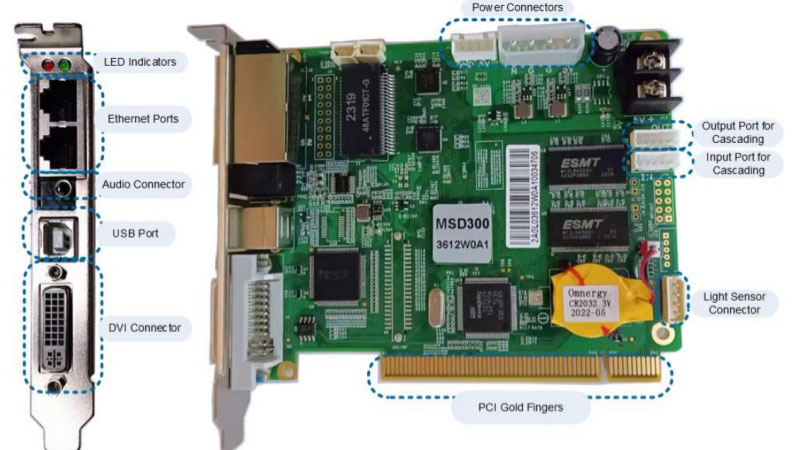
The RJ45 sockets carry LED display data in the control system. Follow the manufacturer’s supported wiring arrangement rather than connecting them to an office router or assuming any network switch will work. Label each outgoing cable with its port number and first cabinet. Keep a drawing showing the viewing side of the wall, since a rear-view sketch can accidentally reverse the intended mapping.
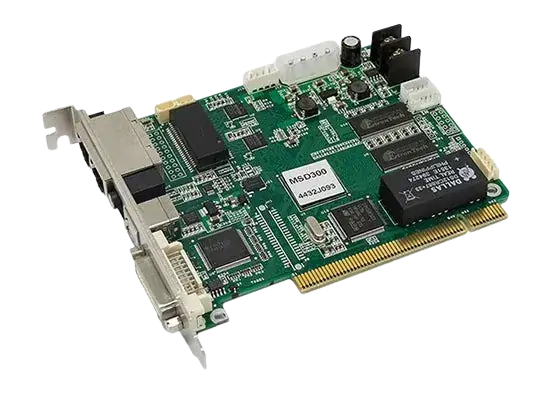
02. Know what the sending card does not replace
A NovaStar MSD300 sending card is not a complete video production system. Plan separately for scaling, switching between several sources, and fitting content to an unusual aspect ratio. If the source image must be resized, use suitable source settings or upstream processing; do not assume the sending card automatically scales everything to fill the wall.
You also need compatible receiving cards, module parameters, cabinet power and data wiring, and an appropriate installation enclosure. The source must continue delivering video for normal live playback. A stored startup image, where configured, is different from an independent playlist player. For unattended scheduled advertising, establish which device stores and schedules the content before choosing the rest of the control chain.
2. NovaStar MSD300 specifications and pixel capacity
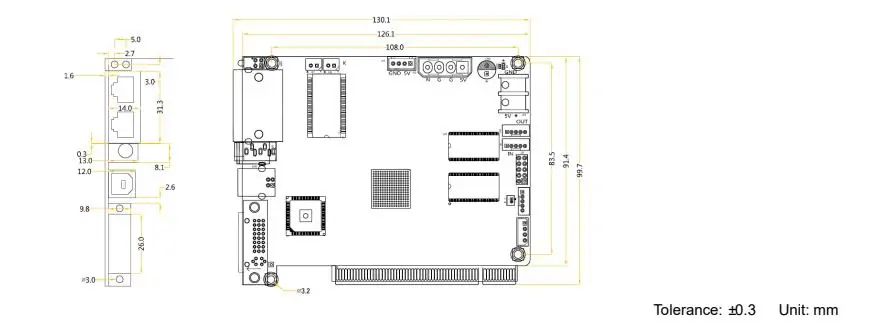
The following NovaStar MSD300 specifications refer to the base MSD300 and the manufacturer’s V2.4.2 specification, dated December 9, 2024. Check the printed board model and document revision for the supplied unit. A listing that combines MSD300 and MSD300-1 should not be treated as proof that all connectors, dimensions or firmware are interchangeable.
| Item | Published specification | What to check |
|---|---|---|
| Video input | 1 × single-link DVI; up to 1920 × 1200 at 60 Hz | Match the complete source timing. |
| Video format | 8-bit RGB 4:4:4; progressive input | Interlaced input is unsupported. |
| LED data outputs | 2 × Gigabit Ethernet; up to 650,000 pixels per port | Calculate each physical chain separately. |
| Control | USB Type-B; UART IN/OUT, up to 20 devices cascaded | Control cascading does not distribute video. |
| Other interfaces | Audio input and light-sensor connector | Confirm the associated accessories. |
| Power | DC 3.3–5.5 V; rated 0.6 A, 3 W | Verify the host supply and connections. |
| Environment | −20°C to +75°C; 10–90% RH, non-condensing | Protect against moisture and condensation. |
| Card size and weight | 130.1 × 99.7 × 14.0 mm; 104.3 g | Allow extra cable and service clearance. |
01. Separate input resolution from LED loading
The NovaStar MSD300 can receive a supported video canvas larger than its total LED output load. A 1920 × 1080 picture contains 2,073,600 pixels; a physical LED wall with that resolution exceeds the nominal 1,300,000-pixel output ceiling. Showing lower-detail content on the same wall does not reduce its physical pixel count.
For a smaller wall, identify the active content region within the source canvas and map that region deliberately. Check its position using a border and numbered grid. A desktop background may look acceptable even when the rightmost columns or bottom row of content are cropped. The full input timing, active mapped area and load on each output all need to agree.
02. Work out cabinet and port loads
Calculate from the cabinet’s actual pixel dimensions. In this illustrative NovaStar MSD300 project, each cabinet is 128 × 128 pixels and the wall is ten cabinets wide by six high. The resulting canvas is 1280 × 768 pixels. Two chains of 30 cabinets each stay below the published per-port ceiling, subject to receiving-card limits and the selected operating settings.
| Calculation | Result | Meaning |
|---|---|---|
| One cabinet | 128 × 128 = 16,384 pixels | Use this load for each cabinet in a chain. |
| Complete wall | 1280 × 768 = 983,040 pixels | Below the nominal two-port total. |
| 30 cabinets on one port | 30 × 16,384 = 491,520 pixels | A balanced two-chain proposal. |
| 40 cabinets on one port | 40 × 16,384 = 655,360 pixels | Over the 650,000-pixel port limit. |
The final row exposes a common planning error: spare capacity on the second output cannot compensate for an overloaded first output. These calculations are a sizing example, not approval of a particular cabinet combination. Draw the cable route and check the actual chain totals before commissioning the NovaStar MSD300.
03. Treat custom timing and redundancy separately
The V2.4.2 PDF lists custom input examples of 3840 × 600 and 548 × 3840 at 60 Hz. These are specific wide or tall timings, not full UHD support. NovaStar’s web summary differs on maximum height, so obtain confirmation for an unusual tall canvas rather than relying on a headline dimension alone.
A NovaStar MSD300 backup route also needs a separate capacity plan. Ethernet-port redundancy protects only the failures covered by the configured arrangement. Using a port as a backup does not add another independent 650,000-pixel region. Agree on the intended failure scenario and test it before the screen is required for an event.
3. MSD300 software, manual and NovaLCT setup
NovaLCT is the configuration tool for this synchronous-control workflow. Use HonghaiLED’s NovaLCT download and version guide and the NovaStar software and manual library to locate the appropriate resources. Select the synchronous-control manual, then confirm the software and firmware combination for the actual sending and receiving cards.
01. Prepare files and a recoverable configuration
Before changing a working NovaStar MSD300 installation, collect the existing cabinet configuration, screen-connection layout, source timing and software version. Keep a dated copy away from the commissioning computer. Photograph the cable labels and note any cabinets that use different receiving cards, module batches or parameters.
A receiving-card file, often supplied as .rcfg or .rcfgx, describes cabinet-level parameters. It is different from the application installer and from the drawing that maps cabinets across the wall. Do not use a file from a similar-looking panel simply because the pixel pitch matches. Ask the cabinet supplier for the file corresponding to the actual module electronics and wiring.
02. Connect the hardware and establish communication
With the equipment safely isolated for installation, have a qualified installer mount and power the card using the correct supply arrangement. Connect the video source to DVI, the configuration computer to USB Type-B, and each cabinet chain to its planned output. Follow the system’s power-up procedure, then open NovaLCT and confirm that the sending device is detected.
If the NovaStar MSD300 is missing from the device list, start with power, the USB data cable, the computer’s port and the communication driver. Searching for an MSD300 driver should not lead to downloading unrelated firmware. Driver installation enables computer communication; it does not provide video or create the correct cabinet configuration.
03. Set the source and receiving-card parameters
Begin with a documented progressive source mode and verify that the connected output is active. A laptop may be sending the presentation only to its internal display. Check the external-output mode and use a simple test image before introducing additional converters or more complex content.
Within the supported NovaLCT workflow, select the correct communication device and load the cabinet supplier’s receiving-card parameters. Confirm the result on a suitable test cabinet or controlled screen region before applying settings more widely. Keep brightness appropriate for commissioning. If the picture is scrambled or colors are wrong, stop and verify the file instead of experimenting across the whole wall.
04. Map the cabinets, test and save
Enter the actual cabinet pixel dimensions and place each receiving card in the screen-connection layout. Trace the physical cable order from each NovaStar MSD300 output. A chain that snakes down columns must be mapped in that order; dragging cabinets into a neat grid alone does not establish the correct data path.
Test red, green, blue, white, grayscale, a numbered grid and moving content. Look for missing regions, mirrored order, seams, incorrect colors and cropped edges. After confirming the mapping, send and save the configuration to the hardware using the controls provided by that software version. Export a matching local backup, then perform a planned restart to check that the approved settings persist.
For the NovaStar MSD300 handover, record the source resolution, refresh setting, firmware versions, cabinet files and port diagram together. Menu wording varies between NovaLCT releases, so use the matching manual when a screen differs from these steps. Firmware changes belong in a controlled maintenance window with the exact model’s package and a recovery plan.
4. MSD300 vs MSD600: which sending card fits?
The main MSD300 vs MSD600 decision is whether the source connection and cabinet routing fit the smaller card. The NovaStar MSD300 uses DVI and two Ethernet outputs. The MSD600 adds native HDMI input and four outputs. Extra outputs provide more routing options, but every proposed system still needs a supported input mode and a valid load on each chain.
| Decision factor | MSD300 | MSD600 |
|---|---|---|
| Video connection | Single-link DVI | Single-link DVI and HDMI 1.3 |
| LED output count | 2 Gigabit Ethernet ports | 4 Gigabit Ethernet ports |
| Standard 8-bit input ceiling | 1920 × 1200 at 60 Hz | 1920 × 1200 at 60 Hz |
| Configuration connection | USB Type-B; UART cascading | USB Type-B; UART cascading |
| Typical selection reason | An existing DVI system within two-port limits | Native HDMI or additional cabinet chains |
01. Choose by source and layout
If a small wall already has a compatible DVI source and two manageable chains, the NovaStar MSD300 may meet the requirement without adding ports. If HDMI is essential, compare native HDMI hardware with the cost and complexity of a compatible conversion path. A plug adapter alone does not establish that the source timing or signal format will be accepted.
Use our NovaStar MSD600 specifications and setup guide for the larger card’s input and output constraints. Neither a higher model number nor more sockets guarantees scaling, unrestricted 4K input, or compatibility with every receiving card.
02. Check MSD300-1 and replacement offers carefully
When replacing a NovaStar MSD300 sending card, compare the full model name, board revision, mounting, power connection, connectors and supported firmware. Treat MSD300-1 as a separate model to verify. Request photographs of the actual supplied hardware, especially when a sales listing groups several variants under one title.
For equipment that changes frequently, also compare the service access of a bare card with an enclosed sending controller. Allow room to replace cables and identify indicators without dismantling the entire rack. Physical installation convenience is a separate purchasing consideration from pixel capacity.
5. Applications, compatibility and image quality
A NovaStar MSD300 can be considered for fixed and rental LED systems when its limits match the project. Physical screen area is an unreliable guide: reducing pixel pitch increases the number of pixels in the same area. For indoor LED screens, calculate the exact cabinet resolution before choosing the controller, particularly for fine-pitch meeting-room and retail installations.
01. Plan for the way the screen is used
With rental LED displays, the cabinet arrangement may change at every event. Keep separate saved layouts and cable diagrams for each approved build. Recount the load when extra rows are added; a previously successful NovaStar MSD300 setup does not automatically validate a wider or taller wall.
The HonghaiLED video below shows a rental-screen application and cabinet format. Use the commissioning steps in Section 3 for control-system planning; the video illustrates the display application rather than a model-specific sending-card setup.
For outdoor installations, place the NovaStar MSD300 in a properly protected control environment. The board’s operating-temperature range is not an enclosure waterproof rating. Check ventilation, dust, condensation, cable strain and access for maintenance as part of the complete display design.
02. Separate brightness, calibration and refresh
The NovaStar MSD300 supports a light-sensor connection for automatic brightness control with the appropriate sensor and settings. Decide where the sensor will measure ambient light and verify the resulting screen brightness in real operating conditions. A sensor facing a different lighting environment from the audience can produce an unsuitable adjustment.
Pixel-level brightness and chroma calibration requires the supporting calibration system and valid coefficients. It is not created simply by installing a sending card. Likewise, source frame rate and LED refresh rate describe different things: incoming pictures per second versus the way receiving electronics drive the LEDs. For filmed events, test the complete screen with the intended camera settings instead of attributing every visible band or flicker to the NovaStar MSD300.
6. NovaStar MSD300 price and buying checklist
The NovaStar MSD300 price should be requested for an exact model, quantity, condition and delivery destination. An undated marketplace figure may cover a different revision, a bare board, or a package without the cables and support you need. This guide therefore uses a quotation checklist rather than presenting an unverified universal price.
01. Send enough information for a useful quotation
To compare NovaStar MSD300 offers, provide the following project details together. A photograph of the screen is useful context, but it cannot replace the pixel and hardware information needed to check the control system.
- Screen: cabinet count across and down, pixel dimensions per cabinet, and the proposed cable chains.
- Source: available connector, intended resolution and frame rate, and whether scaling or source switching is required.
- Hardware: sending-card label, receiving-card models, firmware versions and the available configuration files.
- Package: card quantity, cables, mounting or enclosure requirements, spare equipment and configuration assistance.
- Delivery: destination, required date, warranty arrangements, shipping costs and tax treatment.
02. Agree on acceptance and support
Ask what will demonstrate that the NovaStar MSD300 system meets the brief: correct content mapping, all cabinets operating, settings retained after restart, and any agreed backup behavior. Clarify who provides the final configuration files and who helps restore them if a card is replaced.
Compare the complete installed cost, including conversion hardware and commissioning time. A lower bare-card quotation may be less useful if it leaves the source connection or cabinet setup unresolved. Request an MSD300 compatibility check and current quote from HonghaiLED with the above information so the recommendation can address the actual wall.
7. MSD300 troubleshooting and frequently asked questions
For NovaStar MSD300 troubleshooting, first establish whether the fault concerns power, the incoming picture, communication with the computer, or cabinet output. Record the symptom before changing settings. Replacing several cables and loading new parameters simultaneously makes it difficult to identify the cause or restore the previous working state.
| Symptom or indicator | What it suggests | First check |
|---|---|---|
| Red STA indicator off | No power or abnormal power | Have the supply and connection checked before changing software. |
| Green RUN flashes once every two seconds | Video input is unavailable | Check the active source output, DVI cable and supported timing. |
| Green RUN flashes four times per second | Video input is present | If the wall is black, investigate output chains, mapping and cabinet settings. |
| Card missing in NovaLCT | Configuration communication is not established | Check power, USB data cable, driver and software compatibility. |
| Some cabinets missing or out of order | Output-chain or mapping issue is possible | Trace the affected port, first failed cabinet and cable sequence. |
| Wrong colors or scrambled modules | Cabinet parameters or hardware may be mismatched | Verify the exact receiving-card file, module wiring and known-good source. |
A green RUN indicator that pulses in a breathing pattern means Ethernet redundancy has taken effect according to the specification; very fast flashing indicates the startup image. Read indicators alongside the displayed picture and wiring plan. They narrow the investigation but do not certify that every cabinet or backup route is functioning correctly.
If a whole chain is missing, compare it with the working output and test one known-good cable at a time. If the fault starts midway through a chain, inspect the first affected cabinet and its incoming connection before replacing the NovaStar MSD300. Preserve the original parameters before any reset or firmware change.
01. What is the NovaStar MSD300 sending card used for?
The NovaStar MSD300 sends live video data from a DVI source to compatible LED receiving cards. It forms part of a synchronous LED control system. The source generates the content, while the receiving electronics control the modules inside the screen.
02. How many pixels can the NovaStar MSD300 control?
The published port limit is up to 650,000 pixels, with two outputs giving a nominal 1.3-million-pixel total for independent loads. Check each chain, receiving-card limits and operating mode. A backup output should not be counted as a second independent screen region.
03. Can the MSD300 drive a full HD LED wall?
A physical 1920 × 1080 wall has 2,073,600 pixels and exceeds the nominal output total. The NovaStar MSD300 can accept a supported full HD input, but accepting that signal is different from driving a full HD LED pixel array.
04. Does the NovaStar MSD300 have HDMI or play files from USB?
The base model has DVI video input. USB Type-B is the configuration connection, not a USB media-playback socket. For an HDMI source, verify a suitable signal-conversion arrangement or choose a controller with native HDMI that meets the screen requirements.
05. Which MSD300 software and manual should I use?
Use NovaLCT with the synchronous-control manual appropriate to your installation. Match the software and firmware to the sending card and receiving cards. Keep the working configuration and cabinet files before making changes; an installer is not a replacement for those files.
06. Is MSD300-1 automatically a direct replacement?
No. Verify the model, hardware revision, connectors, mounting, power requirements and firmware compatibility against the installed NovaStar MSD300. Similar names and photographs are insufficient for approving a replacement. Have the supplier confirm the intended cabinet and source combination.
07. Why is the screen black when the computer detects the card?
USB detection confirms only the control connection. Check whether the DVI source is active, inspect the RUN indicator, and then trace the cabinet data path. Also verify mapping, brightness and receiving-card parameters before concluding that the NovaStar MSD300 is defective.
08. Can multiple MSD300 cards run a larger screen?
A larger system can allocate screen regions to multiple sending devices, but each needs suitable video distribution and mapping. UART cascading supports control; it does not automatically divide or synchronize the source picture. Have the complete multi-device design checked before purchasing.
8. Conclusion: choose the right NovaStar MSD300 system
The NovaStar MSD300 sending card is a practical option when the DVI source, cabinet electronics and two-port loading fit the project. Start with exact cabinet pixels, trace each cable chain and identify how content will occupy the source canvas. Those checks are more useful than choosing from physical screen size or an input-resolution headline alone.
Before ordering a NovaStar MSD300, confirm the model variant and retain the cabinet files, port diagram and working software record. Before handover, test live content, power-cycle persistence and any planned redundancy. Send HonghaiLED the screen layout and source details for a sending-card recommendation and quotation based on the complete installation.
Technical references: NovaStar MSD300 Sending Card Specifications V2.4.2 (December 9, 2024), connector, indicator and specification sections; MSD600 Sending Card Specifications V2.4.1 (December 6, 2024); NovaLCT LED Configuration Tool for Synchronous Control System User Manual V5.8.1, screen-configuration sections. References checked October 10, 2026. Cabinet calculations and commissioning checks are explanatory guidance, not measurements from a product test. Original article author: Miki.
Related Posts
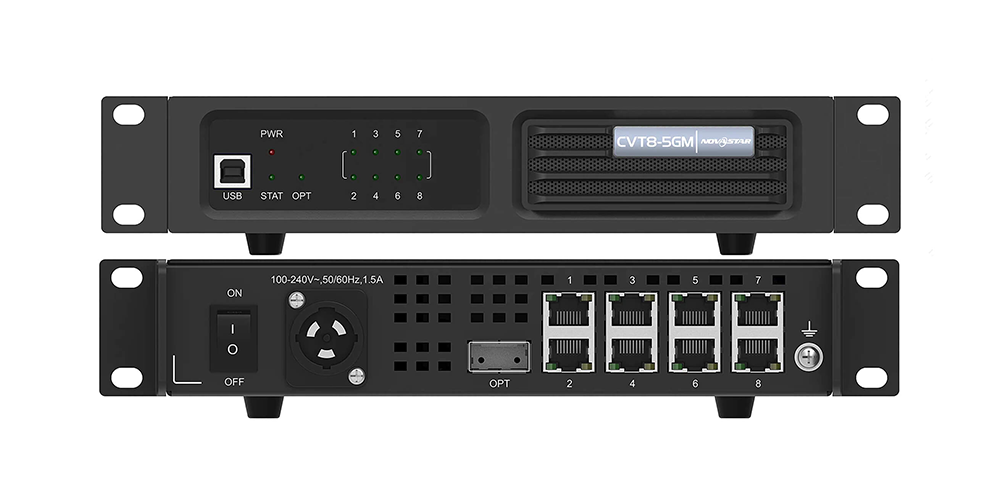
NovaStar CVT8-5GM Fiber Converter: Specifications, Setup and Manual
The NovaStar CVT8-5GM is a multimode LED display fiber converter…
NovaStar MRV416-N Receiving Card: Specs, Setup & Manual
The NovaStar MRV416-N receiving card connects a compatible LED controller…
NovaStar MRV412-N Receiving Card: Specs, Firmware and Setup Guide
The NovaStar MRV412-N receiving card connects a compatible LED display…

No Comments