
NovaStar MCTRL660 LED Display Controller: Specs, Manual, Software and Price
The NovaStar MCTRL660 is an LED display controller with one SL-DVI input, one HDMI 1.3 input and one audio input, four Gigabit Ethernet outputs, and a maximum input resolution of 1920×1200@60Hz. Each Ethernet port drives up to 650,000 pixels, a screen can be configured from the front panel in about 30 seconds without a computer, and up to 20 MCTRL660 units can be cascaded from a single source.
This page is a complete NovaStar MCTRL660 guide: verified specifications from NovaStar’s official MCTRL660 specification sheet (V1.4.5), a plain-English explanation of the loading capacity, the manual, firmware and NovaLCT downloads, step-by-step setup, indicator-light meanings, price factors, common problems and the exact differences between the MCTRL660 and the MCTRL660 Pro.
In short: the MCTRL660 suits a screen that runs from one 1920×1200 source and stays within the capacity of the controller, or of a cascade of up to 20 units. If you need 3G-SDI, 10G optical outputs, Genlock or web-based control, compare it with the MCTRL660 Pro first. If your screen is smaller and only needs one DVI source, the NovaStar MCTRL300 usually costs less.
1. What Is the NovaStar MCTRL660?
2. NovaStar MCTRL660 Specifications
3. MCTRL660 vs MCTRL660 Pro
4. Manual, Software and Firmware Downloads
5. How to Set Up and Configure the MCTRL660
6. Image Adjustment, Gamma and Calibration
7. Indicator Lights and Status Monitoring
8. NovaStar MCTRL660 Price and Value
9. Troubleshooting Common MCTRL660 Problems
10. FAQs About the NovaStar MCTRL660
11. Conclusion
1. What Is the NovaStar MCTRL660?
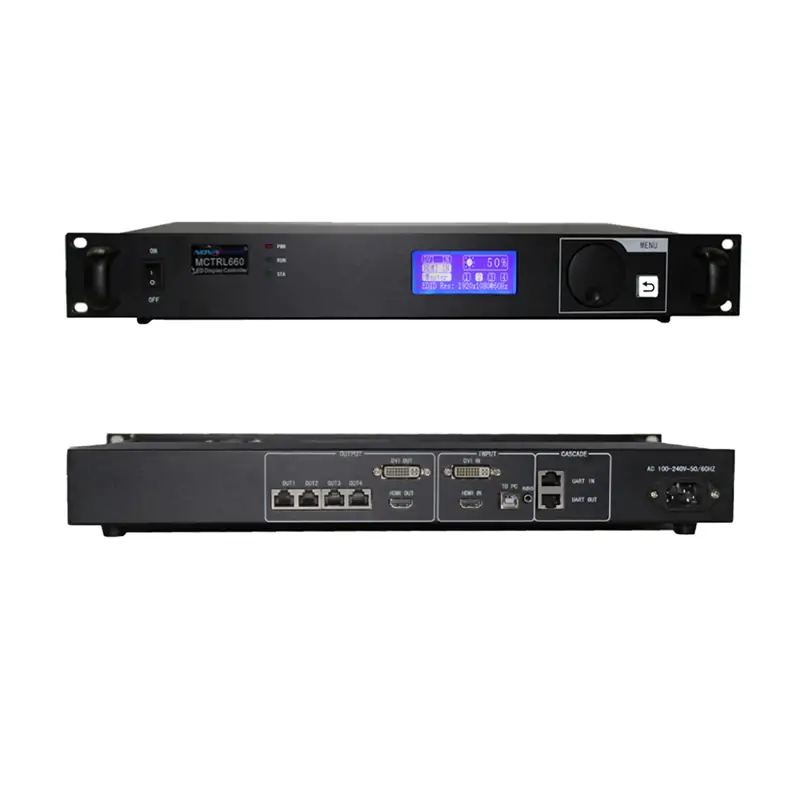
The NovaStar MCTRL660 is a standalone LED display controller, also described as a sending box or master controller. It converts a video signal into the data that LED receiving cards need, and sends that data to the screen over Gigabit Ethernet. NovaStar’s own MCTRL660 LED Display Controller Specifications document, version V1.4.5 released on 2026-04-17, describes one SL-DVI input, one HDMI 1.3 input, one audio input, four Gigabit Ethernet outputs, USB control from a PC and UART cascading for up to 20 devices.
Because it is a controller rather than an all-in-one video processor, the MCTRL660 has no built-in media player, no switching between several live sources and no network control page. NovaStar lists rental and fixed installations, concerts, live events, security monitoring centres, the Olympic Games and sports centres as its main applications. Those limits decide which screens it can drive, and they are explained in sections 2 and 3.
Key roles of the MCTRL660 controller:
- Accepts video from a PC, media server, camera or switcher over DVI or HDMI
- Processes and scales the signal for the LED screen resolution
- Sends the processed image data to LED screen modules through four Gigabit Ethernet ports
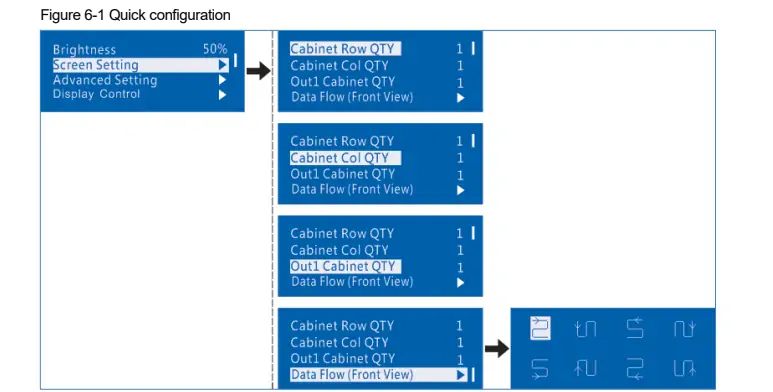
- Configures the screen without a computer, using the front-panel knob and LCD in about 30 seconds
- Supports pixel-level brightness and chroma calibration with NovaStar’s calibration tools
2. NovaStar MCTRL660 Specifications
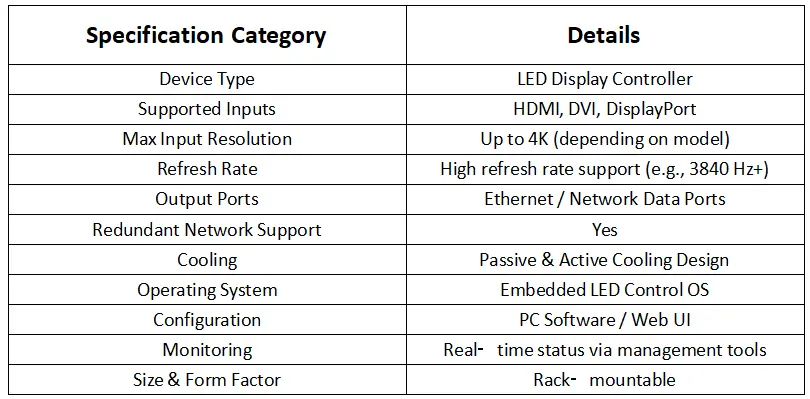
Every value in the table below comes from NovaStar’s MCTRL660 LED Display Controller Specifications, document version V1.4.5, released on 2026-04-17, and from the matching MCTRL660 LED Display Controller User Manual V1.4.5. Note that specification V1.4.4, released on 2025-06-11, updated the resolution information, so older reseller listings still quote 1920×1080@60Hz for the HDMI input.
| Specification | NovaStar MCTRL660 |
|---|---|
| Device type | Independent LED display controller (sending box) |
| Video inputs | 1x SL-DVI, 1x HDMI 1.3, 1x audio input |
| LED data outputs | 4x RJ45 Gigabit Ethernet, up to 650,000 pixels per port, redundancy supported between ports |
| Cascading outputs | 1x HDMI 1.3 output and 1x SL-DVI output, for cascading to the next controller |
| Maximum input resolution | 1920×1200@60Hz on both DVI and HDMI, with custom resolutions supported |
| Maximum custom width and height | 3840 pixels wide (3840×600@60Hz) and 3840 pixels high (500×3840@60Hz) |
| Interlaced signals | Not supported |
| HDCP | HDCP 1.4 supported on the HDMI input |
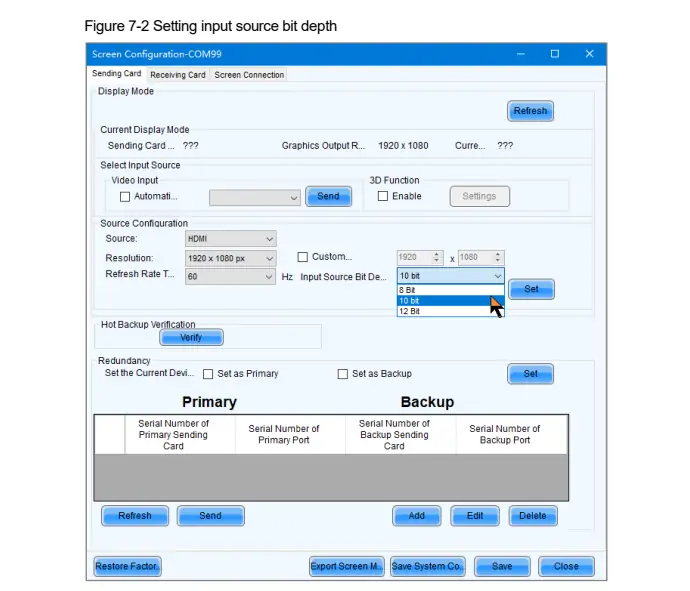
| Input bit depth | 8-bit, 10-bit and 12-bit video sources; 18-bit grayscale processing |
| 10-bit and 12-bit limit | Input is limited to 1440×900@60Hz, and the loading capacity of the device is reduced by half |
| Control ports | 1x USB Type-B (USB 2.0) to a PC, plus 2x UART (IN / OUT) for cascading |
| Cascading limit | Up to 20 MCTRL660 controllers |
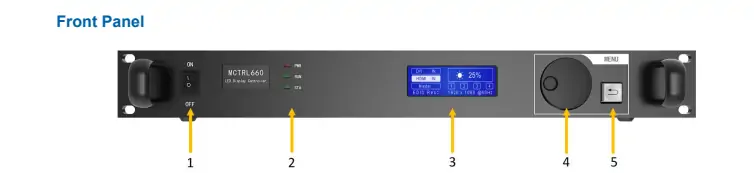
| Front panel | Power switch, PWR / RUN / STA indicators, LCD screen, knob, BACK button |
| Power | AC 100V-240V, 50/60Hz, rated power consumption 16 W |
| Operating environment | -20°C to +60°C, 10% to 90% RH non-condensing |
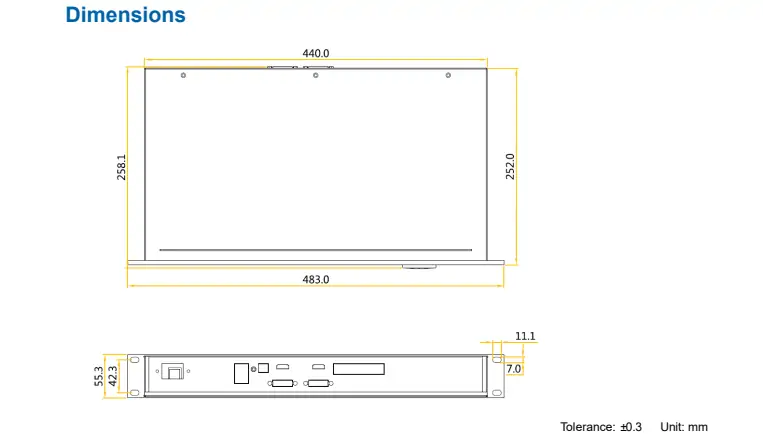
| Dimensions and net weight | 483.0 x 258.1 x 55.3 mm, 3.6 kg (packing box 560 x 405 x 180 mm) |
| Certifications | FCC, CE, RoHS, IC, UL/CUL, CCC, PSE, CB, RCM |
2.1 How many pixels can one MCTRL660 drive?
The honest answer has two numbers, and third-party listings usually quote only one of them.
- Port capacity: each of the four Gigabit Ethernet ports carries up to 650,000 pixels, so the four ports together are rated for 2.6 million pixels of data.
- Practical ceiling for one controller: the picture cannot exceed the input format, and the MCTRL660 accepts up to 1920×1200@60Hz, which is about 2.3 million pixels. That is where the 2.3 million figure in many datasheet summaries comes from.
- 10-bit and 12-bit sources: NovaStar’s user manual states that a 10-bit or 12-bit input cuts the loading capacity in half, because the extra colour depth uses part of the same bandwidth.
For a real project, add the numbers up per port rather than per controller: divide the screen into four data groups that each stay at or below 650,000 pixels, then check that the source resolution is at or below 1920×1200. If the screen needs more pixels than one 1920×1200 source, the usual solutions are a larger controller such as the MCTRL1600, a video processor such as the VX1000 Pro, or several MCTRL660 units cascaded from one source.
2.2 Inputs, outputs and control ports
The MCTRL660 rear panel has three groups of connectors. The numbers below follow the official specifications document, and the front panel is shown in the photo above.
- Inputs: 1x SL-DVI (up to 1920×1200@60Hz) and 1x HDMI 1.3 (up to 1920×1200@60Hz, HDCP 1.4) plus 1x audio input. There is no DisplayPort input and no SDI input on the standard MCTRL660 – SDI appears on the MCTRL660 Pro instead.
- Outputs: 4x RJ45 Gigabit Ethernet for LED data, with redundancy between ports, plus 1x HDMI and 1x SL-DVI output used to cascade to the next controller.
- Control: 1x USB Type-B (USB 2.0) to a PC for NovaLCT configuration, and UART IN / OUT ports to cascade up to 20 controllers.

3. MCTRL660 vs MCTRL660 Pro
The MCTRL660 Pro is the newer, more capable member of the same family, and it answers two questions people ask constantly: what the Pro adds, and whether the two are interchangeable. They are not. The Pro adds an SDI input, two 10G optical outputs, Genlock, web control and image mirroring, while the standard MCTRL660 keeps the simpler four-port layout.
| Feature | MCTRL660 | MCTRL660 Pro |
|---|---|---|
| Video inputs | 1x SL-DVI, 1x HDMI 1.3, 1x audio | 1x SL-DVI, 1x HDMI 1.4a, 1x 3G-SDI |
| Maximum input resolution | 1920×1200@60Hz | 1920×1200@60Hz (3G-SDI up to 1920×1080@60Hz) |
| Gigabit Ethernet outputs | 4x, up to 650,000 pixels per port | 6x, 650,000 pixels per port at 8-bit and 325,000 at 10/12-bit |
| Optical outputs | None | 2x 10G optical; one optical port carries the data of all six Ethernet ports |
| Cascading | HDMI and DVI output, UART IN/OUT, up to 20 devices | USB type-B in and type-A out, up to 8 devices |
| Genlock | No | Yes, IN-LOOP and Bi-Level / Tri-Level / Black burst |
| Web control and backup | No, NovaLCT over USB | Yes, web control with one-click backup and restore |
| Image mirroring | No | Yes |
| Rated power consumption | 16 W | 20 W |
| Typical use | Single-source rental and fixed screens | Stages with SDI feeds, multi-angle mirroring, fiber runs and genlocked cameras |
How to choose: pick the MCTRL660 if your content comes from one DVI or HDMI source and the screen fits inside a 1920×1200 picture. Pick the MCTRL660 Pro if you need SDI, optical transmission, Genlock, image mirroring or a browser-based control page. The MCTRL660 Pro listing in our own store lists the full port layout if you want to compare them side by side.
4. Manual, Software and Firmware Downloads
The MCTRL660 is configured with NovaStar’s NovaLCT software, and the controller and its receiving cards each have their own firmware. Use the links below to download the documents and files from our own server, then follow section 5 to configure the screen.
- MCTRL660 specification sheet (PDF): MCTRL660 LED Display Controller Specifications V1.4.3 – the table in section 2 follows the newer official V1.4.5 document.
- MCTRL660 firmware: DATA_MCTRL660_V4.7.4.0.STD. Update the controller only after reading the release notes that come with the file.
- MCTRL660 Pro documents: MCTRL660 Pro specifications (PDF) and MCTRL660 Pro firmware.
- NovaLCT software: the current version and the full version archive are on our NovaLCT download page, and older builds are listed on the NovaStar LED control software download page.
- Receiving card files: cabinet configuration files are usually supplied as RCFG or RCFGX files – see our RCFG and RCFGX file page if you cannot find the file for your cabinet.
The official user manual covers the menu tree, the front-panel button functions, screen configuration without a computer, NovaLCT operation, firmware upgrades and every connector pin-out, so keep a copy with the controller when the screen travels.
5. How to Set Up and Configure the MCTRL660
A first-time MCTRL660 setup follows the same five steps whether you configure the screen from the front panel or from a laptop.
Step 1: Connect the video source
Connect the laptop, media server, camera or switcher to the DVI or HDMI input of the MCTRL660. Set the source output to 1920×1200@60Hz or lower and make sure it is a progressive signal, because interlaced signals are not accepted. If you chain several MCTRL660 units, take the HDMI or DVI output of the first controller into the input of the next one.
Step 2: Connect the LED cabinets
Run Cat5e or Cat6 cables from the four Ethernet ports to the receiving cards in the cabinets. Keep each port at or below 650,000 pixels, and remember that a 10-bit or 12-bit source halves that figure. For very long runs, or where a cable could be damaged on stage, a fiber converter or the optical ports of the MCTRL660 Pro are the safer option.
Step 3: Install NovaLCT and connect the controller
Install NovaLCT on the PC, connect the controller with the USB cable, then open NovaLCT and let it detect the device. If the software does not list the controller, try another USB port or cable, close other software that may be holding the port, and confirm the receiving card configuration files are installed.
Step 4: Configure the screen
In NovaLCT, enter the screen size, the cabinet layout, the data group of each port, the receiving card type and the refresh rate. The MCTRL660 does not set the refresh rate by itself: the value the screen reaches depends on the receiving cards and the pixel load on each port, so a heavily loaded port lowers the achievable refresh rate. When the layout is correct, save the configuration and send it to the controllers.
Step 5: Test and monitor
Play test content, check the indicators on the front panel, and confirm the screen is not showing a split or repeated image. Save a copy of the configuration file so the same screen can be restored quickly on the next event.
6. Image Adjustment, Gamma and Calibration
Once the screen works, the MCTRL660 gives you the controls an LED wall normally needs on site. Brightness can be adjusted from the front panel, which is faster than opening a laptop when the stage lighting changes.

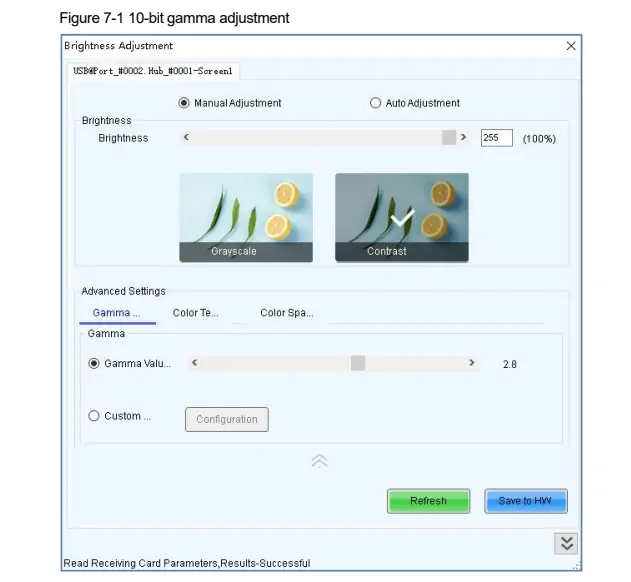
Inside NovaLCT the image settings cover brightness, contrast, saturation, hue and colour temperature. Gamma is adjustable, and the controller supports 18-bit grayscale processing, which helps low-brightness detail stay smooth instead of banding on gradients.
For screens that mix cabinets from different batches, pixel-level brightness and chroma calibration removes the visible colour difference between modules. Calibration is done on the bench with NovaStar’s calibration tools and the results are stored on the receiving cards, so the screen keeps its correction as it travels.
7. Indicator Lights and Status Monitoring
The three front-panel indicators tell you what the controller is doing before you open any software.
| Indicator | Colour | What it means |
|---|---|---|
| PWR | Red | Always on means the power supply is normal; off means no power or a faulty supply |
| RUN | Green | Slow flashing, once every 2 seconds, means the video input is unavailable; normal flashing means the input is available; rapid flashing means the startup image is showing; breathing means Ethernet redundancy is active |
| STA | Green | Always on means the device is operating normally; off means it is not running or is running abnormally |
The LCD screen next to the indicators shows the menus, the current input resolution and the messages used during screen configuration, so a slow-flashing RUN light combined with a blank input reading points straight at the source rather than at the cabinets.
8. NovaStar MCTRL660 Price and Value
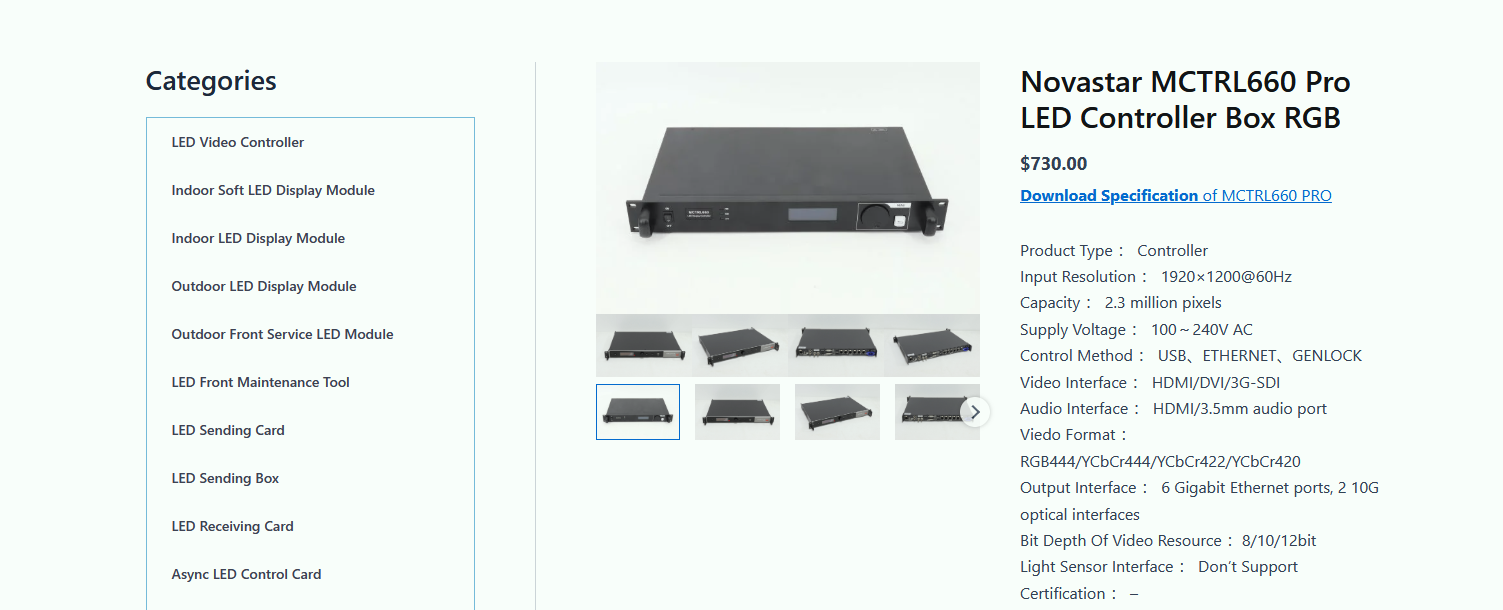
The MCTRL660 price moves with the market rather than with a fixed list price, so treat any single figure you see online with care. Four things change the number you are actually quoted: whether the seller still holds stock of the standard MCTRL660 or has moved to the MCTRL660 Pro, the accessories and cables included in the box, the warranty and support offered, and shipping, duty and tax for your country.
Our own store lists the current-generation Pro model at a published price, which makes it the simplest reference point: the NovaStar MCTRL660 Pro is listed there with its price and the full specification. For the standard MCTRL660, ask for a current quotation rather than relying on an old listing, because remaining stock and hardware revisions vary between suppliers.
Value check before you buy: confirm that the controller you are offered has the connectors your content needs (DVI or HDMI, SDI on the Pro), that the pixel capacity covers the screen with the bit depth you will use, and that the supplier can provide the specification sheet, the user manual and firmware for the exact version they ship.
9. Troubleshooting Common MCTRL660 Problems
- The RUN light flashes slowly and the screen stays black. That pattern means the controller sees no usable video input. Check the cable, the source resolution and the refresh rate of the source, and remember that interlaced signals are rejected.
- Part of the screen is dark or repeats. The data groups in NovaLCT do not match the way the cabinets are cabled. Re-map each Ethernet port so that no port exceeds 650,000 pixels, then resend the configuration.
- Colours look different after a 10-bit or 12-bit source is connected. A 10-bit or 12-bit input halves the loading capacity, so a port that was full at 8-bit is now overloaded. Reduce the pixels per port or switch the source back to 8-bit.
- NovaLCT does not detect the controller. Try another USB port and cable, unplug other USB devices, and check that the NovaLCT version you installed supports the firmware on the controller.
- The screen tears or flickers on long cable runs. Ethernet data is reliable up to its rated distance, and beyond that the answer is optical transmission – either a fiber converter or the optical outputs of the MCTRL660 Pro.
- You want to add a 21st controller to the chain. Cascading stops at 20 devices, so the 21st needs its own video path.
10. FAQs About the NovaStar MCTRL660
➖ What is the difference between the NovaStar MCTRL660 and the MCTRL660 Pro?
The MCTRL660 has one SL-DVI input, one HDMI 1.3 input, one audio input and four Gigabit Ethernet outputs. The MCTRL660 Pro adds a 3G-SDI input, two 10G optical outputs, Genlock, image mirroring and web-based control with backup and restore, and it raises the Ethernet count to six. Both accept input resolutions up to 1920×1200@60Hz.
➖ What is the maximum resolution the MCTRL660 supports?
NovaStar specifies 1920×1200@60Hz for both the DVI and HDMI inputs, with custom resolutions supported up to 3840 pixels wide (3840×600@60Hz) and 3840 pixels high (500×3840@60Hz). Interlaced signals are not supported. Specification V1.4.4, dated 2025-06-11, updated this resolution information, which is why older listings still show 1920×1080@60Hz for the HDMI input.
➖ How many pixels can one MCTRL660 drive?
Each of the four Gigabit Ethernet ports carries up to 650,000 pixels, so the ports together are rated for 2.6 million pixels, while the practical ceiling for a single controller is the 1920×1200@60Hz input – about 2.3 million pixels. A 10-bit or 12-bit source cuts the loading capacity in half.
➖ Where can I download the MCTRL660 manual, firmware and NovaLCT software?
You can download the MCTRL660 specification sheet, the MCTRL660 firmware and the MCTRL660 Pro documents from the links in section 4 of this page, and NovaLCT from our NovaLCT download page. The official user manual V1.4.5 covers the menu tree, screen configuration, NovaLCT operation and firmware upgrades.
➖ Does the MCTRL660 support 8K input?
No. The MCTRL660 accepts up to 1920×1200@60Hz. Screens that need 4K or 8K sources need a video processor or splicer in front of the controller, for example the NovaStar VX series processors, and the MCTRL660 then handles only the LED data output.
➖ Can the MCTRL660 drive an outdoor LED screen?
Yes. The controller itself is a rack-style device used indoors, and what makes a screen outdoor-rated is the cabinet, the sealing and the receiving cards, not the controller. Keep the MCTRL660 in a dry, ventilated position within -20°C to +60°C and use outdoor-rated cabinets and cabling.
➖ Do I need a media server with the MCTRL660?
Not for simple content. Many users feed the controller straight from a laptop or player. A media server becomes useful when you need several layers, live graphics, effects or scheduled playback across a long event, and in that case the MCTRL660 still handles the LED data output.
➖ How much does the NovaStar MCTRL660 cost?
The price depends on remaining stock of the standard model, the accessories included, warranty and support, and shipping or duty. The current-generation MCTRL660 Pro has a published price in our store, so the most reliable figure is a current quotation for the exact controller and version you are buying.
➖ How many MCTRL660 controllers can be cascaded?
Up to 20 MCTRL660 controllers can be cascaded using the HDMI or DVI output and the UART IN / OUT ports, which lets one video source drive a much larger screen.
➖ Which receiving cards work with the MCTRL660?
Any NovaStar receiving card in the same generation works, including the common MRV416-N and MRV412-N cards and the MSD series for smaller cabinets. The card you choose sets the refresh rate and the maximum pixels per port, so check both when you plan the data groups.
11. Conclusion
The NovaStar MCTRL660 remains a practical controller for rental and fixed LED screens that work from a single DVI or HDMI source: four Gigabit Ethernet ports at 650,000 pixels each, setup from the front panel in about 30 seconds, cascading up to 20 units, and a specification sheet that has been kept current through version V1.4.5. Its limits are just as clear – no SDI, no optical output, no web control and a 1920×1200@60Hz input ceiling.
If those limits match your screen, the MCTRL660 is the straightforward choice. If your project needs SDI, fiber transmission, genlocked cameras or browser-based control, the MCTRL660 Pro covers those cases in the same rack format. Tell us the screen size, the pixel pitch and the source format you plan to use, and we will confirm which controller and which receiving cards fit the job.
Related Posts
NovaStar MCTRL1600 LED Display Controller: Specs, Manual and Setup
Looking for NovaStar MCTRL1600 specifications, the manual, or a straight…
NovaStar MCTRL R5: Specs, Price, Manual & Setup Guide
The NovaStar MCTRL R5 is an independent LED display controller…
NovaStar VX600 Pro: Specs, Manual, Setup & Layer Guide
Novastar VX600 Pro isn’t just a video wall controller—it’s the…

No Comments