
NovaStar MSD600 Sending Card: Specs, Manual & Setup
The NovaStar MSD600 sending card connects a live video source to an LED display control system. It accepts DVI or HDMI video and distributes display data through four Gigabit Ethernet outputs. For buyers comparing a NovaStar sending card, the important questions are whether the source timing, cabinet layout, receiving cards and installation format work together.
This guide explains NovaStar MSD600 specifications, pixel capacity, NovaLCT setup, troubleshooting and what to request in a price quotation. It also distinguishes the MSD600 from similarly named hardware. The aim is to help you specify a complete working system, whether you are replacing a card in an existing installation or preparing a new rental LED wall.
Start with the complete signal path: a supported input resolution does not guarantee that every cabinet can be loaded through one output. Check the video canvas, the load on each Ethernet port, the receiving-card configuration and any backup connections before approving the equipment list.
1. What is a NovaStar MSD600 sending card?
The NovaStar MSD600 is a synchronous LED sending card. In a typical installation, the video source supplies the picture, the sending card transports the relevant pixel data, and the receiving cards inside the LED cabinets drive the modules through their associated electronics. These components have different jobs; replacing one does not automatically correct problems elsewhere in the chain.
01. Sending card, receiving card and processor roles
A useful connection sequence is: video source → NovaStar MSD600 → LED data cables → receiving cards → hub boards and LED modules. The separate USB control connection lets a computer configure the system. USB configuration and HDMI or DVI video are different paths, so successful software detection does not prove that a usable picture is reaching the card.
A video processor handles tasks such as scaling, source switching or composing multiple sources when those functions are required. Do not select the NovaStar MSD600 on the assumption that it will provide all of these functions. Decide how the video will be prepared before it reaches the sending card, especially when the screen has an unusual aspect ratio.
The receiving-card model, module driver IC, scan arrangement and cabinet wiring determine which cabinet configuration is appropriate. An LED panel brand alone is not enough to establish compatibility. Our MRV412-N receiving-card guide explains the separate checks needed at cabinet level.
02. Where this card fits
A NovaStar MSD600 can be considered for a protected control enclosure or a compatible host installation. Before ordering, check mounting clearance, connector access, the power connection and service access. The card is not a complete weatherproof controller simply because the LED cabinets are rated for outdoor use.
For a venue with frequent equipment changes, compare the installation and maintenance requirements of a bare card with those of a sending box. The MCTRL600 controller overview provides a related form-factor comparison. Choose around the actual control-room workflow rather than a similar model number.
2. NovaStar MSD600 specifications and pixel capacity
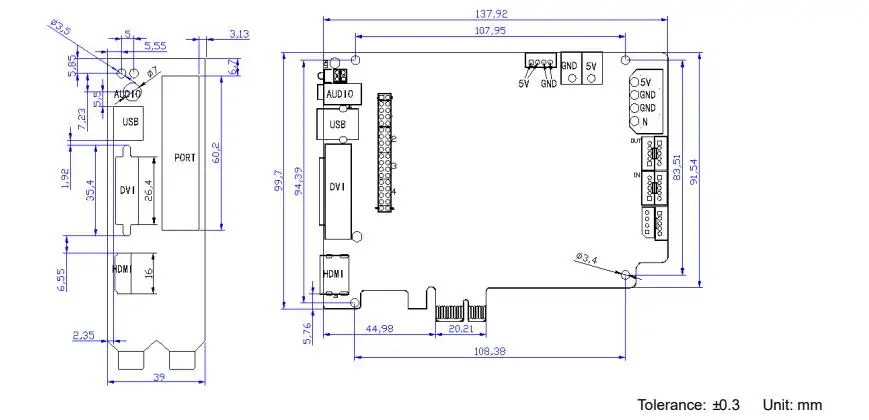
Use the model label and matching document revision when checking NovaStar MSD600 specifications. The reference for the figures below is NovaStar’s MSD600 Sending Card Specifications V2.4.1, released December 6, 2024. Hardware photographs can vary, so verify the delivered board before planning mounting holes or cable clearance.
01. Connection and operating specifications
| Item | Specification | Project check |
|---|---|---|
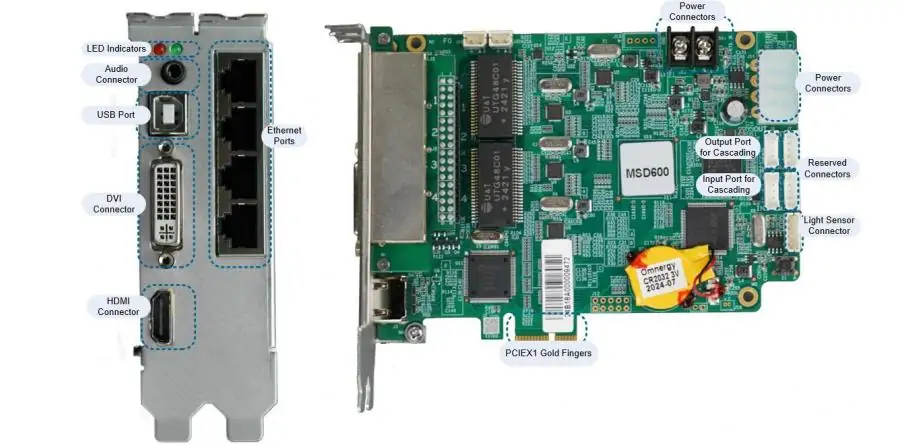
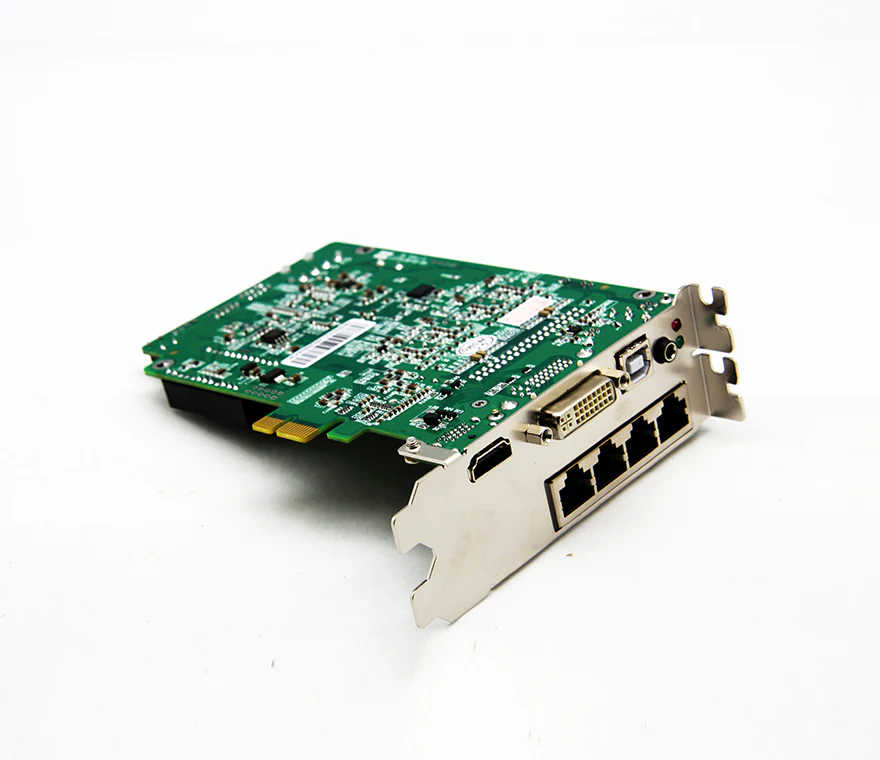
| Video inputs | 1 × SL-DVI; 1 × HDMI 1.3 | Confirm the source connector and supported timing. |
| LED outputs | 4 × Gigabit Ethernet; up to 650,000 pixels per port | Calculate each physical cable chain separately. |
| Control and cascading | USB Type-B; UART IN/OUT, up to 20 devices | Keep control wiring distinct from video distribution. |
| Other connections | Audio input; light-sensor connector | Confirm the associated downstream equipment. |
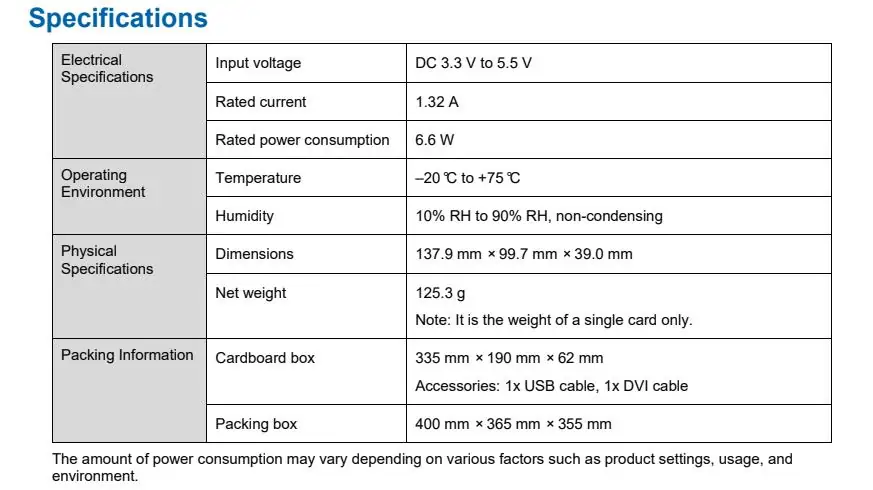
| DC supply | 3.3–5.5 V; rated 1.32 A, 6.6 W | Check the host supply and connector arrangement. |
| Operating environment | −20 to +75 °C; 10–90% RH, non-condensing | Provide suitable enclosure conditions. |
| Card dimensions and weight | 137.9 × 99.7 × 39.0 mm; 125.3 g | Allow extra space for cables and servicing. |
02. Input resolution is not the same as output capacity
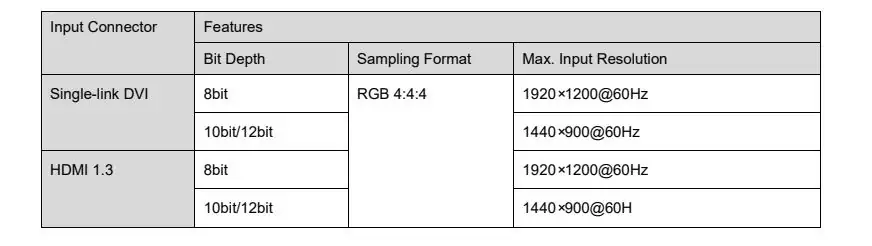
The NovaStar MSD600 video-source table lists 1920 × 1200 at 60 Hz for 8-bit input and 1440 × 900 at 60 Hz for 10-bit or 12-bit input. Its custom-timing examples include 3840 × 600 and 548 × 3840 at 60 Hz. Interlaced input is unsupported. These are source conditions, not a promise that every screen shape can use the same settings.
The distinction matters mathematically: 1920 × 1200 contains 2,304,000 pixels. Multiplying four nominal 650,000-pixel outputs gives 2,600,000, but that sum does not turn the input into a 2.6-million-pixel canvas. A valid design must satisfy both constraints. Do not size a NovaStar MSD600 system using only the larger number.
Similarly, a width of 3840 pixels does not mean full 3840 × 2160 UHD input. A wide, shallow canvas is a different video timing from a full UHD frame. Ask for confirmation of your exact width, height, frame rate and bit depth, rather than asking only whether the card supports “4K.”
03. Frame rate, LED refresh and colour depth
The source frame rate describes incoming pictures per second. The LED refresh specification describes how the receiving electronics drive the LEDs. Treat these as separate design parameters. A cabinet advertised with a high LED refresh rate does not establish support for the same numerical input frame rate on the sending card.
For the NovaStar MSD600, start compatibility testing with a documented source mode. After the full screen works correctly, validate any proposed change in bit depth, timing or receiving-card performance settings. Keep the approved settings with the handover records so a future technician does not unknowingly change the system assumptions.
3. Plan the LED cabinet layout and port loads
Plan a NovaStar MSD600 installation from cabinet pixels, not screen area alone. Two walls with identical physical dimensions can require very different data capacity if their pixel pitches differ. Read the cabinet specification and count the exact horizontal and vertical pixels before estimating the number of sending cards.
01. Worked loading example
Consider an illustrative wall of eight cabinets across and four cabinets high, with each cabinet containing 192 × 192 pixels. The wall is 1536 × 768 pixels, or 1,179,648 pixels in total. If each of four output chains carries eight cabinets, each chain contains 294,912 pixels. The calculation is a planning example, not certification of a particular cabinet or firmware combination.
| Calculation | Result | What it establishes |
|---|---|---|
| Pixels per cabinet | 192 × 192 = 36,864 | The load represented by one cabinet. |
| Wall dimensions | (8 × 192) × (4 × 192) = 1536 × 768 | The active content dimensions. |
| Total wall pixels | 32 × 36,864 = 1,179,648 | The combined active pixel count. |
| Eight cabinets per chain | 8 × 36,864 = 294,912 | A balanced four-chain proposal. |
| Twenty cabinets on one chain | 20 × 36,864 = 737,280 | This exceeds the documented 650,000-pixel port limit. |
The last row shows why a low total wall resolution can still hide an overloaded output. Distribute cabinets according to a documented wiring plan, then verify the proposed route against receiving-card limits and the selected operating mode. For the NovaStar MSD600, spare capacity on another port does not compensate for an overloaded chain.
02. Content mapping and backup routes
Draw the screen from the viewing side and label every cabinet, port and cable direction. Record where each chain starts and whether the cable snakes across rows or columns. Use that drawing during configuration; a technician working behind the wall may otherwise mirror the layout unintentionally.
If the source canvas is larger than the active wall, define exactly where the 1536 × 768 content region sits. Ask the content designer for a matching composition and use a numbered grid to check alignment. Do not rely on the desktop wallpaper or a video with dark borders to reveal cropping errors.
Redundancy needs its own wiring and capacity plan. A NovaStar MSD600 backup arrangement must be configured and tested; an unused socket is not automatic protection. Specify which cable or device failure the system should survive, then test that failure deliberately during commissioning, before the venue depends on the screen.
4. MSD600 vs MSD600-1, MSD300 and sending boxes
When comparing a NovaStar sending card, model names are only a starting point. The NovaStar MSD600, MSD600-1 and MSD300 are not interchangeable purchase descriptions. Request the exact model printed on the board, photographs of its connectors and the relevant specification sheet with the quotation.
01. Compare the job each device must perform
The MSD300 is a two-output alternative with a DVI input; the NovaStar MSD600 adds four-output routing and HDMI input. Our MSD300 sending-card guide is useful when comparing a smaller existing installation. Decide whether the additional outputs solve a real loading or wiring requirement rather than treating the model number as a quality ranking.
For an MSD600-1 offer, do not transfer dimensions, audio connections, firmware files or capacity claims from the NovaStar MSD600 automatically. Ask the supplier to identify every material difference against the installed card. A listing that groups both names together is insufficient evidence for a direct replacement.
A sending box may simplify physical installation, while a processor with integrated sending may reduce the number of separate devices. Compare source switching, scaling, connector access, power arrangements and replacement procedures. A box-shaped controller is not necessarily a scaler, and an HDMI connector alone does not prove that it accepts a full UHD source.
02. Replacing a card in an existing wall
Before removing an operational NovaStar MSD600, record its firmware, input timing, port assignments and cabinet configuration. Photograph cable labels and export the available configuration files. Confirm that a replacement can reproduce the approved setup before scheduling a live changeover.
For a wall with mixed cabinet batches, identify each batch and its configuration separately. Do not overwrite every receiving card with one file simply because the front faces look identical. Matching physical size and pixel pitch does not guarantee identical driver electronics, scan settings or calibration data.
5. NovaStar MSD600 manual, software and setup
Prepare the NovaStar MSD600 configuration on a test installation before commissioning a complete wall. Have the cabinet supplier’s approved configuration, the connection drawing and a known-good video source available. The outline below is a commissioning workflow; menu availability depends on the NovaLCT version and connected hardware.
01. Prepare hardware and configuration files
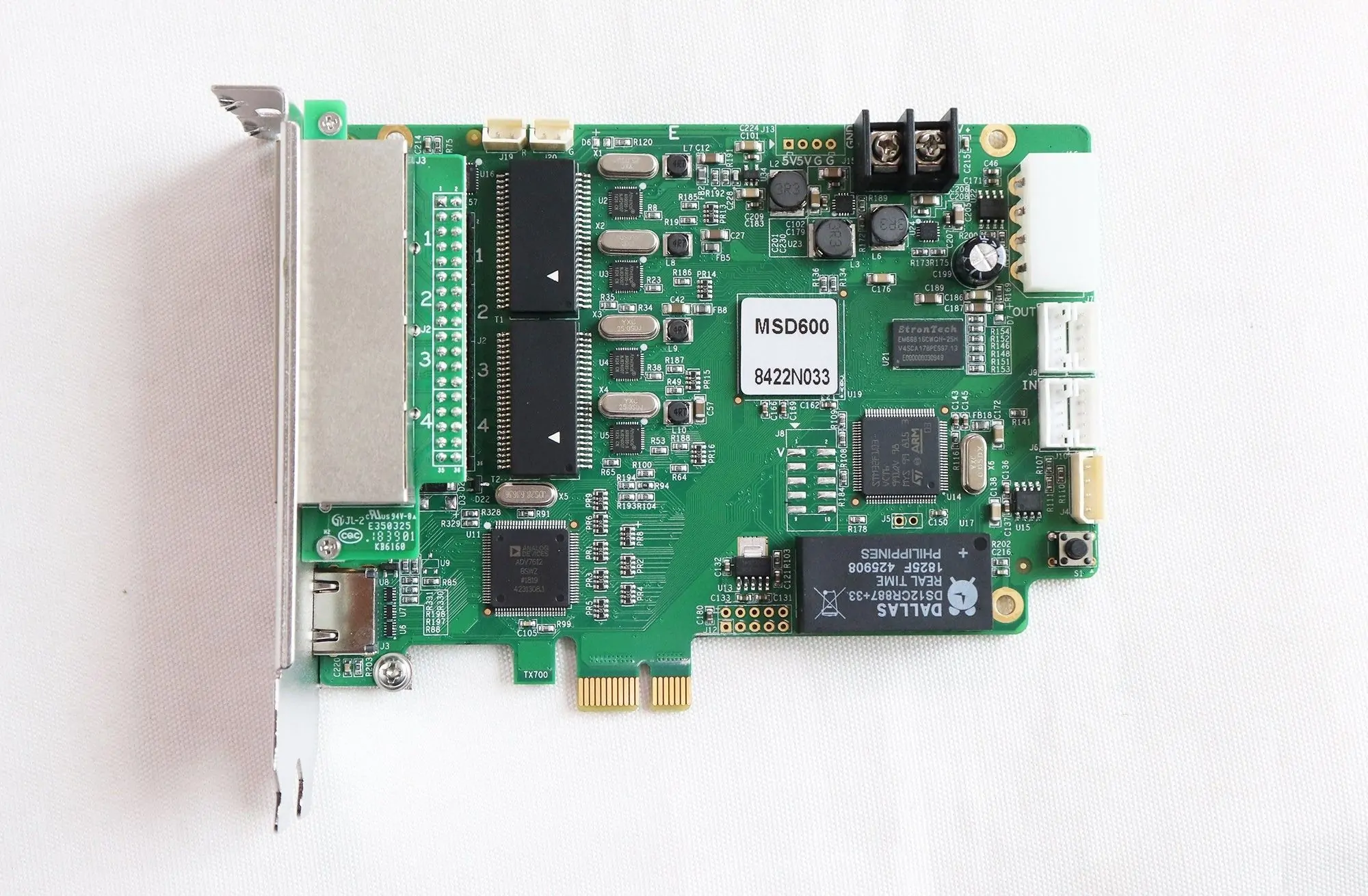
Install the card in a compatible, correctly powered host or enclosure with the equipment switched off. Check mounting stability and connector clearance, then label the four output routes. Keep the control USB cable and the video cable identifiable, because they serve different purposes during fault diagnosis.
Use a Windows configuration computer and a NovaLCT version appropriate for the installed hardware. HonghaiLED’s NovaStar control-software download page provides software resources. Confirm the required version with the supplier rather than assuming that an archived download is the newest release or the best choice for an older installation.
For a NovaStar MSD600 replacement, back up the existing system before changing settings. Receiving-card files and screen-connection information describe different parts of the installation. Our RCFG and RCFGX file guide explains cabinet configuration; keep the complete wall mapping and source settings alongside those files.
02. Establish video and configure one cabinet
Connect the control computer by USB and verify that NovaLCT can communicate with the intended sending card. Separately connect the video source. Select a documented progressive timing and confirm the source actually outputs that signal; an operating-system display setting and the resulting output are not always the same after adapters or processors are added.
In NovaLCT, the broad sequence is input configuration, receiving-card configuration and screen connection. Load the correct cabinet parameters on a small test section, inspect the image, then expand to the full layout. Keep brightness at an appropriate test level while checking unfamiliar module settings.
For the NovaStar MSD600, a correct test cabinet is an important checkpoint. Use red, green, blue, white and grayscale patterns to reveal channel swaps, missing rows and obvious brightness differences. Repair configuration or wiring errors before attempting calibration; calibration is not a substitute for correct cabinet data.
03. Map, save and validate the complete wall
Map each receiving-card position to the actual cable route. Check cabinet dimensions, starting coordinates and chain direction against the drawing. Display numbered cabinet labels, edge markers and a full-screen grid so that repeated, missing or shifted sections become immediately visible.
After sending the approved settings to the hardware, use the applicable save function and keep an external backup. Perform a controlled power cycle and confirm that the screen returns to the intended configuration. A picture that works only until power is removed is not a completed installation.
Finally, test the NovaStar MSD600 system with the actual playback device, adapters, processor and show content. Include startup order, source reconnection, prolonged playback and any planned backup route. Deliver the configuration files, cable diagram, software version and restoration instructions together so maintenance does not depend on one operator’s memory.
6. Troubleshoot the MSD600 sending card
Diagnose a NovaStar MSD600 problem by separating power, video input, data transmission and cabinet configuration. Record the symptom before changing settings, and alter one variable at a time. A factory reset at the beginning can remove useful evidence and make recovery harder.
| Observation | Meaning or likely investigation | First action |
|---|---|---|
| Red STA off | No supply or abnormal supply. | Check the host power connection and approved supply. |
| Green RUN flashes once every two seconds | No available video input. | Check the source, selected input, cable and timing. |
| Green RUN flashes four times per second | Video input is available. | If the wall is dark, investigate output chains and mapping. |
| Green RUN flashes about thirty times per second | Startup image is being displayed. | Distinguish startup behaviour from normal source playback. |
| Green RUN breathes | Ethernet-port redundancy is active. | Investigate the primary route and backup configuration. |
| One cabinet or chain is dark | Local power, cable or receiver issue is possible. | Trace the first failed point using a known-good connection. |
01. No picture, cropped picture or wrong cabinet order
If NovaLCT detects the NovaStar MSD600 but no video appears, test the video path independently. Try a known-good source and cable using a documented input mode. Remove unnecessary adapters during diagnosis, then reintroduce them individually once the basic path works.
If the picture is cropped or repeated, compare the active content region with the mapping coordinates and cabinet resolution. Check the connection order before adjusting colour or gamma. A numbered grid is more informative than ordinary video because it shows exactly which screen region is missing or duplicated.
02. Intermittent faults and firmware decisions
For intermittent dropouts, document whether they follow a particular cable, cabinet, output or source. Inspect connector strain, cable condition, enclosure airflow and supply stability. Do not dismiss a thermal or power issue simply because the card’s nominal consumption is low.
Only update NovaStar MSD600 firmware when the file and procedure are confirmed for the exact hardware. Keep a backup and a recovery plan, and schedule the change outside a live event. Report the model, firmware, source timing, indicator behaviour and affected port to support; “the screen is black” alone rarely identifies the cause.
7. NovaStar MSD600 price and buying checklist
A useful NovaStar MSD600 price is a written quotation for a clearly identified model and scope. A bare card, a configured card in an enclosure and a complete control package are different purchases. This guide does not present an unverified fixed price or infer authenticity from a low advertised number.
Ask the supplier to itemize the card model, quantity, condition, included cables, mounting or enclosure parts, configuration work, warranty terms, delivery time and shipping charges. Confirm the currency and whether taxes or import costs are included. These details make quotations comparable without relying on an outdated marketplace price.
For a NovaStar MSD600 system quotation, provide the wall’s pixel width and height, cabinet matrix, pixels per cabinet, receiving-card model, source resolution, frame rate and bit depth. Include the cable distances and any redundancy requirement. If some details are unknown, supply cabinet labels and the current configuration records for review.
Agree on acceptance checks before ordering. The package should demonstrate the intended content, correct mapping, persistent settings after restart and the agreed backup behaviour. Ask who supplies the configuration backup and who supports restoration after a hardware replacement. For an operational venue, those services can matter more than a small difference in card price.
8. NovaStar MSD600 FAQ
01. What is the NovaStar MSD600 used for?
The NovaStar MSD600 sends live video data to compatible LED receiving cards. A separate source supplies the content, and the receiving electronics control the LED modules. It is not a stand-alone scheduled media player.
02. How many pixels can the MSD600 drive?
Check both the input canvas and each Ethernet output. Four port limits cannot be treated as proof that every screen with the same combined pixel count will work. Use the calculations in Sections 2 and 3, then confirm your actual timing and cabinet arrangement.
03. Does the NovaStar MSD600 accept 4K video?
Do not equate a supported 3840-pixel-wide custom mode with full UHD. If the source is 3840 × 2160, use suitable upstream processing to produce a supported signal, or choose a controller explicitly specified for that source.
04. Which software configures the MSD600?
NovaLCT is the configuration tool used for this workflow. Use a suitable Windows computer and confirm the software version for the installed hardware. The control connection does not replace the separate video input cable.
05. Is the MSD600-1 a direct replacement?
Confirm it before ordering. Compare the exact board, connectors, mounting, power, firmware and receiving-card setup. Do not load a firmware file solely because its filename contains a similar model number.
06. Why is the NovaStar MSD600 screen black?
Begin with the indicators in the troubleshooting table. Then separate source-input problems from output-chain and cabinet problems. Check one known-good cable or source at a time and preserve the existing configuration before resetting anything.
07. Can several MSD600 cards run a larger wall?
A larger wall can be divided among sending devices, but each needs an appropriate video feed and mapped screen region. Control cascading does not create additional video resolution or automatically distribute the picture between cards. Plan the source and synchronization requirements separately.
08. How do I get an accurate NovaStar MSD600 price?
Request a quotation with the exact model, condition, configuration scope and delivery terms. Include cabinet pixels, layout, receiving cards and source requirements so that the proposed equipment can be checked against the real installation.
9. Conclusion: confirm the complete MSD600 system
The NovaStar MSD600 is best evaluated as one part of a complete LED control chain. Start with a supported source mode, calculate the load on every output, confirm the cabinet parameters and document the physical connection order. Compare replacement models using their own specifications rather than transferring claims between similar names.
Before buying a NovaStar MSD600 sending card, send HonghaiLED your cabinet layout, receiving-card details and video-source requirements. Request confirmation of the exact model and configuration scope. A tested setup, clear cable plan and recoverable backup give the installation team a much stronger starting point than a headline pixel count alone.
Technical references: NovaStar, MSD600 Sending Card Specifications V2.4.1 (December 6, 2024), connector, indicator and specification sections; MSD300 Sending Card Specifications V2.4.1; and NovaLCT LED Configuration Tool for Synchronous Control System User Manual V5.4.3, screen-configuration sections. Calculations and commissioning checklists above are explanatory guidance, not a substitute for approval of a specific hardware configuration.
Related Posts
NovaStar CX40 Pro LED Controller: Specs, Setup and Manual
The NovaStar CX40 Pro is a 4K LED display controller…
NovaStar CVT8-5GM Fiber Converter: Specifications, Setup and Manual
The NovaStar CVT8-5GM is a multimode LED display fiber converter…
NovaStar MRV416-N Receiving Card: Specs, Setup & Manual
The NovaStar MRV416-N receiving card connects a compatible LED controller…

No Comments