
NovaStar NovaPro HD Review: Specs, Setup and Manual
The NovaStar NovaPro HD combines video processing and LED display control in one device. It accepts several digital and legacy video formats, scales the picture, and sends image data to compatible LED receiving cards. Its documented input capability reaches 1080p at 60 Hz, making it relevant to existing HD systems rather than native 4K input projects.
This NovaPro HD review explains the specifications that affect a real installation: source compatibility, cabinet mapping, loading limits, signal distribution, and recovery when a screen goes black. It is a documentation-based technical assessment, not a claimed laboratory test. NovaStar lists the model under discontinued processors; buyers should confirm unit condition, compatible software, and support before committing to used equipment.
If you already operate a NovaPro HD, start with the setup and troubleshooting guidance below. If you are comparing controllers for a new LED wall, calculate the actual screen resolution first, then check input timing, output capacity, and receiving-card compatibility. A familiar model name or a long connector list cannot establish whether the complete system will work.
1. What Is the NovaPro HD?
01. How the controller fits into an LED system
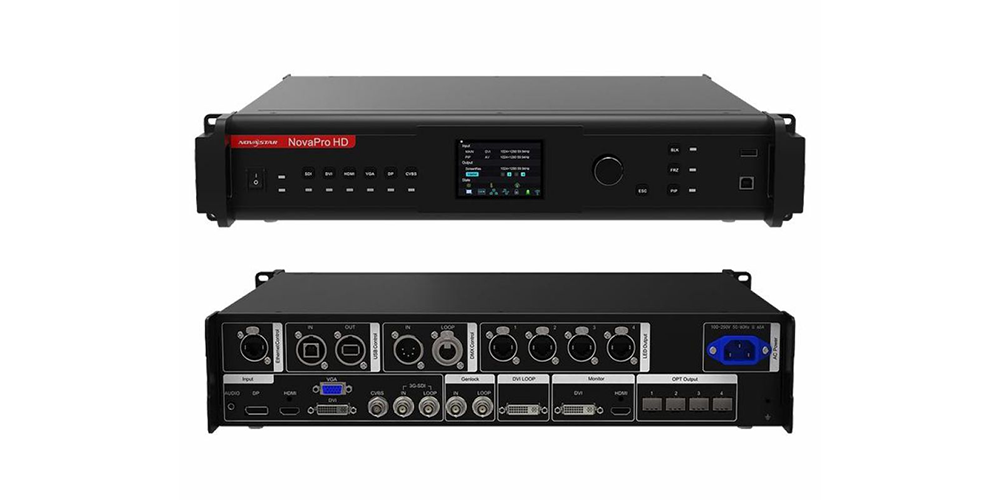
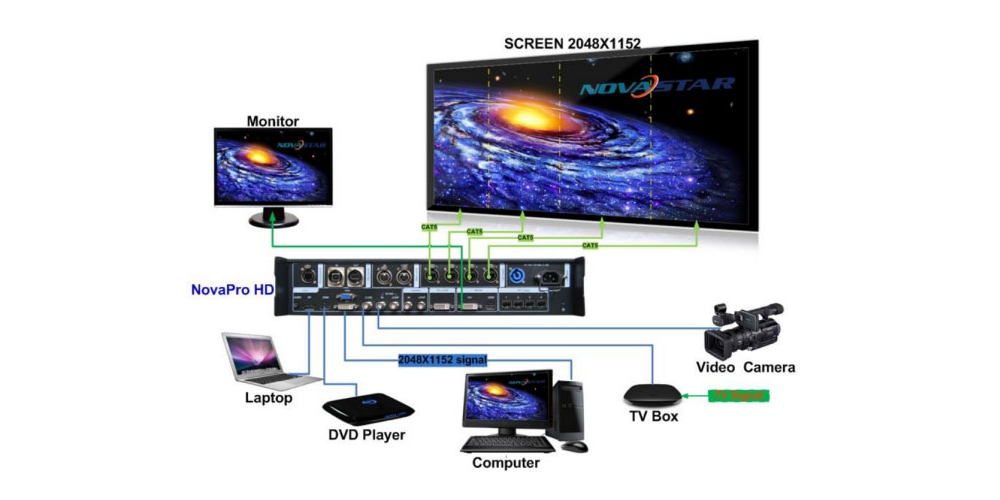
The NovaPro HD sits between your video source and the LED cabinets. A laptop, media server, camera switcher, or player provides the picture. The processor adjusts that picture to the screen canvas, while the sending function distributes the appropriate pixels to receiving cards. Those receiving cards work with the modules and driver electronics inside each cabinet.
This distinction matters when diagnosing an installation. An input problem can affect the entire picture; an incorrect cabinet map can rearrange otherwise correct video; a failed module can affect one small area. Replacing the processor will not automatically fix receiving-card settings, damaged data cables, or mismatched modules.
02. Suitable projects and purchase expectations
A NovaPro HD can remain useful in a proven HD installation, a spare equipment rack, or a rental LED display system with compatible receiving cards. Its legacy connectors can be convenient when replacing older source equipment would otherwise require additional conversion. Existing owners benefit most when their configuration files and wiring documentation are complete.
For a purchase, request a demonstration using your intended source format and representative cabinets. Check the display, buttons, fan behavior, connectors, and stability after the unit warms up. Ask whether the quotation includes tested optical equipment, accessories, configuration assistance, and a return arrangement. A discontinued controller can be economical, but only if the complete working system costs less than a supported alternative.
2. NovaPro HD Specifications and Pixel Capacity
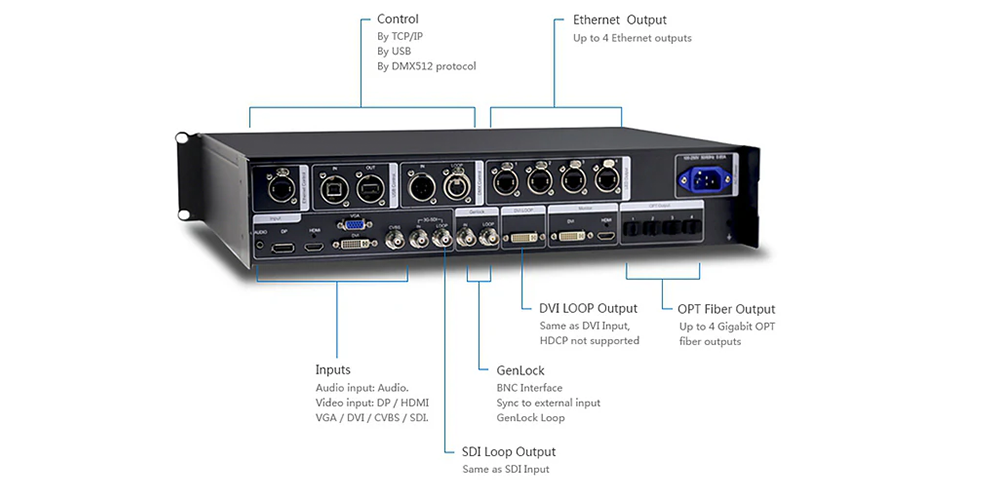
The table summarizes essential NovaPro HD specifications from Specification V1.4.5. Values describe the controller; they do not establish the brightness, refresh performance, or weather resistance of the LED cabinets connected to it.
| Item | Documented specification | Planning implication |
|---|---|---|
| Video inputs | DP, HDMI, DVI, VGA, CVBS and 3G-SDI; one each | Choose the connector and timing together. |
| Input capability | Up to 1080p at 60 Hz; 165 MHz maximum pixel clock | A native 4K input requires another solution. |
| LED connections | Four Gigabit Ethernet outputs and four optical connectors | Connector count is not proof of additional independent pixel capacity. |
| Dimensional limits | Maximum horizontal resolution 3,840 pixels; maximum vertical resolution 1,920 pixels | Do not multiply the two limits to infer a supported canvas. |
| Monitoring and loops | DVI and HDMI monitoring; DVI and SDI loop outputs | Monitor outputs and source loops serve different purposes. |
| Integration | Genlock, DMX512, USB and Ethernet control | Confirm the intended control and synchronization workflow. |
| Power and size | 100–250 V AC, 50/60 Hz; 30 W; 480 × 395.5 × 94.6 mm; 6 kg | Allow rack clearance and service access. |
Source: NovaStar, NovaPro HD All In One Controller Specification V1.4.5, specifications and rear-panel sections. Consult the matching document and hardware label when commissioning.
01. Calculate cabinet pixels before choosing a controller
Screen loading starts with pixels, not square meters. Multiply cabinet width in pixels by cabinet height in pixels, then multiply by cabinet quantity. For a rectangular wall, also calculate total horizontal and vertical pixels. Use the cabinet manufacturer’s actual resolution; rounding a nominal pixel pitch can produce a misleading result.
For example, a hypothetical cabinet containing 256 × 256 pixels has 65,536 pixels. An eight-column, four-row wall contains 32 cabinets, measures 2,048 × 1,024 pixels, and totals 2,097,152 pixels. This arithmetic is a planning example, not a guarantee that a particular NovaPro HD configuration supports it. Port allocation, receiving-card limits, timing, and the accepted output mode still need checking.
02. Separate dimensional limits from loading capacity
The NovaPro HD maximum width and maximum height are separate constraints. A 3,840 × 1,920 image contains 7,372,800 pixels; the specification’s two dimensional maxima do not authorize that combined load. Likewise, attaching optical cables does not establish that the available pixel budget has doubled.
You may encounter a 2.35-million-pixel capacity in product listings. The V1.4.5 specification reviewed here does not explicitly state that aggregate figure, so treat it as a claim requiring confirmation for your intended configuration. Ask the supplier to document the supported canvas and per-output allocation. Keep the approved mapping with the project records instead of relying on a rounded marketing number.
3. NovaPro HD Features: Practical Benefits and Limits
01. Scaling, cropping and readable content
The NovaPro HD can adapt a source image to the LED canvas. Scaling changes image dimensions; cropping selects part of the source; positioning places the image within the output area. These operations solve different problems. Stretching a presentation to fill an unusually wide wall can distort faces and logos even when every cabinet is mapped correctly.
Prepare content to match the intended aspect ratio wherever possible. For detailed text, test one-pixel lines, a grid, and the smallest planned font from the audience position. Repeated resizing by the playback software, computer output, and controller can soften edges. Decide which stage should perform the necessary scaling, and remove unnecessary transformations elsewhere.
02. Input compatibility and picture-in-picture
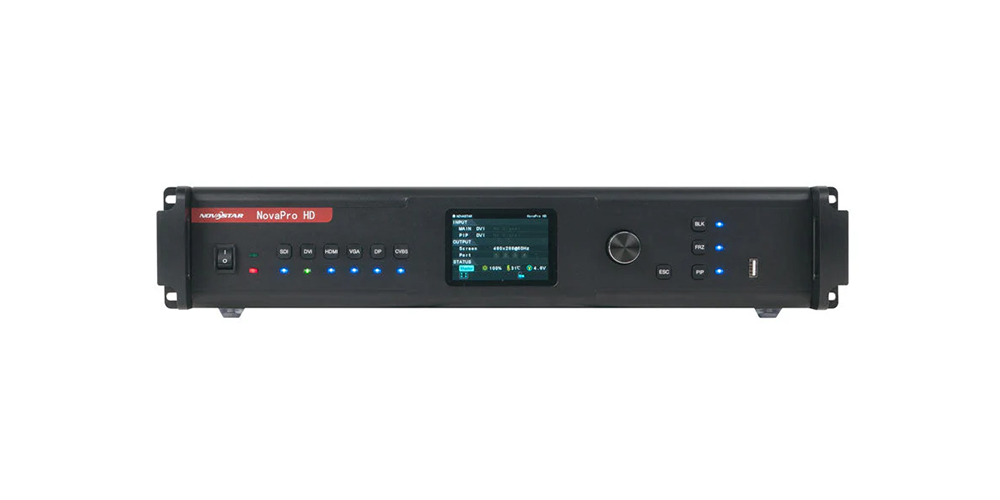
NovaPro HD input selection should follow the source’s actual signal format. A connector adapter changes the physical connection only when its electronics also support the required conversion. In particular, an SDI connector does not establish support for every SDI data rate, and an HDMI plug does not establish support for every modern resolution.
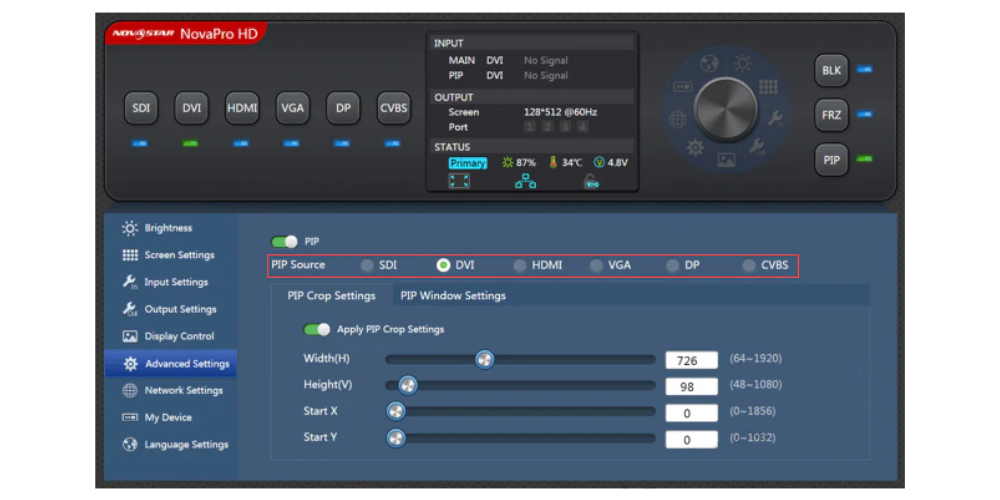
The datasheet describes DVI as a VESA input with 1080i support. That wording should not be rewritten as a 1080i maximum. Check the available timing on the source and the controller’s detected format. For picture-in-picture, rehearse the exact source combination, window position, and switching sequence before using it in front of an audience.
03. Genlock, DMX and transmission planning
Genlock provides synchronization to an external reference; it is not a promise of zero latency or flicker-free camera capture. Camera exposure, source frame rate, processing delay, receiving-card configuration, and module scan behavior all affect the result. Test the actual camera chain with motion and the intended shutter settings, especially for image magnification at live events.
DMX control can put image adjustments under a lighting operator’s control. Agree who owns brightness and color settings so two operators do not unintentionally overwrite each other. For optical transmission, confirm the compatible endpoint, module type, fiber specification, and routing. Test the complete installed cable path; a successful short bench connection does not validate a long venue run.
The NovaPro HD is equipment for a protected rack environment. A wide operating-temperature specification does not make it waterproof. Keep ventilation clear and provide suitable shelter, power distribution, and cable strain relief when the associated LED wall is outdoors.
4. NovaPro HD Setup and Troubleshooting Guide
A reliable NovaPro HD setup begins with a written signal map. Record the source, controller input, screen dimensions, receiving-card model, and the cabinet chain assigned to each output. Label both ends of every data cable. This preparation makes commissioning faster and gives another technician enough information to restore the system later.
01. Back up and connect the system
Before changing an existing installation, save the working configuration and photograph the current connections. Record hardware and firmware versions. Keep receiving-card parameters separate from the screen connection map and processor image settings: restoring one file may not restore all three. Do not use a factory reset as the first response to an unexplained display problem.
Make signal connections with equipment powered off, following the installation documentation. Connect a known-good source, the required LED output cables, and the appropriate control cable. Distinguish the Ethernet control connector from the LED output connectors. The former communicates with the controller; the latter carries display data to the receiving system.
02. Establish a stable input
Start with a standard supported HD timing and a short, tested cable. Select the intended source and confirm the detected resolution and frequency on the NovaPro HD. A computer’s desktop resolution and its active output signal can differ, so check both. Disable unintended mirroring or overscan before adjusting the LED canvas.
If the input is missing, test the source on another display and substitute one component at a time. Check adapters, cable direction where relevant, and source output settings. A protected-content handshake problem should be investigated through supported source and display settings. Raising screen brightness cannot repair a missing input signal.
03. Load cabinet parameters and map the screen
Use a configuration supplied for the exact cabinet hardware. Pixel pitch alone does not identify the correct file: module dimensions, driver IC, scan arrangement, receiving card, and wiring also matter. A file from another cabinet with the same pitch can produce incorrect colors, unstable output, or a scrambled picture.
Map the receiving cards in their physical connection order, then assign the proper canvas coordinates. Check rows, columns, starting cabinet, and cable direction against the drawing. Avoid changing several variables at once. First establish correct test patterns across the complete wall, then introduce the live source and its image scaling.
For software resources, consult our NovaLCT software download guide. Choose a version compatible with the installation instead of assuming the newest package is best for legacy hardware. The RCFG and RCFGX configuration guide explains why cabinet files must match the receiving hardware.
04. Validate image quality and save deliberately
Use red, green, blue, white, grayscale, and grid patterns to separate mapping faults from image adjustments. Check cabinet boundaries and low-brightness uniformity. Source frame rate and LED refresh rate are different measurements; selecting a particular refresh figure is not a universal solution for camera artifacts. Use validated cabinet parameters and confirm the result on camera.
After setting the NovaPro HD output and image geometry, explicitly save parameters to hardware. Export the relevant backups and perform a controlled power-cycle test during commissioning. Confirm that the correct image, mapping, brightness, and control behavior return. Keep a documented recovery procedure beside the rack, including the known-good source format and configuration filenames.
05. Diagnose faults by symptom
The following troubleshooting table is a practical diagnostic sequence, not a claim that every symptom has one cause. Observe whether the problem affects the whole wall, one data chain, one cabinet, or a few pixels. That boundary often identifies the next useful test more accurately than changing processor settings at random.
| Symptom | First checks | Next useful test |
|---|---|---|
| Entire wall is black | Power, selected source, input detection, blank mode and brightness | Compare a controller test pattern with a known-good live input. |
| One cabinet chain is dark | Output assignment, first cable, receiving-card power and connection order | Substitute a tested cable and isolate the affected chain. |
| Picture is rearranged | Cabinet coordinates and physical data direction | Use a labeled grid to compare mapping with the wiring drawing. |
| Text is soft or stretched | Source canvas, crop, scaling and aspect ratio | Compare a native-resolution grid with the presentation. |
| Picture remains frozen | Freeze function and source playback | Change a visible source element, then test another input. |
| Settings disappear after restart | Hardware save procedure and correct device selection | Save, restart under controlled conditions, and compare recorded settings. |
When escalating a NovaPro HD fault, provide photographs of the wall and wiring, the source timing, affected output numbers, firmware versions, and the last known working state. Include whether test patterns behave differently from live video. This evidence allows support staff to distinguish a source problem from a screen configuration or hardware fault.
5. NovaPro HD vs VX1000 and Upgrade Choices
A NovaPro HD vs VX1000 comparison is useful for existing inventories, but the original VX1000 should not be described as an automatically current purchase recommendation. NovaStar’s download directory lists both models under discontinued processors. The VX1000 Pro is a different product; specifications and firmware must not be transferred between names that look similar.
| Decision point | NovaPro HD | Original VX1000 |
|---|---|---|
| Documented input examples | Up to 1080p60 | HDMI/DVI up to 3840 × 1080 at 60 Hz or 3840 × 2160 at 30 Hz |
| Ethernet outputs | Four | Ten |
| Capacity evidence | Confirm the complete approved loading configuration | Specified maximum loading capacity of 6.5 million pixels |
| Legacy source needs | Includes VGA and CVBS | Check the source list and any required conversion |
| Lifecycle check | Listed as discontinued | Listed as discontinued; distinct from VX1000 Pro |
Comparison basis: NovaPro HD Specification V1.4.5, VX1000 Specification V1.6.0, and NovaStar’s download directory, checked September 2026. Input capability is separate from output loading capacity.
01. Choose an upgrade around the full signal chain
For 4K sources, specify resolution, frame rate, and bit depth together. A processor accepting 3840 × 2160 at 30 Hz does not thereby accept the same format at 60 Hz. Similarly, accepting a large input does not mean the complete source can be displayed pixel-for-pixel on an equally large LED wall.
Review the VX1000 Pro specifications and NovaPro UHD Jr guide when building a shortlist. Confirm current supply and support directly for the intended model. Receiving-card compatibility, required fiber converters, layer requirements, and operator workflow can matter as much as the headline pixel count.
02. Compare total ownership cost
There is no single reliable NovaPro HD price for every market or condition. Request a dated quotation identifying whether the unit is used, refurbished, or remaining stock. Include optical accessories, shipping, warranty terms, configuration work, and spare equipment. An inexpensive processor may become costly if it introduces an unfamiliar failure point into a working rental inventory.
For an existing installation, compare the cost of keeping a tested spare with the cost of a planned migration. For a new project, budget commissioning time and training as well as hardware. Require a successful test with representative cabinets before assuming that a processor replacement will preserve every feature of the previous receiving-card system.
6. NovaPro HD Manual, Software and Firmware
The NovaPro HD manual and datasheet answer different questions. The manual explains operation, configuration, saving, and troubleshooting. The datasheet describes interfaces and operating limits. Use their version numbers when asking for support, because instructions copied from another NovaPro model can be misleading.
| Resource | Purpose | Verification |
|---|---|---|
| NovaPro HD User Manual V1.4.4 | Panel operation, screen setup and recovery procedures | Match the model and compare menu names with the unit. |
| NovaPro HD Specification V1.4.5 | Interfaces, timing limits and physical specifications | Check required signals against the relevant connector. |
| Compatible NovaLCT package | Screen configuration and supported maintenance | Confirm compatibility with controller and receiving cards. |
| Approved firmware and backups | Maintenance and restoration | Record the intended hardware, version and recovery method. |
01. Find the right NovaPro HD resources
Request the named documents from your supplier or locate the model in NovaStar’s download directory under discontinued processors. Our NovaLCT download list provides a starting point for software research. The manufacturer document titles above identify the technical references used in this review without directing readers to competing equipment vendors.
Do not confuse controller firmware with receiving-card firmware. A downloadable file with a plausible model name is not sufficient evidence that it applies to your particular hardware. Keep the supplier’s compatibility confirmation together with the package and its release notes.
02. Plan firmware work as maintenance
Update a NovaPro HD only for a defined reason, such as an applicable fix or an approved compatibility requirement. Schedule downtime, preserve the working files, and use stable power and communication. Verify the recovery procedure before starting. Do not experiment with firmware immediately before a show or while the screen is serving a live audience.
After maintenance, repeat input, mapping, image-quality, and restart checks. A successful firmware transfer is only one part of acceptance. Record the final versions and retain the previous approved package when the supplier permits rollback. This turns a one-time repair into a reproducible maintenance record.
7. NovaPro HD FAQ
01. What is the NovaStar NovaPro HD used for?
The NovaStar NovaPro HD processes a live video input and distributes the resulting image to compatible LED receiving cards. It combines image adjustment and sending functions in one controller. It is most relevant to established HD systems whose source formats, cabinet configuration, and output loading have already been verified.
02. Does NovaPro HD support native 4K input?
No native 4K input capability is documented in the specification used here. NovaPro HD input support reaches 1080p at 60 Hz. A maximum output width of 3,840 pixels does not change that input limit. Select a controller with explicit support for the required 4K resolution and frame rate.
03. How many pixels or cabinets can NovaPro HD control?
Calculate the cabinet pixels and full canvas, then confirm the supported output mode and port mapping. Do not interpret the separate 3,840-pixel width and 1,920-pixel height limits as a supported 7.37-million-pixel screen. The often-advertised 2.35-million figure also needs configuration-specific confirmation; cabinet quantity alone is not a capacity specification.
04. Can I configure NovaPro HD without a computer?
The NovaPro HD supports front-panel configuration, and its documentation also describes web and NovaLCT operation. The appropriate method depends on the task and existing cabinet setup. Use one control method at a time during commissioning, and retain a compatible computer and backup files for maintenance and recovery.
05. Why is my NovaPro HD screen black?
Check screen power, source selection, detected timing, blank mode, and brightness first. Then determine whether a test pattern reaches the cabinets. A working pattern with missing live video points toward the input path; a dark output chain requires checking its cabling, assignment, and receiving-card power. Avoid resetting everything before isolating the fault.
06. Does Genlock remove camera delay or flicker?
No. Genlock synchronizes the system to a reference, while delay and camera artifacts depend on the complete video and LED chain. Test camera settings, frame rate, processing, receiving-card parameters, and module behavior together. Neither a synchronization connector nor a quoted LED refresh figure guarantees a satisfactory on-camera result.
07. Is NovaPro HD discontinued, and should I buy a used unit?
NovaStar lists NovaPro HD in its discontinued processor category. A used unit can make sense as a tested replacement or spare for a compatible installation. For new projects, compare support, accessories, configuration effort, and future input requirements. Ask for an operational demonstration and written terms instead of judging value by price alone.
08. Where should I obtain NovaPro HD firmware?
Obtain the correct package through the manufacturer’s resources or your equipment supplier after confirming the hardware and intended version. Use the resource checklist in section 6. Never substitute firmware for NovaPro UHD, NovaPro UHD Jr, VX1000, or VX1000 Pro, and back up the working installation before maintenance.
8. Conclusion: Is NovaPro HD Right for Your Screen?
The NovaPro HD remains relevant when it already serves a verified HD workflow or provides a compatible spare. Its value lies in matching the actual source and receiving system, not in treating its connector count or dimensional limits as unlimited capacity. For a new purchase, lifecycle and support deserve the same attention as input formats.
Before selecting a NovaStar NovaPro HD or an upgrade, prepare the cabinet resolution, wall layout, receiving-card model, source timing, cable distances, and backup requirements. Ask HonghaiLED to check that complete specification against the proposed controller. A documented configuration, a tested signal path, and recoverable settings provide a much stronger foundation than a generic product recommendation.
Related Posts
NovaStar VX2000 Pro vs VX2000: Specs & Price Guide
NovaStar VX2000 Pro vs VX2000 is a comparison that starts…
NovaStar ET1S-G Review: Media Server Specs, Setup and Price
The NovaStar ET1S-G is a compact media server that prepares…
NovaStar H2 Review: Specs, Cards, Price & Setup Guide
The NovaStar H2 is a modular, 2U video wall splicer…

No Comments