
NovaStar VX4S LED Controller: Specs, Setup, Manual and FAQs
Quick answer: The NovaStar VX4S is an all-in-one LED display controller and front-end video processor. It accepts video up to 1920 x 1200 @ 60 Hz from CVBS x2, VGA x2, DVI, HDMI, DP and SDI inputs, drives up to 2.3 million pixels through four Gigabit Ethernet LED outputs, and is configured from the front panel with one knob and one button – no PC and no external scaler required.
The VX4S is an older-generation NovaStar model. The official specification document from NovaStar is still titled LED Display Video Controller VX4S (revision 1.0.3), and the unit has largely been superseded in new projects by the VX400, VX600, VX1000, VX2000 and MX40 Pro families. That makes this page most useful to the people who actually own one: AV integrators replacing a failed unit, rental companies keeping spares, and engineers who need to re-configure a screen that is already installed.
Below you will find the complete specification set taken from the official NovaStar datasheet, the corrected values where reseller listings disagree, wiring and configuration steps, the manual and software routes, a troubleshooting table, and the questions buyers ask most. Full details on current controllers are linked at the end.
Table of contents
1. What the VX4S is | 2. Key features | 3. Full specifications | 4. Connections
5. Setup and calibration | 6. Manual and software | 7. Troubleshooting | 8. VX4S vs VX4S-N vs VX4 | 9. FAQs
1. What the NovaStar VX4S Is
The VX4S is a professional LED display controller with integrated front-end processing. The official NovaStar description is direct: besides display control it “features in powerful front end processing, so an external scalar is no longer needed.” In practice that means one 1U-ish box replaces the scaler, switcher and controller chain that older installations used to stack.
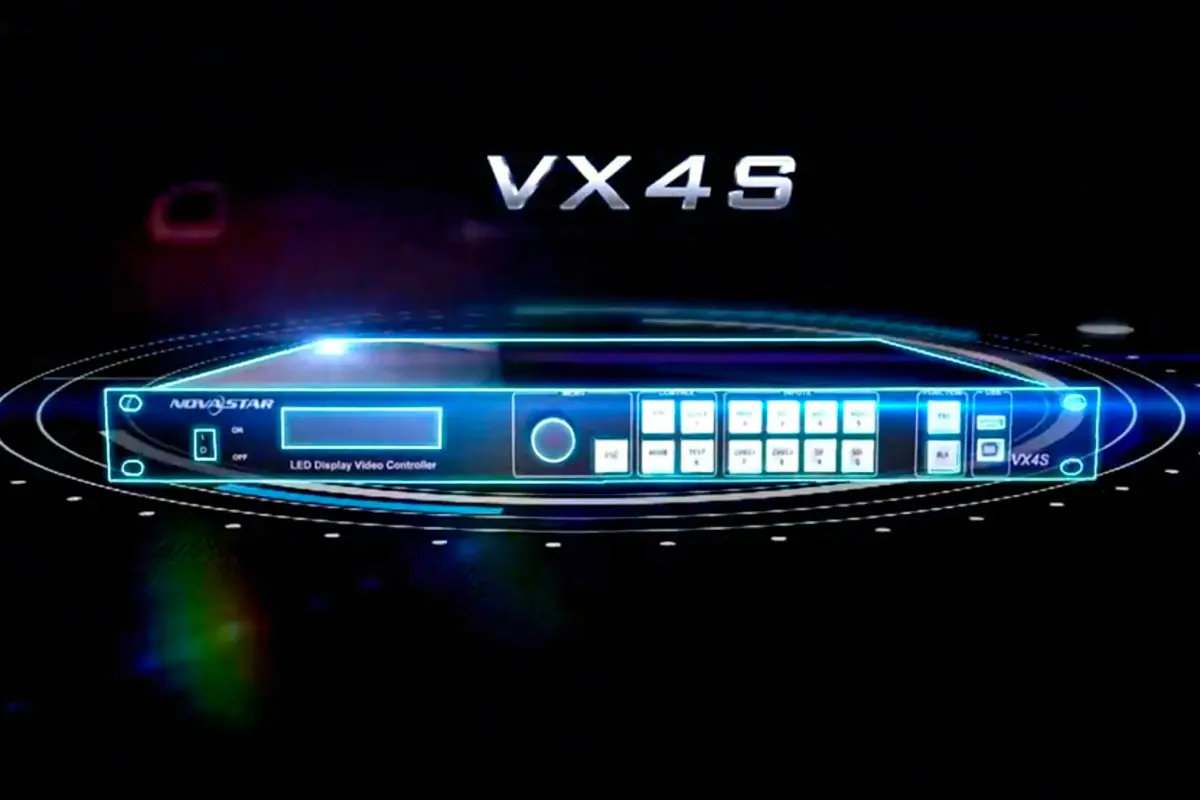
Three design decisions define how you actually work with the unit:
- Everything is done on the front panel. NovaStar calls it Touch Track: one knob and one button, with an LCD screen and eight lit source keys. System configuration software is optional, not required.
- The input set is unusually broad for its generation. SDI sits alongside HDMI, DP, DVI, VGA and CVBS, which is why the VX4S still shows up in broadcast and live-event racks.
- It is a pixel-budget device, not a resolution-badge device. What limits your screen is the 2.3 million pixel loading capacity, not the input resolution alone.
If you are new to NovaStar terminology, the practical takeaway is simple: the VX4S takes a video signal, scales it to whatever canvas your LED screen needs, and pushes that canvas out over four Ethernet cables to your receiving cards.
2. Key Features of the VX4S
These are the features stated in the official NovaStar specification, not marketing additions.
Multi-format input flexibility
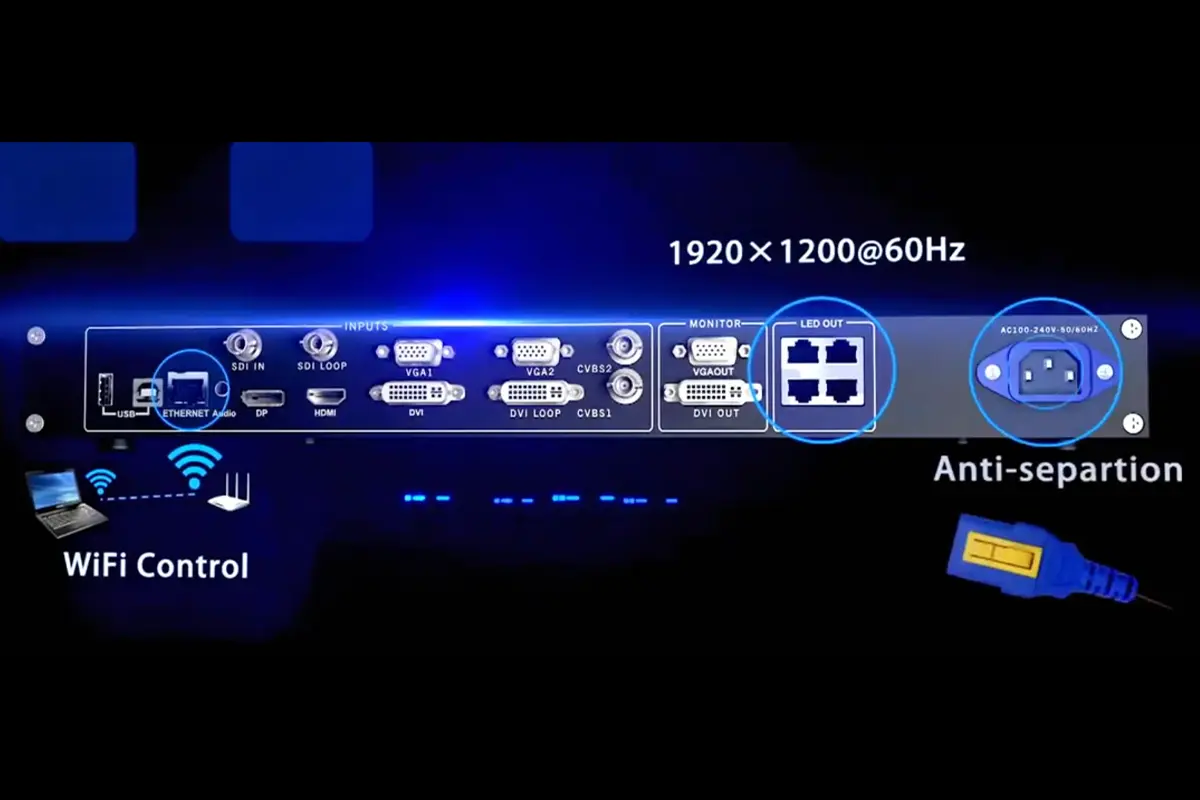
Two composite, two VGA, one DVI, one HDMI, one DisplayPort and one SDI input are available, all supporting input resolution up to 1920 x 1200 @ 60 Hz. Input images can be zoomed point-to-point to match the screen resolution, so you are not forced to run sources at native panel timing.
Professional image processing on the Nova G4 engine
- Flicker-free, scanning-line-free output
- White balance calibration and colour gamut mapping matched to the LEDs actually used in the screen
- 8-bit and 10-bit HD video source support
- NovaStar point-by-point correction on the same generation of calibration tooling used by newer NovaStar controllers
Switching, PIP and fades
The VX4S provides seamless high-speed switching with fade-in and fade-out effects, and picture-in-picture with adjustable position and size. One detail that catches people out: not every source combination is permitted. NovaStar publishes a PIP conflict list, and certain main-channel and PIP pairs cannot be shown at the same time – see the troubleshooting section below.
Fast screen configuration and montage
NovaStar describes the screen debug workflow as completable within 30 seconds using the knob, button and saved display models. For screens larger than one controller’s pixel budget, the VX4S supports multiple-controller montage and either equal or unequal division of the canvas.
3. Full NovaStar VX4S Specifications
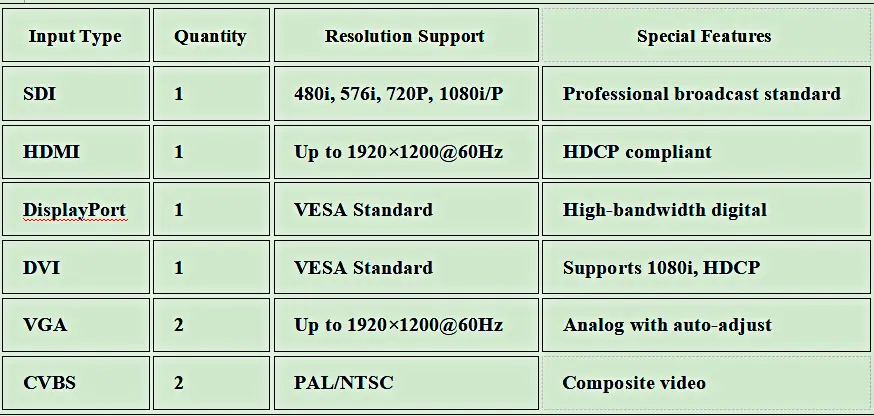
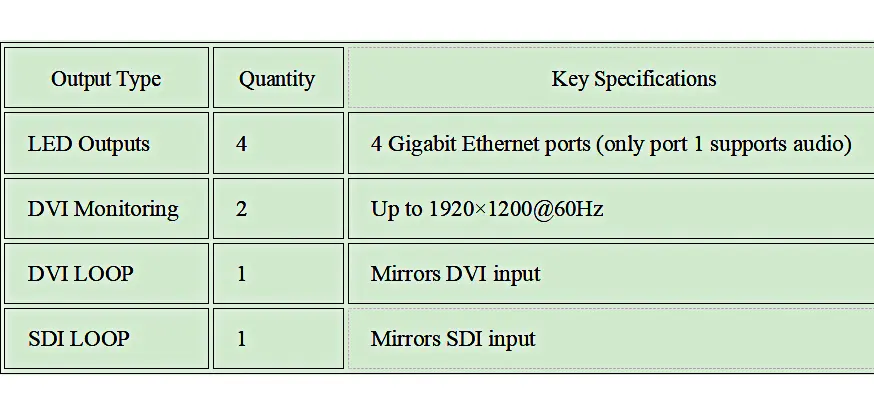
Two specification tables on the older version of this page were supplied only as images, which is why values were hard to verify and easy to misquote. The tables below are the same data as searchable text, taken from the official NovaStar VX4S specification document.
Input capabilities
| Port | Qty | Specification |
|---|---|---|
| CVBS | 2 | PAL / NTSC composite |
| VGA | 2 | VESA standard, up to 1920 x 1200 @ 60 Hz |
| DVI | 1 | VESA standard, supports 1080i input and HDCP |
| SDI | 1 | 480i, 576i, 720p, 1080i / 1080p |
| HDMI | 1 | EIA/CEA-861, HDMI 1.3 standard, supports HDCP |
| DP | 1 | VESA standard |
Output and control capabilities
| Port | Qty | Specification |
|---|---|---|
| LED Out 1 – 4 | 4 | Gigabit Ethernet outputs to receiving cards |
| Monitor DVI OUT | 2 | Monitoring interfaces for reference displays |
| DVI LOOP | 1 | Consistent with the DVI input signal |
| SDI LOOP | 1 | Consistent with the SDI input signal |
| VGA | 1 | 1280 x 1024, 1440 x 900, 1680 x 1050, 1600 x 1200, 1920 x 1080, 1920 x 1200, 2048 x 640, 2048 x 1152, 2304 x 1152, 2560 x 816 @ 60 Hz |
| Self-defined output | – | Bandwidth-optimised custom canvas, maximum 3840 px horizontal and 1920 px vertical |
| ETHERNET | 1 | Communication with PC or network access |
| USB Type B | 1 | PC communication or cascade in |
| USB Type A | 1 | Cascade out – do not connect a PC directly to this port |
Machine specifications
| Parameter | Official value | Why it matters |
|---|---|---|
| Loading capacity | 2.3 million pixels | Shared across the four LED outputs – the real limit on screen size |
| Input resolution | Up to 1920 x 1200 @ 60 Hz | Native 4K sources need an upstream downscale |
| Output canvas | Max 3840 px wide / 1920 px high | Wide canvases are possible within the pixel budget |
| Input power | AC 100 – 240 V, 50 / 60 Hz | Universal – no voltage selection needed |
| Power consumption | 25 W | Low enough for a standard rack position |
| Operating temperature | -20 to 60 degrees Celsius | Confirm this value if you are repurposing older stock |
| Dimensions | 482.6 x 251.5 x 45 mm | Rack-mountable enclosure |
| Weight | 2.55 kg | – |
Three values worth double-checking. Some reseller listings for the VX4S quote an operating range of -20 to 70 degrees Celsius, dimensions of 483.6 x 275.1 x 51.5 mm, and describe the loading capacity as “3840 x 1920 resolution”. The official NovaStar specification document gives -20 to 60 degrees Celsius, 482.6 x 251.5 x 45 mm, and a loading capacity of 2.3 million pixels with a maximum canvas of 3840 px wide by 1920 px high. The two are not the same claim, and the difference matters when you are quoting a tender or checking whether a spare will physically fit.
4. Connections: How to Wire the VX4S
Work through the physical connections before touching any menu.
Power
Connect the supplied cable to the AC 100 – 240 V, 50 / 60 Hz input on the rear panel and to a grounded outlet. There is no voltage switch to set.
Video sources
- Broadcast and camera feeds: SDI IN (with SDI LOOP out if you need to feed a monitor or second device)
- Media servers and computers: HDMI, DP, DVI or VGA
- Legacy analogue sources: CVBS 1 – 2 for PAL / NTSC composite
- Audio: HDMI embedded audio, or the dedicated audio input if you are taking sound separately
LED screen and monitoring
- Run Ethernet cables from LED Out 1 – 4 to the receiving cards in the screen. Keep the data flow order consistent with your cabinet layout.
- Connect reference displays to the two Monitor DVI OUT ports if you need to see the canvas while commissioning.
- Use DVI LOOP or SDI LOOP to pass a signal through to another device rather than splitting it with a third-party splitter.
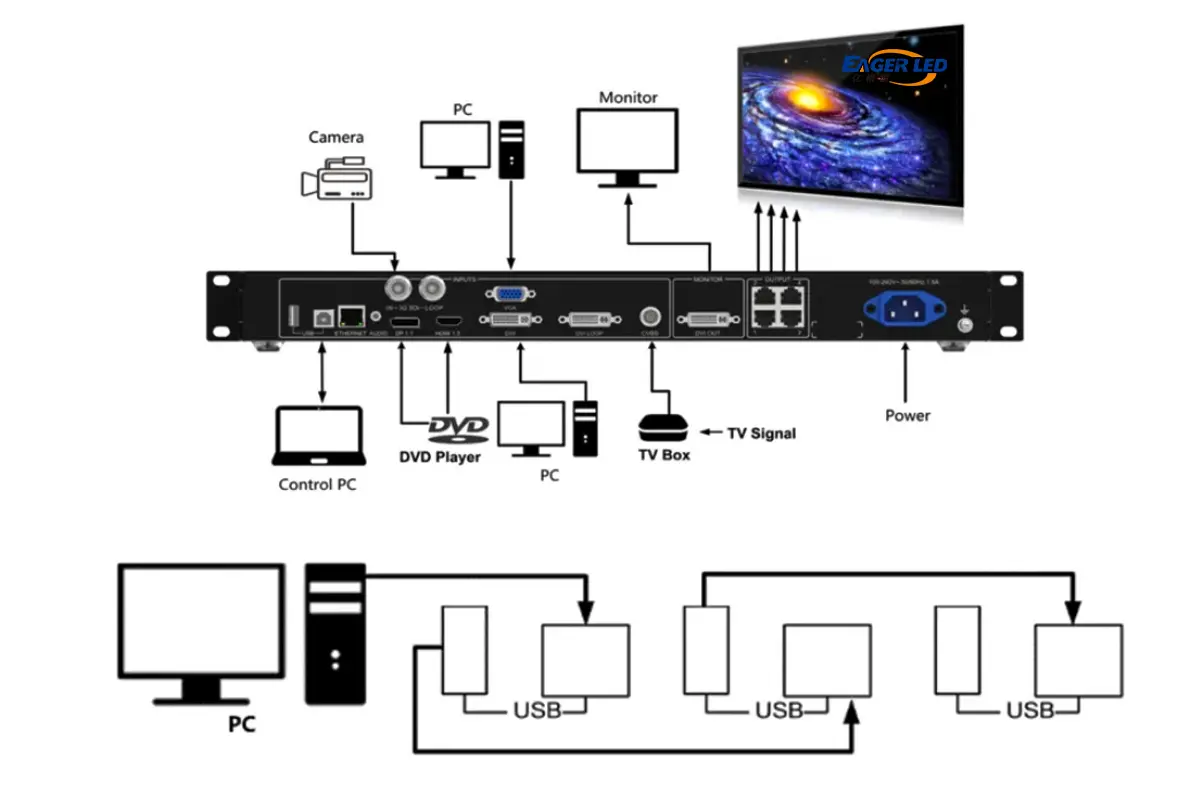
If you are also working with the cable runs between the controller and the control computer, the NovaStar controller connection walkthrough covers the VX, VX1000, VX600, VX400 and VX16S family in the same sequence.
5. How to Set Up and Calibrate the VX4S
Configuration runs entirely from the front panel. Press the knob to enter a menu, rotate to move, press to confirm, and use ESC to step back out.
Step 1 – Set the resolution and input
Open Input Settings, choose the source you are feeding, then set the input resolution. The LCD screen shows the detected format, which is the quickest way to confirm the source is being recognised correctly.
Step 2 – Tell the controller about the screen
Enter the cabinet dimensions, then the row and column counts that match the physical build, then the data flow direction. Getting the flow direction wrong is the single most common reason a correct wiring loom still shows a scrambled image.
Step 3 – Choose the output mode
Select Point-to-Point when the source matches the canvas exactly; use scaling when it does not. Check the result against the total pixel count – the canvas, whatever its shape, has to stay inside the 2.3 million pixel budget.
Step 4 – Brightness and colour
Set the brightness level from the main menu, then run white balance calibration and colour gamut mapping. These are stored per display model, so save the configuration once the screen looks right and reload it next time instead of re-tuning by eye.
Step 5 – Verify with test patterns
- Use the TEST key to step through the built-in test patterns and confirm geometry, colour and uniformity
- Use the SCALE key to toggle point-to-point zoom when comparing input and output
- Use the TAKE key to switch between the main source and PIP
6. VX4S Manual, Software and Firmware
This is the part most people are actually looking for, so here is the short version.
- You do not need a computer to set up the VX4S. The knob, button, LCD screen and saved display models are sufficient for a complete commissioning.
- You do need NovaStar software for content handling, calibration and file management. NovaLCT is the tool used for screen configuration files, point-by-point correction and RCFG files.
- Connect via USB Type B or ETHERNET. Do not plug a PC into the Type A port – the official document explicitly forbids it.
Download links for NovaStar controller software are collected on our NovaStar software download page, and the receiver configuration files that NovaLCT expects are covered in the RCFG / RCFGX file guide. If your screen uses a different NovaStar controller in the same rack, the MCTRL300, MCTRL4K and TB60 guides use the same workflow with different menus.
7. VX4S Troubleshooting
Most VX4S faults fall into a small number of categories. Work down this table before assuming the unit has failed.
| Symptom | Likely cause | What to check |
|---|---|---|
| No image, no signal message | Source timing outside the supported range | Confirm the source is at or below 1920 x 1200 @ 60 Hz; check HDCP on HDMI and DVI feeds |
| Source detected but screen stays dark | Output not mapped or cables not in data flow order | Verify the LED Out cables follow the cabinet layout and that the screen configuration matches the build |
| Image is scrambled or split | Data flow direction or row / column count wrong | Re-enter the cabinet rows, columns and flow direction, then reload the saved model |
| PIP will not display | Conflicting main and PIP source pair | Check NovaStar’s PIP conflict list and change either the main or the PIP source |
| Incorrect physical fit or power budget in a quote | Reseller dimension or temperature figures | Use the official values in section 3 above |
| Colours look wrong on analogue inputs | ADC calibration not run for that source | Run ADC calibration, then white balance calibration for the screen |
| Screen works but a section is missing | Pixel count beyond 2.3 million | Recalculate total pixels and split the canvas across two controllers using montage |
| PC will not talk to the controller | Wrong USB port or network settings | Use USB Type B or ETHERNET, not the Type A port |
For display-level faults rather than controller faults – dead cabinets, uneven brightness, whole-screen blackouts – the LED black screen troubleshooting guide separates screen problems from signal problems.
8. VX4S vs VX4S-N vs VX4 vs VX400
Buyers searching for a VX4S are usually trying to work out which model they already have, or which one to buy. Here is the honest version.
| Model | What it is | Practical difference |
|---|---|---|
| VX4S | All-in-one controller, official revision 1.0.3 | 2.3 million pixels, four Ethernet outputs, inputs up to 1920 x 1200 @ 60 Hz |
| VX4S-N | The “N” revision of the same controller, sold in several markets | Distributors describe a revised internal architecture at a lower cost, a move to 3G-SDI, and a reduced set of duplicate analogue ports; the core ratings are unchanged |
| VX4 | Earlier VX-series controller | No SDI input, and a different analogue input count – the reason broadcast users moved to the VX4S |
| VX400 / VX400 Pro | Current-generation replacement | Higher pixel capacity and modern input handling – see the VX400 Pro specifications |
One caution on the VX4S-N: the differences above are reported by distributors rather than stated in a single official datasheet, so if you are specifying a build, confirm the SDI standard and the exact analogue port count against the unit you are quoting.
9. FAQs
What is the NovaStar VX4S?
The NovaStar VX4S is an all-in-one LED display controller with built-in front-end video processing, so no external scaler is required. It offers CVBS x2, VGA x2, DVI, HDMI, DP and SDI inputs up to 1920 x 1200 @ 60 Hz, four Gigabit Ethernet LED outputs, and a 2.3 million pixel loading capacity.
Does the NovaStar VX4S support 4K input?
No. The VX4S accepts input resolution up to 1920 x 1200 @ 60 Hz, so a native 4K (3840 x 2160) source must be downscaled before it reaches the controller. What the VX4S can do is output a wide canvas: self-defined output resolution can reach a maximum of 3840 pixels horizontally and 1920 pixels vertically, for example an ultra-wide 3840 x 1080 layout. That is 4K width, not full 4K resolution – the two are often confused in reseller listings.
How many pixels can the VX4S drive?
2.3 million pixels, shared across the four LED outputs. Because the limit is total pixels rather than a single resolution figure, a very wide, short screen can be driven to a larger canvas than a conventional 16:9 shape at the same pixel budget.
Do I need a computer to configure the VX4S?
No. The VX4S is configured from the front panel using NovaStar’s Touch Track approach – one knob, one button, an LCD screen and eight lit source shortcut keys. NovaStar states that screen debugging can be completed within 30 seconds using saved display models. A PC with NovaLCT is still the practical route for point-by-point correction, RCFG files and content-related work.
What is the difference between the VX4S and the VX4S-N?
Both are the same class of all-in-one controller with a 2.3 million pixel capacity, four Ethernet outputs and 1920 x 1200 @ 60 Hz input. The “N” revision is reported by distributors as a lower-cost redesign: a revised internal architecture, a move from HD-SDI to 3G-SDI, and fewer duplicate analogue ports in some layouts. Verify these details against the specific unit if SDI bandwidth or analogue input count is critical to your project.
Where do I find the VX4S user manual and NovaLCT software?
The official NovaStar specification document is titled LED Display Video Controller VX4S, revision 1.0.3, and the VX4S user manual is published on NovaStar’s own support pages. NovaStar controller software downloads, including NovaLCT, are collected on our NovaStar software download page. Note that the VX4S is an older model, so if a download page lists only current controllers you may need NovaLCT rather than a model-specific utility.
Is the VX4S suitable for outdoor LED displays?
The controller itself is rated for -20 to 60 degrees Celsius, so it is suited to outdoor installations when it is housed in an appropriate enclosure with ventilation or climate control. Specifications for the LED screen are separate from the controller: outdoor performance depends on the cabinet IP rating and brightness, not on the processor.
How do I cascade multiple VX4S units for a large screen?
The VX4S supports multiple-controller montage, so a canvas larger than 2.3 million pixels is split across two or more units using equal or unequal division. Run the cascade connection through the USB Type B and Type A ports as documented, keep one source synchronised across the controllers, and plan the split so each unit stays inside its own pixel budget.
What replaced the NovaStar VX4S?
New projects generally move to current NovaStar families: the VX400 and VX400 Pro for general all-in-one control, the VX600 Pro and VX1000 Pro for larger canvases, and the MX40 Pro for high-density processing. Which one fits depends on total pixel count, input resolution and whether you need 4K input handling. The MX40 Pro and VX400 Pro guides show the current specification baselines.
Next Steps
The VX4S remains a dependable controller for the installations it was designed for, as long as you plan around its real limits: 2.3 million pixels, 1920 x 1200 @ 60 Hz input, and a maximum canvas of 3840 x 1920. Buying on the assumption that it is a 4K processor is the most common and most expensive mistake.
If you are specifying a new screen rather than maintaining an existing one, tell us the pixel pitch, viewing distance and total cabinet count and we will size the controller to match. Start with the current NovaStar controllers in our VX600 Pro and TU40 Pro references, or review the LED display resolution guide to work out what the screen actually needs before the controller is chosen.
Specification source: NovaStar official product document “LED Display Video Controller VX4S”, revision 1.0.3. Values reported by resellers that differ from this document are noted in section 3.
Related Posts
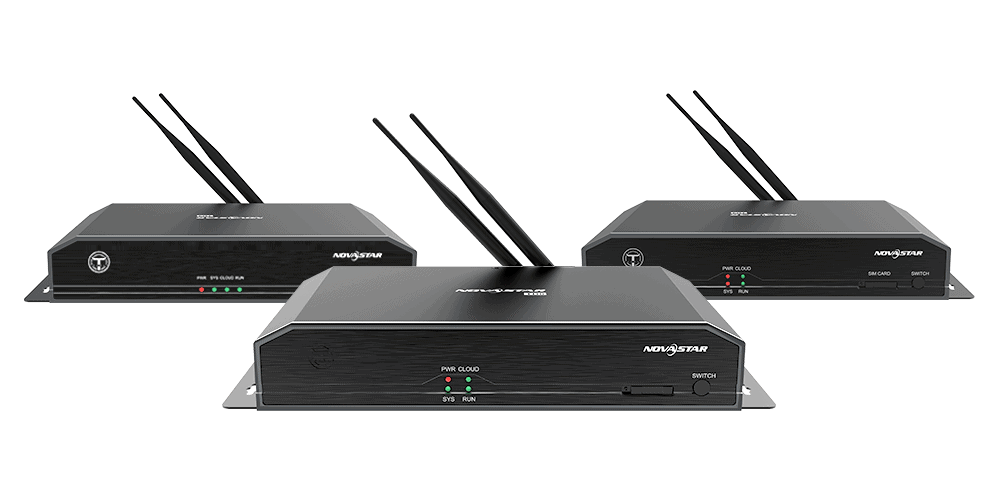
NovaStar TB60: Full Introduction and User Manual
The NovaStar TB60 represents the pinnacle of multimedia player technology…
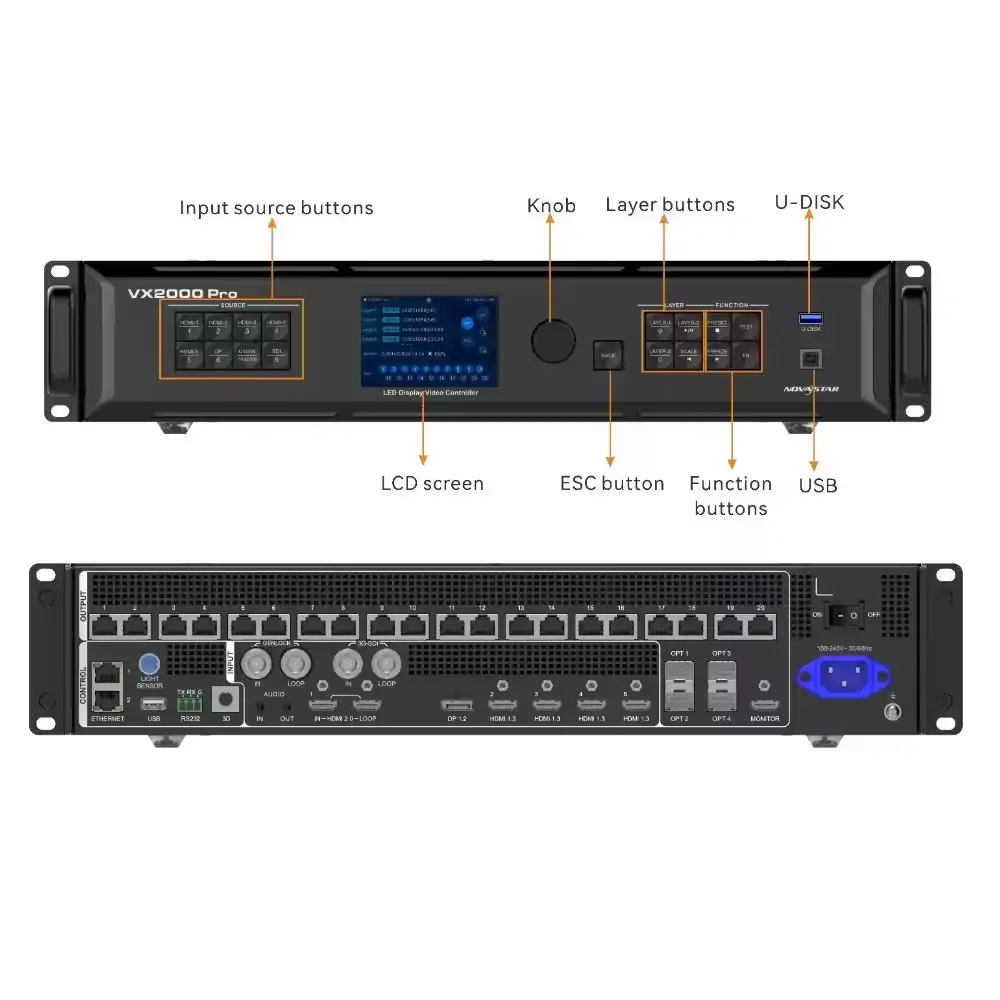
NovaStar VX2000 Pro: Specs, Manual, Price & Downloads
The NovaStar VX2000 Pro is NovaStar’s 20-port all-in-one 4K LED…
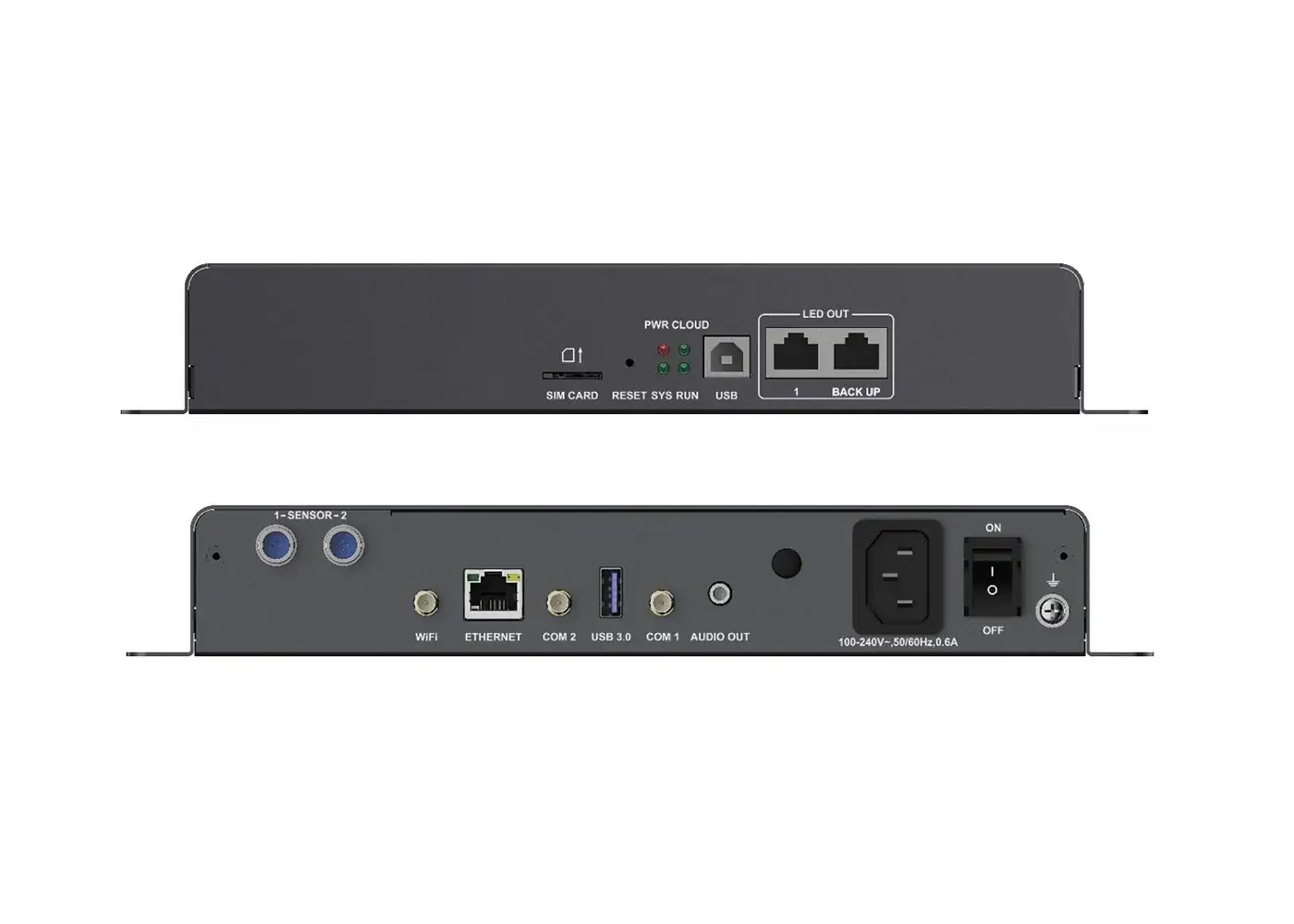
NovaStar TB30: Specifications, Manual, Software & Setup
NovaStar TB30 is a Taurus-series LED multimedia player that stores…

No Comments