
NovaStar TB30: Specifications, Manual, Software & Setup
NovaStar TB30 is a Taurus-series LED multimedia player that stores content, plays scheduled media and sends image data to compatible LED receiving cards without a continuously connected PC. This guide covers NovaStar TB30 specifications, manual downloads, software, setup, buying questions and troubleshooting.
The key purchasing detail is its loading limit: NovaStar’s V1.2.4 specification, dated 31 July 2026, lists 1,300,000 pixels, while older documentation and the manufacturer’s comparison page list 650,000. Confirm the applicable configuration before ordering. Its 4K decoding capability describes source files, not a 4K LED output canvas.
- Device type: Taurus-series asynchronous multimedia player — media playback and LED screen sending in one unit
- Loading capacity: up to 1,300,000 pixels in specification V1.2.4; earlier V1.2.1 and some NovaStar web pages state 650,000 pixels
- Outputs: 2x Gigabit Ethernet (both primary by default, one can be set as backup) plus 1x 3.5 mm audio output
- Processing: quad-core ARM A55 at 1.8 GHz, 1 GB RAM, 32 GB internal storage, Android 11
- Simultaneous playback: 1x 4K, 2x 1080p, 5x 720p, 6x 480p or 6x 360p video (V1.2.4)
- Control software: ViPlex Handy (mobile), ViPlex Express (Windows), VNNOX (cloud)
- Multi-screen sync: NTP, GPS or RF time synchronization
- Environment and size: -20 °C to +60 °C, IP20, 274.3 x 139.0 x 40.0 mm, 1,228.9 g net weight
2. NovaStar TB30 Specifications
3. How Many Pixels Can the TB30 Load?
4. Software: ViPlex Handy, ViPlex Express and VNNOX
5. NovaStar TB30 Manual and Downloads
6. Synchronous Playback Setup (NTP, GPS, RF)
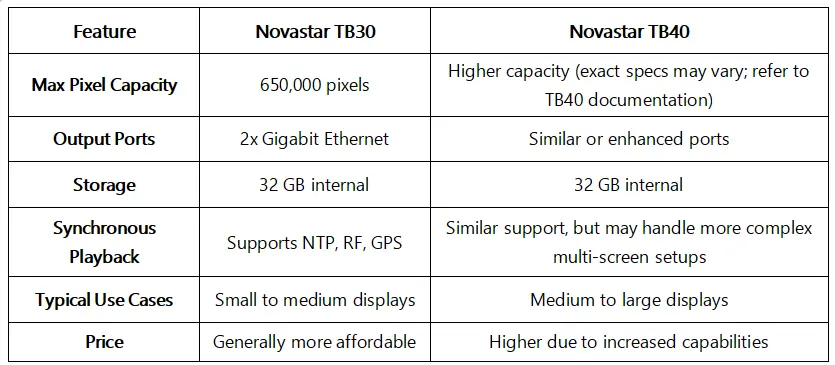
7. TB30 vs TB40, TB50 and TB60
8. Where the TB30 Works Best
9. Price, Box Contents and Support
10. Troubleshooting: Wi-Fi, Network and Reset
11. FAQs
12. Summary
1. What Is the NovaStar TB30?
The NovaStar TB30 is made by Xi’an NovaStar Tech Co., Ltd. for full-color LED signage. Also called the NovaStar Taurus TB30, it combines the functions of a media player and an LED sending device. The playback program resides on the player, so a laptop is used for commissioning or content updates rather than continuous operation.
In a typical NovaStar TB30 installation, LED OUT connects to receiving cards inside the cabinets, while the separate ETHERNET management port connects to the control network. ViPlex publishes playlists and schedules; compatible receiving-card parameters determine how pixels map onto the physical modules. The controller cannot compensate for an incorrect cabinet map or an incompatible receiving card.
Choose this architecture for scheduled advertising, menus and notices. The NovaStar TB30 has no listed physical HDMI input, so a live laptop or camera feed requires a suitable alternative controller. Time-synchronized playback between players is a separate function from live HDMI video input.
2. NovaStar TB30 Specifications
The NovaStar TB30 specifications below retain the version context needed for procurement. Hardware and media figures follow NovaStar’s TB30 V1.2.4 PDF; the loading discrepancy is explained in section 3. Maximum dimensions, total pixels and decoding limits are separate constraints.
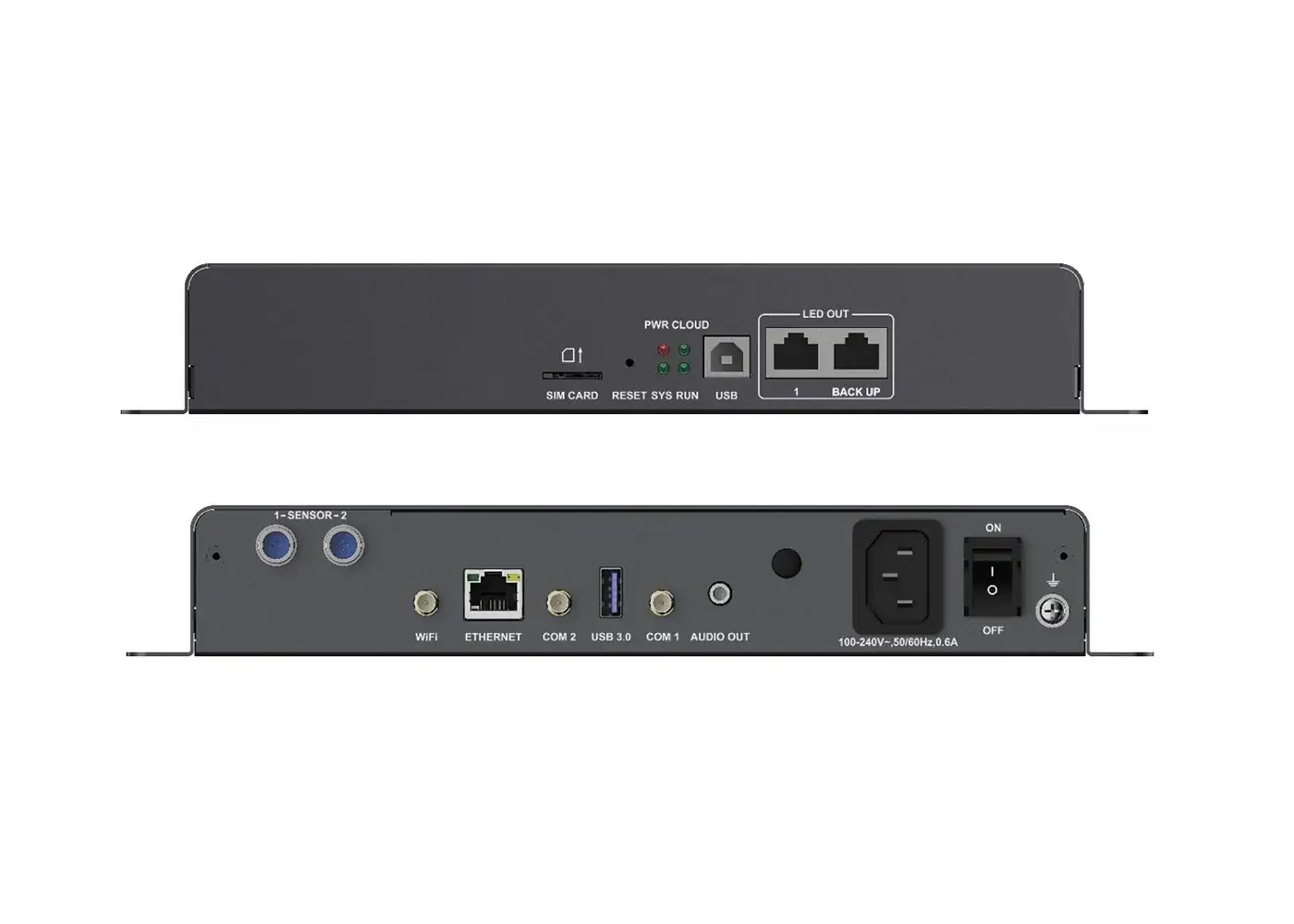
01 NovaStar TB30 Output, Loading Capacity and Audio
| Parameter | Published specification | Design implication |
|---|---|---|
| Total loading | Up to 1,300,000 pixels in V1.2.4 | Confirm support for the supplied unit; older specification: 650,000 |
| Standard dimension limits | Maximum width 4096; maximum height 4096 | These are independent limits, not a supported 4096 × 4096 full canvas |
| Ultra-long dimensions | Maximum width 23,040; maximum height 4096 | Requires the ultra-long-screen configuration guide; total loading still applies |
| LED outputs | 2 Gigabit RJ45; both primary by default in V1.2.4; primary/backup selectable | Backup mode does not provide two independent full-capacity outputs |
| Audio | 3.5 mm audio output, fixed 48 kHz at the connector | Audio input is not supported; distinguish connector output from multifunction-card conversion |
For a NovaStar TB30 using two primary outputs, calculate the pixel load and cable route for each port. If redundancy is required, ask the supplier to verify the permitted loading in backup mode and test the fallback wiring. A second cable alone does not prove that recovery is configured.
02 Processing and Media Decoding
| Specification | NovaStar TB30 |
|---|---|
| Processor | Quad-core ARM A55 at 1.8 GHz |
| Memory and storage | 1 GB RAM, 32 GB internal storage |
| Operating system | Android 11 (operating system, terminal application and FPGA program) |
| Video decoding | H.265/HEVC up to 4096 x 2304 at 60 fps and 100 Mbps; H.264 and MPEG4 up to 30 fps; VP9 up to 60 fps; VP8 up to 30 fps (MP4, AVI, MKV, MOV, WEBM) |
| Image formats | JPEG, BMP, PNG and WEBP: 64 × 64 to 4096 × 2304; GIF: up to 1920 × 1088, with frame-rate restrictions |
| Simultaneous playback | 1x 4K, 2x 1080p, 5x 720p, 6x 480p or 6x 360p |
| USB playback | FAT32 and NTFS drives from 2 GB to 128 GB; single file under 4 GB |
The listed NovaStar TB30 playback combinations are alternatives, not simultaneous totals. Videos between 2K and 4K count as 4K internally, and synchronized playback reduces the simultaneous video allowance. Test the actual codec, bitrate, frame rate and complete playlist; a file extension such as MP4 does not identify its codec.
03 Ports, Connectivity and Synchronization
| Interface | Purpose |
|---|---|
| 1x Gigabit Ethernet | Connects the player to a control computer, a LAN or the public network |
| Wi-Fi, 2.4 GHz | Wi-Fi AP and Wi-Fi Sta run at the same time. The default SSID is the model name plus the last 8 digits of the serial number, with the password printed on the SSID label |
| 4G module | Optional and not included. The SIM slot is keyed so the card cannot be inserted the wrong way |
| 1x USB 3.0 (Type-A) | USB playback, firmware upgrade and storage expansion |
| 1x USB (Type-B) | Direct connection to a control computer |
| 2x sensor connectors | Brightness sensor, or temperature and humidity sensor |
| RF and GPS antenna ports | Used with the optional RF module and the optional 4G module for time synchronization |
The NovaStar TB30 network priority is wired, then Wi-Fi, then 4G when multiple routes are available. LED OUT carries screen data; the management ETHERNET connector handles the LAN or internet connection. Keep these paths distinct when diagnosing discovery or cloud-access problems.
04 Electrical, Environmental and Physical Data
| Parameter | Value |
|---|---|
| Input power | 100-240 V, 50/60 Hz, 0.6 A |
| Power consumption | Maximum 18 W. Recommended supply power 25 W |
| Operating temperature | -20 °C to +60 °C |
| Operating humidity | 0% to 80% RH, non-condensing |
| Storage temperature | -40 °C to +80 °C |
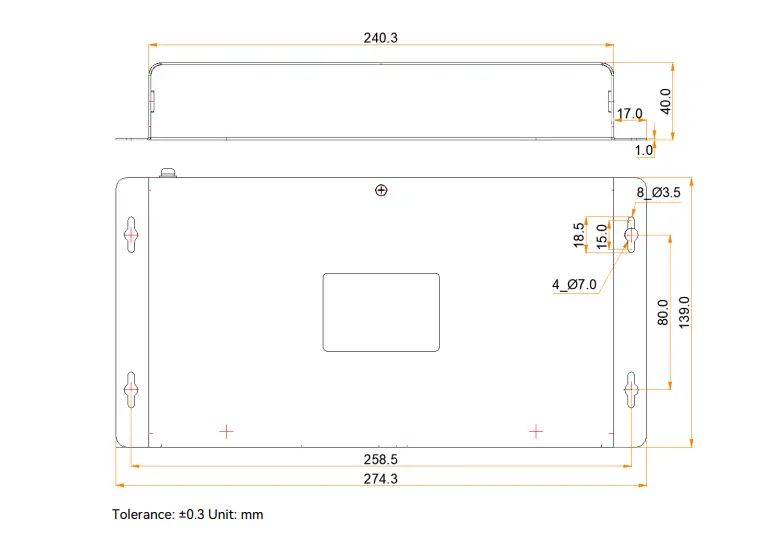
| Dimensions | 274.3 x 139.0 x 40.0 mm |
| Weight | 1,228.9 g net, 1,648.5 g gross |
| Protection rating | IP20, indoor installation. Keep the unit away from water |
| Certifications | CE, UKCA, FCC, UL, IC, CB, KC, PSE, RCM, CQC and SRRC, among others listed in V1.2.4 |
The NovaStar TB30 is IP20 and must be protected from water. In an outdoor display, place it in a suitable cabinet compartment with moisture protection and managed cooling. Check the temperature around the player under sunlight and full screen load, rather than relying only on the outdoor air temperature.
3. How Many Pixels Can the TB30 Load?
Check both total pixels and the supported operating mode. The NovaStar TB30 V1.2.4 PDF states 1,300,000 pixels and two primary outputs. The V1.2.1 PDF and NovaStar’s comparison page state 650,000 pixels with primary/backup outputs. Those documents establish a discrepancy; they do not establish that every older unit can be upgraded to the higher capacity.
Request written confirmation of firmware, output mode and usable capacity for the actual NovaStar TB30 supplied. Calculate width in pixels × height in pixels, then check each port and receiving-card chain. Screen area alone is insufficient: finer pixel pitch increases the required pixel count.
| LED canvas | Pixel calculation | Capacity check |
|---|---|---|
| 960 × 640 | 614,400 pixels | Below both published total limits |
| 1280 × 720 | 921,600 pixels | Exceeds 650,000; requires confirmed higher-capacity operation |
| 1920 × 1080 | 2,073,600 pixels | Exceeds both stated TB30 totals |
| 4096 × 4096 | 16,777,216 pixels | Not supported merely because each dimension is listed as a maximum |
For example, a 3.2 m × 1.6 m display at P2.5 has a nominal 1280 × 640 matrix, or 819,200 pixels. Confirm the actual module and cabinet matrix before using that estimate. This installation exceeds the older total and cannot be approved solely because the source video is 4K-decodable.
4. Software: ViPlex Handy, ViPlex Express and VNNOX
Use NovaStar TB30 software according to the task: publishing content and configuring the LED hardware are different jobs.
| Tool | Use it for | Practical starting point |
|---|---|---|
| ViPlex Handy | Mobile device discovery, publishing and terminal management | Connect the phone to the player’s Wi-Fi or supported local network |
| ViPlex Express | Windows content authoring, schedules and terminal management | Use asynchronous mode and discover the player on the LAN |
| VNNOX | Remote publishing and cloud management | Check internet access, account binding and platform compatibility |
| NovaLCT | LED screen configuration through the multimedia-player workflow | Use User → Media Player Login with compatible software and firmware |
NovaStar’s NovaLCT multimedia-player manual documents this connection workflow. It is incorrect to say that NovaLCT cannot configure Taurus players. Use ViPlex for playlists and the appropriate screen-configuration tool for receiving-card parameters; obtain the cabinet supplier’s validated configuration file before changing hardware settings.
For first commissioning, connect the management network, discover the NovaStar TB30, authenticate, confirm the cabinet map, then publish a simple test image at the screen’s native matrix. Check orientation, seams, colors and every cabinet before adding video. Save a working configuration and test scheduled playback after a restart.
5. NovaStar TB30 Manual and Downloads
For a NovaStar TB30 manual download, start with the document matching the job. The specification explains limits and ports; the quick start covers connections and login; software manuals explain operation. A specification sheet alone is not a complete commissioning procedure.
01 Download the NovaStar TB30 documents
- NovaStar TB30 specifications V1.2.4, 31 July 2026 (official PDF)
- Taurus third-generation quick start V1.0.2 (PDF)
- Taurus synchronized playback instructions V1.6.7 (PDF)
- NovaLCT multimedia-player configuration manual V5.6.0 (official PDF)
- Official Taurus software, firmware and document downloads
Keep the document version with the project handover. Older instructions may show different menus or credentials. Follow the label and documentation applicable to the unit rather than assuming that a password or screenshot from another Taurus generation applies.
Before a NovaStar TB30 firmware update, record the installed version, export available configuration and confirm the package with the supplier or NovaStar. Read its release notes and maintain stable power throughout installation. Updating firmware should follow a diagnosed need; it is not the first response to a disconnected cable or an incorrect network setting.
6. Synchronous Playback Setup (NTP, GPS, RF)
NovaStar TB30 synchronous playback coordinates locally stored content across multiple players. NovaStar’s implementation instructions require compatible platforms, synchronized clocks and the same playback plan without random media or transitions.
- NTP: useful for players sharing a managed network; the guide recommends a LAN time server.
- RF: requires the specified RF module and antenna, with master and group settings configured.
- GPS: requires the specified module and antenna arrangement; follow the documented installation requirements, including the SIM configuration where applicable.
To configure NTP on a NovaStar TB30 network:
- Provide a reachable NTP server and record its address.
- Connect and log in to each player with ViPlex.
- Enable synchronous playback and select NTP time synchronization.
- Apply the same server and check time settings on every player.
- Publish an identical, non-random playback plan, then test several complete loops and scheduled starts.
The older implementation guide has additional media restrictions, including a single media item per solution page in its documented scenario. Validate current firmware requirements before using complex layouts. Matching clocks alone does not guarantee that different playlists will stay visually aligned.
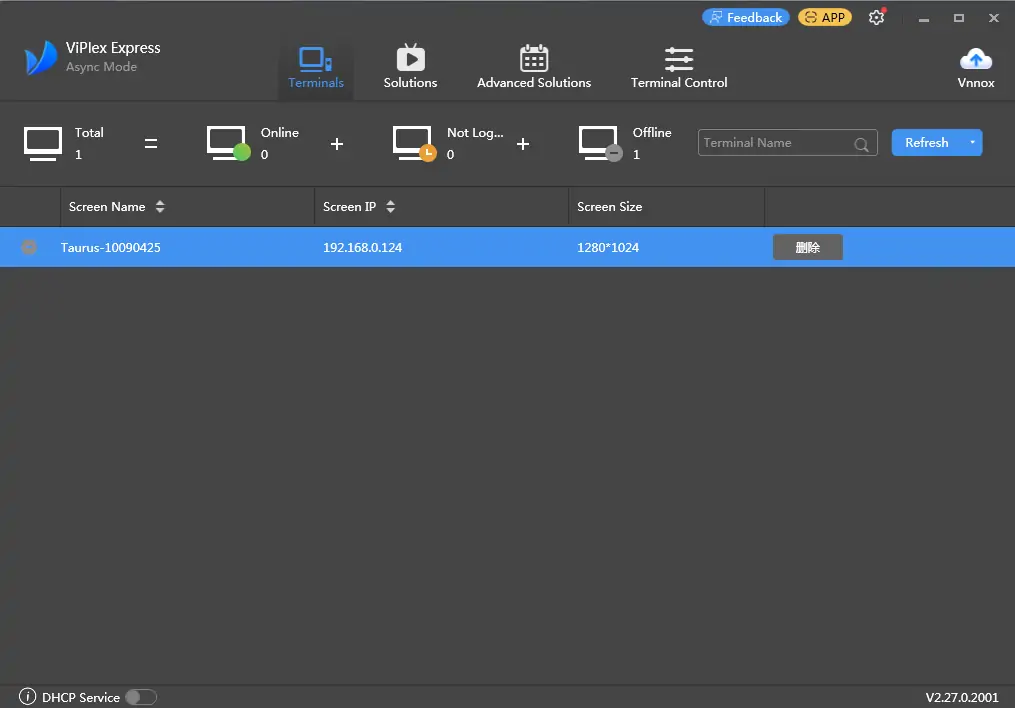
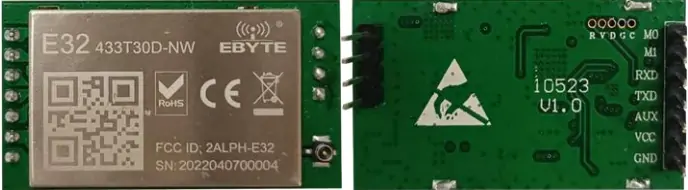
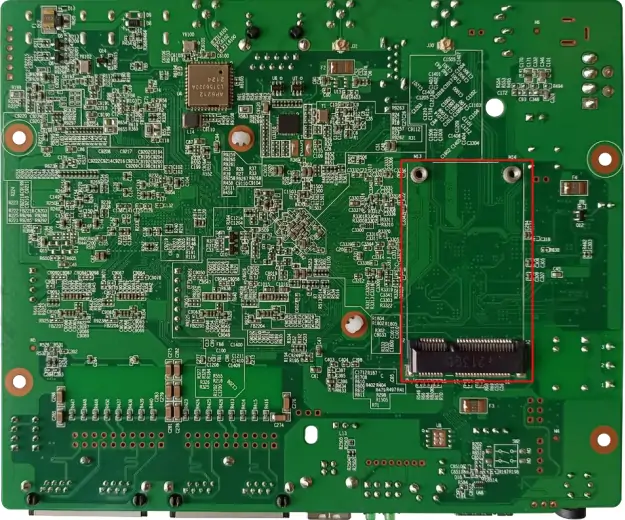
The existing illustrations below and above identify software and optional modules. Confirm the exact RF or cellular accessory before purchase. For NovaStar TB30 commissioning, test synchronization after a restart and after restoring network access; record the results with the final playlist.
7. TB30 vs TB40, TB50 and TB60
Compare input requirements, confirmed pixel capacity and redundancy before choosing a Taurus model. Model numbers alone do not establish that one unit is a direct replacement.
| Model | What to compare | Buying decision |
|---|---|---|
| NovaStar TB30 | Local playback; no physical HDMI input listed; conflicting 650,000/1,300,000 documentation | Approve against the unit’s confirmed specification and port mode |
| TB40 | Obtain the exact model datasheet and hardware revision | Do not assume extra capacity or HDMI capability from the model number |
| TB50 | Manufacturer comparison lists 1.3 million pixels and dual-mode support | Consider when live-source capability is required; confirm current input and loading limits |
| TB60 | Manufacturer comparison lists 2.3 million pixels, four outputs and dual-mode support | Consider larger canvases; calculate per-port load and backup requirements |
The TB50/TB60 figures are from the manufacturer’s comparison, which still lists the older TB30 value. Read current model-specific PDFs before procurement. See our TB30 vs TB50 comparison and TB60 guide for related selection questions.
8. Where the TB30 Works Best
The NovaStar TB30 suits scheduled signage where content is updated periodically and played locally:
- Retail and chain stores: distribute campaigns centrally while keeping each screen’s playlist on its player.
- Menus and information boards: schedule content by time of day and test readability at the real viewing distance.
- Street-side signs: provide suitable environmental protection and verify network coverage inside the cabinet.
- Sensor-controlled installations: use compatible accessories and check actual brightness behavior during commissioning.
For an LED project, agree on pixel pitch, viewing distance, brightness and cabinet service access before selecting the controller. The indoor LED screen range, outdoor LED screen guide and screen buying guide explain those decisions. A controller’s loading capacity does not establish whether a screen will be bright enough for its location.
9. Price, Box Contents and Support
For a NovaStar TB30 price, request a dated quotation for the exact configuration. A bare-player listing cannot establish the installed project cost. Compare currency, shipping, taxes, warranty, optional modules and commissioning support on the same basis. No verified current HonghaiLED selling price is stated in this guide.
The NovaStar TB30 specification lists the player and these standard accessories:
- 1x TB30 multimedia player
- 1x Wi-Fi omnidirectional antenna
- 1x AC power cord
- 1x QR code and 1x certificate of approval
When you buy, confirm three things in writing: which specification version applies to the unit, whether the firmware is current, and who provides technical support for configuration.
Receiving-card compatibility must be verified by model and firmware; RJ45 connectors do not make every LED control system interchangeable. Send the screen matrix, cabinet arrangement, receiving-card model and publishing requirements to the HonghaiLED project team. Ask for the confirmed NovaStar TB30 loading mode, configuration files, optional-module list and recovery procedure with the quotation.
10. Troubleshooting: Wi-Fi, Network and Reset
| Symptom | Check first | Next step |
|---|---|---|
| Player not detected | Management ETHERNET connection, subnet, power and device discovery | Use ViPlex refresh; for NovaLCT use Media Player Login. Follow the correct direct-link or router DHCP procedure |
| Wi-Fi connection fails | Antenna, 2.4 GHz support, SSID label and saved credentials | Distinguish hotspot password from player login. Ask the installer if credentials were changed |
| CLOUD indicator off | Internet route, gateway, DNS and network restrictions | Restore internet access, then verify account binding; local playback and cloud access are separate |
| CLOUD steady versus flashing | V1.2.4: steady indicates internet; flashing every 2 seconds indicates VNNOX connection | Use the matching firmware documentation before interpreting other flash patterns |
| Black or scrambled screen | LED OUT cable, receiving-card power, cabinet map and published content | Test a known-good still image; restore the validated screen configuration if necessary |
| Video stutters or fails | Codec, bitrate, resolution and simultaneous video count | Test a simpler supported file; reduce playlist complexity and recheck sync-mode restrictions |
| SYS remains on or off | V1.2.4 identifies abnormal operating-system status | Record indicators and contact support. Do not repeatedly interrupt an upgrade |
| USB drive not recognized | FAT32 or NTFS, 2–128 GB, files greater than zero and smaller than 4 GB | Confirm supported media and the documented publishing procedure |
| Factory reset required | Back up settings and confirm how to restore the installation | The documented RESET hold is 5 seconds; use only when prepared to reconfigure |
When reporting a NovaStar TB30 fault, include firmware, software version, screen matrix, receiver model, indicator behavior and the last change made. Separate discovery, cloud connectivity, content playback and LED mapping; each points to a different part of the system.
11. FAQs
These NovaStar TB30 FAQs answer specification, software, connection and buying questions. Open a question to read the answer.
01 What is the NovaStar TB30?
The NovaStar TB30 is a Taurus multimedia player with onboard content storage, scheduled playback and LED sending. It runs the published playlist locally after commissioning, without a continuously connected computer.
02 How many pixels can the NovaStar TB30 load?
V1.2.4 lists up to 1,300,000 pixels, while V1.2.1 and the manufacturer’s comparison page list 650,000. Confirm the supplied unit’s firmware and output mode. Maximum width and height are separate constraints, not a full 4096 × 4096 canvas.
03 Which NovaStar TB30 software should I use?
Use ViPlex Handy or ViPlex Express for content and terminal management, and VNNOX for supported cloud workflows. NovaLCT also supports multimedia-player screen configuration through Media Player Login; it is not a playlist-authoring substitute.
04 Does the NovaStar TB30 accept live HDMI input?
No physical HDMI input is listed for this player. Its sending function outputs stored media to compatible LED receiving cards. Choose a controller with the required live input for a laptop or camera; synchronized stored playback does not add an HDMI input.
05 Does the NovaStar TB30 include a 4G module?
The standard player ships without the optional 4G module. Confirm the module, antenna, SIM service and regional compatibility when ordering. Supplier bundles can differ, so request an itemized quotation.
06 Can multiple NovaStar TB30 players synchronize?
Yes, with compatible players, the correct time source and synchronous playback enabled. Publish matching plans without random media or transitions, and test the complete schedule. NTP, RF and GPS have different network and accessory requirements.
07 What is the NovaStar TB30 Wi-Fi password?
Check the SSID label for the device’s hotspot credentials and ask the installer about changes. Hotspot access and player login are different credentials. Do not factory-reset a working installation merely because an online default does not match.
08 How much does the NovaStar TB30 cost?
Request a current quote specifying the player, optional modules, shipping, taxes, warranty and support. Compare equivalent configurations. This guide does not present an unverified marketplace price as an HonghaiLED offer.
09 Where is the NovaStar TB30 manual download?
Section 5 links the official specification, Taurus quick start, synchronization instructions and NovaLCT multimedia-player manual. Use the official product download page for current software and firmware, and retain version information with your project records.
12. Summary
The NovaStar TB30 combines storage, scheduled playback and LED sending for unattended signage. Start selection with the real screen matrix and content workflow, then confirm pixel loading, port allocation, receiving-card compatibility and environmental protection.
Resolve the 650,000-versus-1,300,000 specification discrepancy with the supplier before approving a design. Use ViPlex for content, the appropriate NovaLCT multimedia-player workflow for screen configuration, and a tested synchronization plan when multiple players must match.
For live-source alternatives, compare the MCTRL300 sending-controller guide and VX4S video-controller guide. For a NovaStar TB30 proposal, provide the cabinet matrix and operating requirements so the complete system can be checked.
Source review: checked on 9 October 2026 against NovaStar’s linked TB30 V1.2.4 specification, earlier V1.2.1 specification, Taurus comparison, quick start and software instructions. Conflicting specifications are identified explicitly. Screen-sizing examples are calculations, not claims of a tested installation.
Related Posts
NovaStar TB60: Full Introduction and User Manual
The NovaStar TB60 represents the pinnacle of multimedia player technology…
NovaStar VX4S LED Controller: Specs, Setup, Manual and FAQs
Quick answer: The NovaStar VX4S is an all-in-one LED display…
NovaStar VX2000 Pro: Specs, Manual, Price & Downloads
The NovaStar VX2000 Pro is NovaStar’s 20-port all-in-one 4K LED…

No Comments