
NovaStar ET2S-G Media Server: Specs, Setup & Buying Guide
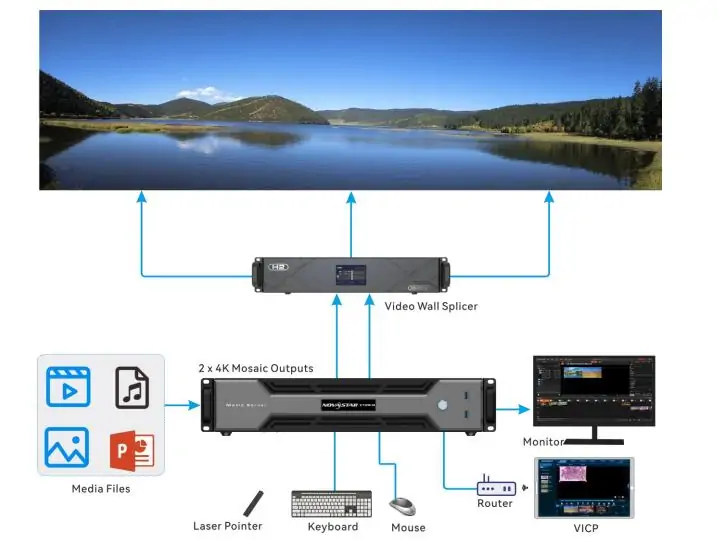
The NovaStar ET2S-G is a 2U media server for composing and playing content on LED video walls. It sends video through DisplayPort and HDMI to downstream processing and LED control equipment. Its role is content playback: it does not replace the sending controller that distributes pixel data to receiving cards inside LED cabinets.
For exhibition halls, banquet venues and permanent stages, the important questions are practical. Will the server handle your screen resolution? Which Kompass software comes with it? Can it play your files smoothly, and what else belongs in the system? This guide explains the NovaStar ET2S-G specifications, output limits, setup workflow and purchasing checks, with examples to help you specify a complete installation.
The specification baseline is NovaStar’s ET2S-G Media Server Specifications V1.3.3, dated September 7, 2026. Older documents list different software, storage and operating systems, so confirm the supplied configuration before ordering. The installation examples below are planning guidance, not claims of a completed performance test.
1. What the NovaStar ET2S-G Is (and What It Is Not)
The NovaStar ET2S-G combines a dedicated playback computer with software for arranging media into programs. Operators can prepare video, still images, presentation slides and audio, then manage what appears across the display canvas. This is useful when one screen must show several content regions or when a venue needs repeatable programs rather than a manually operated desktop presentation.
Three system roles should be kept separate. A media server creates the finished video composition. A video processor accepts sources and may switch, scale or combine them. An LED sending controller maps and transmits the image to compatible receiving cards. Some downstream devices combine processing and sending functions, but the NovaStar ET2S-G remains the source of the composed video.
That distinction answers searches for an “ET2S LED controller”: check the complete model name and the function you need. A similar product name does not establish identical software, connectors or capacity. Specify ET2S-G explicitly in quotations, system diagrams and handover documents.
A museum loop, a banquet backdrop and an immersive exhibition may all benefit from a NovaStar ET2S-G, but their content workloads differ. A single panoramic film is easier to describe than a program combining several streams, animated overlays and live webpages. Select the server around the busiest actual program, not only the physical screen size.
2. NovaStar ET2S-G Specifications at a Glance
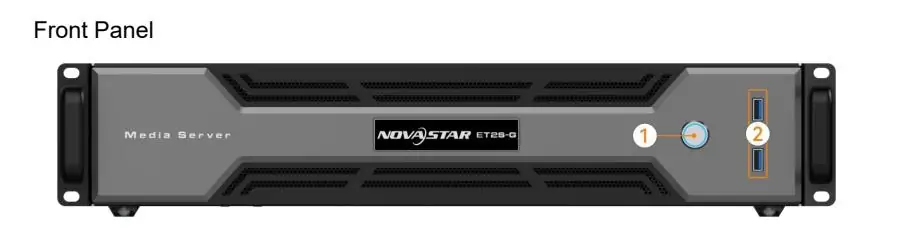
The following NovaStar ET2S-G specifications establish the main hardware and output requirements. Read the connector, decoding and layer figures separately: they describe different limits and cannot simply be multiplied together.
| Item | NovaStar ET2S-G |
|---|---|
| Product type | Media server (media playback and control system) |
| Chassis | 2U, mountable in a standard 19-inch rack |
| Maximum output capacity | Up to 8K×2K |
| Video outputs | 1× DisplayPort 1.2, 2× HDMI 2.0 |
| Maximum output per connector | 4096×2160@60Hz |
| Decoding | 1× 8K×2K@60fps with hardware decoding, or 2× 4K×2K@60fps SDR video |
| Layers | Up to 40 layers in V1.3.3; simultaneous heavy-video playback is separately limited |
| Partitions | A single output can be split into up to 64 partitions |
| Processor | 12th Generation Intel® Core™ processor (i5-12400) |
| Memory and storage | 16 GB DDR4, 512 GB M.2 SSD |
| Operating system | Windows 11 IoT Enterprise LTSC |
| Built-in software | Kompass FX3 Pro Advanced Edition (software license activation) |
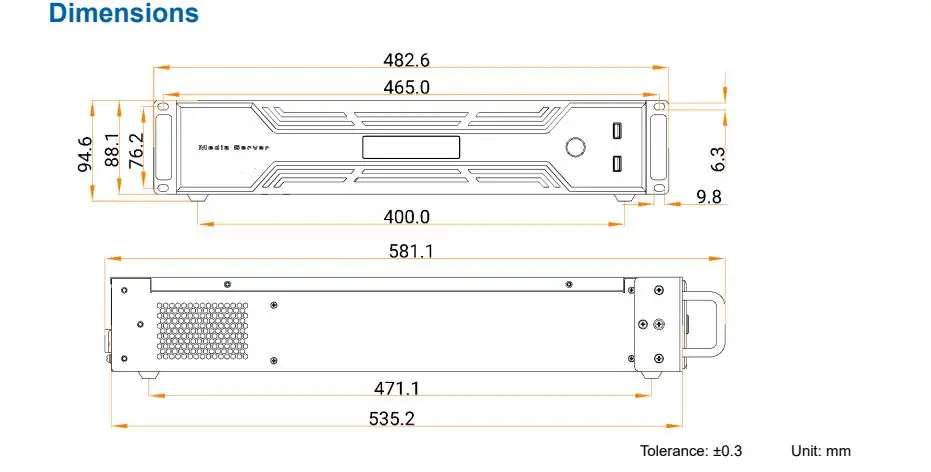
| Power and dimensions | 100–240V~, 50/60Hz, 400 W maximum; 482.6 × 94.6 × 581.1 mm; 10 kg |
| Certifications | CE, FCC, IC, CB, KC |
The 400 W figure is maximum power consumption, not a measured continuous operating load. Likewise, 512 GB is the stated SSD capacity rather than guaranteed free space for media. Allow room for the operating system, applications, project files and working copies.
When checking the NovaStar ET2S-G against a tender, request the exact hardware and software configuration in writing. A newer document does not prove that an older unit has received an operating-system upgrade, a larger drive or a different software entitlement.
3. ET2S-G Outputs, Mosaic and Loading Capacity
01. Distinguish connectors from total capacity
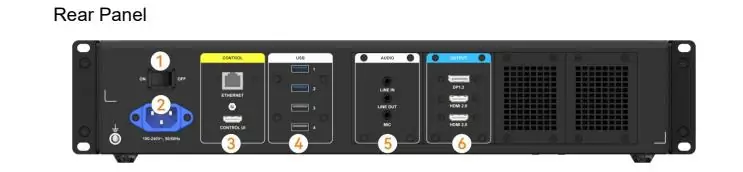
The NovaStar ET2S-G has three content-output connectors: one DisplayPort 1.2 and two HDMI 2.0. The separate HDMI connection marked CONTROL UI serves the operator monitor. It should not be counted as another equivalent content output.
| Output parameter | Limit |
|---|---|
| Connectors | 1× DisplayPort 1.2 + 2× HDMI 2.0, usable together as a three-connector mosaic |
| Maximum resolution on a single connector | 4096×2160@60Hz |
| Mosaic width or height | Up to 16,384 pixels |
| Total loading capacity | Less than 8192×2160@60Hz |
| Single-connector range | Width 480–8192 pixels, height 300–8192 pixels |
| Splitting | Up to 64 partitions on one output, with quick mapping for ultra-wide screens |
| Playback of large video | 1 layer of 8K×2K@60fps (hardware decoding) or 2 layers of 4K×2K@60fps SDR |
Three connectors do not mean three unrestricted 4K outputs at once. The NovaStar ET2S-G datasheet specifies a shared total below 8192 × 2160 at 60 Hz. Its 16,384-pixel mosaic dimension is a width-or-height limit, not permission to output a 16,384 × 16,384 image. Custom width and height ranges also remain subject to total loading and timing constraints.
02. Calculate the actual LED canvas
Start with cabinet pixel dimensions. For example, 20 cabinets across and six high, each containing 256 × 256 pixels, create a 5120 × 1536 wall: 7,864,320 pixels. This illustrative canvas is below the stated aggregate ceiling, but its width exceeds the listed standard 4096-pixel single-connector format. The proposed output split and processor input timings therefore need validation.
For the NovaStar ET2S-G, pixel count is only the first check. Document the frame rate, number of active outputs, mapping regions and processor inputs as well. Use a numbered grid and moving test pattern during commissioning to expose missing pixels, duplicated regions or seams that a static photograph can hide.
4. Hardware, Operating System and Kompass Software
01. Confirm the supplied software revision
The current NovaStar ET2S-G datasheet lists a 12th-generation Intel Core processor, 16 GB DDR4 memory, a 512 GB M.2 SSD and Windows 11 IoT Enterprise LTSC. The built-in application is Kompass FX3 Pro Advanced Edition with software license activation. Older V1.1.1 documentation lists Windows 10 Enterprise LTSC, a 500 GB SSD and Kompass FX2 with a licensing dongle.
These differences explain conflicting listings. Do not assume that downloading a newer installer changes a unit’s license or supported configuration. Before altering a working NovaStar ET2S-G, confirm the approved upgrade route, preserve the project and media files, and document the existing application version.
02. Separate playback software from cabinet configuration
Kompass manages the media composition and playback. The downstream LED system may use other tools for receiving-card configuration, cabinet mapping or calibration. An operator who knows NovaLCT should still receive training in Kompass project management; the applications solve different problems.
Use HonghaiLED’s NovaStar software download guide to identify relevant software resources, then match the manual to the installed application. For a NovaStar ET2S-G handover, record the software edition, activation status, recovery procedure and location of the approved project backup. Avoid leaving the only usable project copy on the server itself.
5. Which ET Media Server Do You Need?
Choose a NovaStar ET2S-G because its workload and output arrangement fit the project. Moving to a larger model is justified by a specific requirement, such as more decoding capacity or synchronized outputs, rather than by screen diagonal alone.
| Project requirement | Model to evaluate | Decision checkpoint |
|---|---|---|
| One 4K-class canvas and modest playback | ET1S-G | Check the current model’s decoding and output specifications. |
| 8K × 2K-class composition in a 2U installation | NovaStar ET2S-G | Validate aggregate capacity, active connectors and actual media. |
| More demanding multichannel playback or frame synchronization | ET4S-G | Confirm P2/A4 configuration and required synchronization hardware. |
| Large installations with many output channels | ET16S-G | Confirm graphics configuration, synchronization and backup design. |
NovaStar’s ET-series comparison marks frame-sync mosaic and device backup as unavailable for the ET2S-G. It lists these functions for ET4S-G configurations with a sync card and for ET16S-G configurations. Treat those as model-selection boundaries; network control alone does not provide frame-locked video.
For a smaller project, see our NovaStar ET1S-G guide. For critical shows, specify the permitted interruption time and ask the integrator to demonstrate recovery. Keeping a spare playback computer nearby is different from a tested automatic failover system.
6. NovaStar ET2S-G Setup and LED Signal Chain
A typical NovaStar ET2S-G signal chain is media files → media server → HDMI/DisplayPort → compatible processor or sending controller → receiving cards → LED modules. The server’s 2.5Gb Ethernet connection is for networking; it is not a cabinet-facing LED data output.
01. Match the downstream equipment
Confirm the processor’s accepted resolution, refresh rate and connector type before deciding the output layout. A compatible plug does not guarantee acceptance of every custom timing. Also check the downstream system’s pixel capacity and receiving-card compatibility independently of the NovaStar ET2S-G.
Our VX1000 Pro controller guide and H-series splicing processor guide explain two processing approaches. Neither should be assumed to handle the server’s complete output simply because it belongs to the same brand.
02. Commission in a controlled sequence
First, confirm the cabinet layout and native pixel dimensions. Second, connect the operator monitor to CONTROL UI and the content outputs to the selected inputs. Third, establish stable output timings and verify the processor detects them. Fourth, create the matching canvas and map each region. Finally, load representative content and test every cue.
For a NovaStar ET2S-G installation, record cable labels, input selections, output resolutions and mapping offsets. Test restart behavior after a normal shutdown, including which project opens and which program begins. This turns a working demonstration into a repeatable operating procedure that another technician can follow.
7. Features That Matter On Site
01. Prepare content without accidental on-screen changes
The NovaStar ET2S-G supports live and pre-edit working modes. In live mode, editing and playback are linked; pre-edit mode lets an operator prepare a program before displaying it. Establish which mode staff should use during public opening hours, and rehearse how a prepared program reaches the display.
Crossfades, layer priorities, cropping and opacity help combine content cleanly. They also create opportunities for mistakes: a full-screen layer can hide another source, and a transition can reveal mismatched framing. Review the beginning, end and transition of every program rather than checking only a middle frame.
02. Design dependable daily operation
Automatic software startup and program playback can simplify a daily installation. On a NovaStar ET2S-G, verify those settings against the venue’s schedule and the downstream processor’s startup sequence. Automatic project saving helps preserve editing work, but it is not a substitute for an independent backup of media and configuration.
One-click fade to black gives the operator a useful visual fallback. Decide separately how audio is muted and how normal playback resumes. For a venue using network streams, webpages or NDI, prepare a local fallback program and test what happens when the source disappears. These are recommended operating checks, not guarantees of automatic source recovery.
8. Supported Formats and Recommended Bitrates
File extensions alone do not establish whether a NovaStar ET2S-G program will play smoothly. A video container can hold different codecs, bitrates, frame rates and audio tracks. Test the final exported files, including their transitions and overlays, on the supplied server.
| Type | Formats |
|---|---|
| Video | mp4, avi, mkv, flv, mov, wmv, mpeg, mpg, m4v |
| Image | jpg, jpeg, bmp, png, gif, ico |
| Audio | mp3, aac, flac, amr, ape, wav, wma |
| Office | ppt, pptx |
NovaStar recommends H.264 for content up to 4K and H.265 or VP9 above 4K up to the documented encoding dimensions. The following SDR bitrate guidance is a starting point for content preparation; it does not expand the server’s output or simultaneous decoding limits.
| Resolution | 24–30fps | 48–60fps |
|---|---|---|
| 4320 (8K) | 75–90 Mbps | 110–135 Mbps |
| 2160 (4K) | 35–45 Mbps | 53–68 Mbps |
| 1440 (2K) | 16 Mbps | 24 Mbps |
| 1080p | 8 Mbps | 12 Mbps |
An 8K row in an encoding table does not establish full 8K × 4K playback at 60 fps on this model. The NovaStar ET2S-G performance statement is one 8K × 2K layer at 60 fps with hardware decoding, or two 4K × 2K SDR layers at 60 fps. Mixed workloads need a practical test.
HDR support is limited to HDR10 using PQ, identified as SMPTE ST2084; HLG is not supported in the cited specification. Check the processor and display configuration as well, because correct HDR playback requires a compatible signal path. For a standard SDR installation, export and review SDR content deliberately.
For storage planning, a 60 Mbps video uses approximately 27 GB per hour before audio and container overhead: 60 × 3600 ÷ 8 ÷ 1000. This calculated example helps estimate a media library, but available disk space must be checked on the actual NovaStar ET2S-G.
9. ET2S-G Troubleshooting and Common Misunderstandings
When a NovaStar ET2S-G installation has a fault, isolate the playback, video transport and LED mapping stages. Changing every setting at once makes it harder to identify the cause and recover the approved configuration.
| Symptom | Check first | Useful isolation test |
|---|---|---|
| Operator interface appears on the LED wall | CONTROL UI and content cables may be confused. | Trace each labeled cable from server to destination. |
| Processor reports no signal | Input selection, cable integrity and accepted output timing. | Try a known working cable and supported standard timing. |
| Image is cropped or repeated | Canvas dimensions, output regions and processor mapping. | Display a numbered pixel grid across the entire wall. |
| Playback stutters | Codec, bitrate, concurrent media and hardware decoding. | Compare one local video with the complete program. |
| Only network content fails | Source availability and the approved network configuration. | Play a local file through the same output route. |
| Colors look incorrect | SDR/HDR settings and signal-range agreement. | Use a known reference clip and grayscale pattern. |
A layer count is not a count of full-resolution videos guaranteed to play simultaneously. Similarly, output splitting is not frame synchronization. These distinctions prevent unrealistic expectations when specifying the NovaStar ET2S-G for complex moving content.
The chassis must be installed horizontally as directed by NovaStar. That instruction alone does not establish whether a particular touring system is suitable. For mobile use, assess transport protection, cooling, service access and show requirements with the integrator instead of assuming that another product family is automatically the correct replacement.
10. NovaStar ET2S-G Price, Manual and Buying Checklist
01. Compare complete quotations
A useful NovaStar ET2S-G price quotation identifies the supplied configuration and the work included. Ask for the server, software license, commissioning, operator training, delivery and support to be itemized. A lower hardware price may exclude the downstream controller or the time needed to map a complex screen.
No universal selling price is stated here because region, configuration, tax, freight and service scope affect the total. Provide the supplier with the screen pixel dimensions, desired frame rate, media examples, number of outputs and operational requirements. This makes competing quotations easier to compare on an equivalent basis.
02. Obtain the correct manual and handover package
For a NovaStar ET2S-G manual or manual PDF, request both the hardware specification and the matching Kompass user manual. NovaStar lists the ET2S-G V1.3.3 specification alongside Kompass FX3 Pro documentation; older FX2 manuals remain relevant to units that still run that application. Match instructions to the installed version rather than mixing screenshots and menus from different editions.
The installation needs a rack with adequate depth and load capacity, ventilation and rear connector clearance. The documented chassis is 581.1 mm deep and weighs 10 kg. Confirm how the unit will be supported and serviced before ordering the rack, and keep the operating environment within the manufacturer’s stated limits.
Before accepting a NovaStar ET2S-G system, request the approved project, media assets, output map, software version record and recovery instructions. Run a representative program for the venue’s intended operating period, rehearse transitions and restart the complete chain. Record the observed results; a successful short clip is not evidence that every production workload will behave identically.
To discuss a complete system, send HonghaiLED your screen and playback requirements. Include any requirement for backup or synchronized outputs at the quotation stage, when the appropriate server platform can still be selected.
11. FAQs About the NovaStar ET2S-G
01. What is the NovaStar ET2S-G?
The NovaStar ET2S-G is a rack-mounted media server that arranges and plays content for LED displays. It supplies composed video to downstream processing and sending equipment. It is intended for creative fixed installations such as exhibition halls, banquet halls and permanent stages.
02. Can the NovaStar ET2S-G connect directly to LED cabinets?
Its HDMI and DisplayPort outputs feed compatible video processing or sending equipment. LED cabinets require the appropriate sending and receiving-card system. The server’s 2.5Gb network port should not be treated as a cabinet data output.
03. How many outputs does the NovaStar ET2S-G have?
There are three content connectors: one DisplayPort 1.2 and two HDMI 2.0. They share the documented aggregate loading limit. A separate HDMI CONTROL UI port is provided for the operator monitor, so it should not be included as a fourth equivalent content output.
04. Does the ET2S-G support full 8K at 60 fps?
Use the exact dimensions. The cited decoding capability is one 8K × 2K layer at 60 fps with hardware decoding, or two 4K × 2K SDR layers at 60 fps. That is different from guaranteeing a full 8K × 4K image at 60 fps.
05. Which software comes with the NovaStar ET2S-G?
V1.3.3 lists Kompass FX3 Pro Advanced Edition with software license activation and Windows 11 IoT Enterprise LTSC. Older documents list Kompass FX2 and Windows 10. Confirm the actual unit and license rather than assuming every installed server matches the newest document.
06. Where can I find an ET2S-G manual PDF?
Request the NovaStar ET2S-G hardware specification and the user manual for the installed Kompass version. Keep both with the system handover documents. The hardware document establishes connection and capacity limits; the application manual explains project creation, media management and playback controls.
07. How much does the NovaStar ET2S-G cost?
Request a current itemized quotation for your destination and configuration. Include software licensing, delivery, setup and support, plus the downstream LED controller if needed. A project budget should cover the complete working signal chain rather than the media server alone.
08. Can the ET2S-G play PowerPoint and network sources?
The specification lists PowerPoint support up to 1080p and support for NDI, website and streaming media sources. Test the actual presentation, fonts, transitions and network sources before use. Keep a suitable local fallback program for content that depends on another device or connection.
12. Conclusion: Is the NovaStar ET2S-G Right for You?
The NovaStar ET2S-G is worth evaluating when a fixed LED installation needs organized media playback and an 8K × 2K-class composition workflow. Its suitability depends on the complete design: content decoding, aggregate output loading, processor inputs, cabinet mapping and operator procedures all need to agree.
Start with the native screen resolution and a representative media program. Confirm the supplied software and hardware revision, then test the planned signal chain before handover. For the display side of the project, explore HonghaiLED’s indoor LED screen solutions. A correctly specified NovaStar ET2S-G system should be straightforward to operate, document and restore.
Technical references: NovaStar, ET2S-G Media Server Specifications V1.3.3, September 7, 2026, especially the output, hardware/software and media-format sections; ET2S-G Specifications V1.1.1 for historical configuration differences; NovaStar ET-series comparison for synchronization and backup distinctions; and Kompass FX3 Pro Multimedia Playback Software User Manual V2.7.0 for software workflow. Specifications are revision-dependent. Calculations, troubleshooting suggestions and acceptance checks in this guide are explanatory planning guidance.
Related Posts
NovaStar NovaPro HD Review: Specs, Setup and Manual
The NovaStar NovaPro HD combines video processing and LED display…
NovaStar VX2000 Pro vs VX2000: Specs & Price Guide
NovaStar VX2000 Pro vs VX2000 is a comparison that starts…
NovaStar ET1S-G Review: Media Server Specs, Setup and Price
The NovaStar ET1S-G is a compact media server that prepares…

No Comments