
NovaStar TU15 Pro: Manual, Specs and Setup Guide
The NovaStar TU15 Pro combines an Android media player, LED sending functions, and image scaling in one compact playback control processor. It serves compatible indoor LED screens in meeting rooms, classrooms, showrooms, and lobbies. Its four LED output ports share a maximum capacity of 2.6 million pixels, making the actual cabinet pixel map the starting point for selection.
This NovaStar TU15 Pro guide brings together the manual, specifications, software roles, installation checks, and purchasing considerations. It explains why 4K file decoding does not mean 4K HDMI input or a native 4K LED wall, and shows how to check capacity before ordering. The aim is a system that presenters can operate and technicians can maintain.
Technical details are checked against NovaStar’s TU15 Pro Specifications V1.6.4, dated September 24, 2026. The manufacturer also lists the shared TU20 Pro/TU15 Pro User Manual V1.6.2. The calculations and commissioning advice below are installation guidance, not claimed laboratory measurements or a guarantee for every receiving-card configuration.
1. NovaStar TU15 Pro manual, datasheet, and software
The NovaStar TU15 Pro manual explains operation; the datasheet establishes hardware, connection, and media limits. Keep both with the project file. A sales listing may mix details from different revisions, so record the document version used for the approved design instead of relying on an undated specification summary.
01. Download the NovaStar TU15 Pro documents
- NovaStar TU15 Pro specifications V1.6.4 (PDF): use for loading capacity, connections, environmental limits, accessories, and decoding tables.
- TU20 Pro and TU15 Pro user manual V1.6.2 (PDF): use the section for the relevant model and operating workflow.
- NovaStar control software download guide: identify the appropriate software before installation.
V1.6.4 removes AAA batteries from the packing list. V1.6.3 replaced the PTB1304 accessory description with the PTB1307 mirroring dongle. These changes matter when checking a quotation or delivery. A newer document number is not itself a firmware-update instruction, and an older installed device should not be updated without checking compatibility.
02. Choose software by the task
For the NovaStar TU15 Pro, ViPlex Handy supports program editing, publishing, and screen control. VNNOX Care supports screen configuration, topology adjustment, and device monitoring. NovaLCT connects through the ETHERNET control port for supported screen-configuration work on a PC. Those are complementary roles; a content-publishing app does not replace correct receiving-card parameters.
Before a service visit, collect the device firmware version, receiver model, cabinet resolution, and current configuration backup. Confirm the software version required for that combination. Keep firmware packages and their release notes clearly labeled by model so a TU20 Pro file cannot be mistaken for a NovaStar TU15 Pro update.
2. NovaStar TU15 Pro specifications and pixel capacity
The NovaStar TU15 Pro specifications distinguish LED loading, HDMI source timing, and internal video decoding. Each describes a different part of the signal path. A controller can decode a high-resolution file and scale it to a smaller wall while still having a lower maximum HDMI input timing.
| Item | Documented specification | Installation implication |
|---|---|---|
| LED load | 2.6 million pixels, scaled or pixel-to-pixel | Validate total load and every output chain. |
| LED outputs | 4 × Gigabit RJ45 | Four physical output chains; separate from network control. |
| Output scaling | 64–4096 pixels wide; 64–1920 high | Width, height, and total load limits apply together. |
| HDMI inputs | 2 × HDMI 1.3; up to 2048 × 1152 at 60 Hz | 8-bit progressive sources; test custom timings separately. |
| Internal platform | Android 11; quad-core 1.8 GHz ARM A55; 4 GB RAM; 32 GB storage | Usable storage is lower after system files and apps. |
| Media decoding | H.264 up to 4K30; H.265 up to 4K60 | Check codec, bitrate, and complete playlist performance. |
| Power | 12 V DC, 3 A adapter input; 21 W rated | LED cabinet power is a separate electrical load. |
| Environment and enclosure | −20°C to +50°C; 0–80% RH, non-condensing; 211.7 × 185.0 × 50.6 mm | Allow ventilation, cable clearance, and protected installation. |
01. Calculate the wall from cabinet pixels
Multiply the horizontal cabinet count by each cabinet’s pixel width, and do the same vertically. Then multiply screen width by screen height. For example, six cabinets across and five high, each 320 × 180 pixels, produce a 1920 × 900 canvas containing 1,728,000 pixels. This is a calculated example, not a specified HonghaiLED cabinet product.
| Screen matrix | Total pixels | Initial assessment |
|---|---|---|
| 1600 × 900 | 1,440,000 | Below the total limit. |
| 1920 × 1080 | 2,073,600 | Below the total limit. |
| 2048 × 1152 | 2,359,296 | Below the total limit; verify the port map. |
| 2560 × 1440 | 3,686,400 | Exceeds TU15 Pro capacity. |
| 4096 × 1920 | 7,864,320 | Exceeds total capacity despite matching separate dimension maxima. |
| 3840 × 2160 | 8,294,400 | Not a native 4K wall configuration for this controller. |
02. Validate individual ports and unusual layouts
A NovaStar TU15 Pro wall below 2.6 million pixels can still have an overloaded output chain. Assign each cabinet to a port and obtain approval for the receiver model, load, and operating settings. Do not treat one quarter of the total rating as a universal per-port specification or assume spare ports create automatic redundancy.
The datasheet describes free receiving-card connection that excludes blank spaces from loading, but explicitly requires compatible receiving cards. It also gives separate custom-resolution ranges for the internal Android source. Those ranges must not be combined with the scaling limits to invent a larger supported canvas. Have unusual aspect ratios and irregular layouts checked before fabrication.
3. Port layout and installation planning
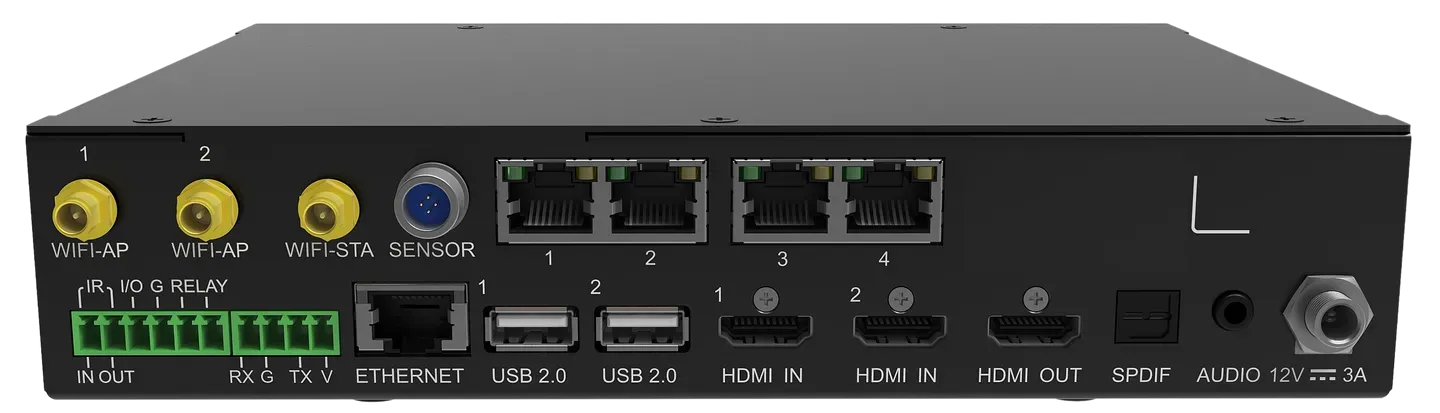
The NovaStar TU15 Pro has similarly shaped RJ45 connectors serving different functions. Label the four numbered LED outputs separately from the ETHERNET network-control port. This simple distinction makes installation drawings clearer and prevents a room-network connection from being confused with a cabinet signal chain.
| Connection | Use | Check before handover |
|---|---|---|
| HDMI IN 1–2 | Laptops and other supported video sources | Correct input selected; supported progressive timing. |
| HDMI OUT | Standard 1080p output | Useful for checking the source image during setup. |
| Output 1–4 | LED receiving-card chains | Port order, first cabinet, and complete cable route. |
| ETHERNET | External network or NovaLCT control PC | Approved IP addressing and network access. |
| USB 2.0 | Three ports for media and supported peripherals | FAT32/NTFS media and peripheral compatibility. |
| AUDIO / SPDIF | 3.5 mm analog and optical digital audio | Correct sound-system input, mute, and volume. |
| RS232 / SENSOR | Central control and supported sensors | Command set, pin assignment, and sensor model. |
| RELAY | External switching interface | 30 V DC, 3 A limit; engineered external switching arrangement. |
01. Plan the physical installation
Mount the NovaStar TU15 Pro where its front USB socket, power connection, and remote-control workflow remain accessible. Leave room for antennas, cable bends, and ventilation. A cabinet’s internal temperature can exceed the room temperature, so evaluate the installed environment instead of checking the room thermostat alone.
Use the mounting instructions and appropriate support hardware for the actual surface. The controller is designed for indoor applications; a temperature range does not establish protection against rain, dust, or condensation. For an outdoor-screen project, obtain explicit approval for the complete controller enclosure and receiving-card arrangement rather than treating the indoor unit as weatherproof.
02. Integrate audio and central control
The RS232 interface is specified at 115200 bps, eight data bits, one stop bit, no parity, and no flow control. Confirm the available commands with the control-system supplier. A physical serial port does not guarantee that a room-control driver supports every source, volume, or power function.
The NovaStar TU15 Pro relay interface can support external power management, but it is not the LED wall’s mains supply. Have qualified personnel design switching in accordance with the relevant contactor instructions. Verify the actual startup and shutdown behavior; do not assume automatic sequencing or filesystem protection merely because a relay terminal exists.
4. How to set up the NovaStar TU15 Pro
A reliable NovaStar TU15 Pro setup starts with the screen supplier’s approved receiving-card file and cabinet drawing. Receiving cards still remain inside the LED cabinets; integrating the sending function does not eliminate module parameters or physical mapping. Preserve the existing configuration before changing a working installation.
01. Connect and configure the screen
- Record the hardware. List cabinet rows and columns, pixels per cabinet, receiver models, controller firmware, and the first cabinet on each output.
- Connect the system. Follow the approved cable plan, attach antennas and the correct power adapter, and keep the management-network cable distinct from LED outputs.
- Initialize the controller. Follow the startup prompts, select language and time settings, pair the remote, and assign an identifiable room name.
- Configure with VNNOX Care. The shared manual describes Local Config, Connect to Hotspot, and Quick Start. Follow the app’s matching instructions and use the correct cabinet parameters.
- Confirm topology. Display an identification pattern and verify every cabinet’s position and direction before showing normal content.
Do not substitute guessed receiver parameters when a file is missing. Obtain the correct file from the screen supplier and confirm the module and driver-IC configuration. A visible image alone does not establish that grayscale, scan behavior, or refresh settings are correct.
02. Test the operator’s real workflow
Test the NovaStar TU15 Pro first with a simple local image, then HDMI, the intended playlist, wireless sharing, and audio. Use fine text, grayscale ramps, solid colors, and content matching the final canvas. Check seams, cabinet order, cropping, and readable text at the normal viewing distance.
Compare Standard, Meeting, Vivid, and Skin display modes using representative content. Set brightness for the room and inspect dark details; a vivid preset should not hide information or distort brand colors. Source frame rate, LED refresh rate, and camera-shutter interaction are different issues, so include camera testing if the wall will appear in recordings.
Restart the NovaStar TU15 Pro and the complete installation to confirm source selection, startup program, and audio level recover as intended. Hand over labeled cables, a configuration backup, document versions, network details through the client’s approved channel, and a short operator guide. Ask staff to demonstrate the workflow themselves before the technician leaves.
5. USB playback and wireless screen mirroring
The NovaStar TU15 Pro supports standalone media playback and several presentation workflows. Decide which one the room uses daily, then test that complete path. Successful HDMI playback does not prove that a USB playlist, a guest laptop, or wireless casting will behave identically.
01. Prepare USB media for the NovaStar TU15 Pro
Use FAT32 or NTFS storage; the specification excludes exFAT and FAT16. Back up files before reformatting a drive. Check both the filesystem and the media encoding when a file fails: an MP4 filename describes a container and does not establish that its codec, frame rate, resolution, and bitrate are supported.
The datasheet lists H.265 decoding up to 4K60 and H.264 up to 4K30, with further limits in its media table. It also lists multiple simultaneous video streams, but those headline counts do not guarantee every mixed playlist. Test the final exports together, including audio, transitions, startup playback, and long-duration operation.
Build the content around the wall’s aspect ratio. Keep captions away from edges and verify that circles remain circular after scaling. For information screens, legibility at the intended viewing distance is more useful than exporting the largest possible file. Keep a known-good test image and video with the handover materials.
02. Configure wireless sharing and a fallback
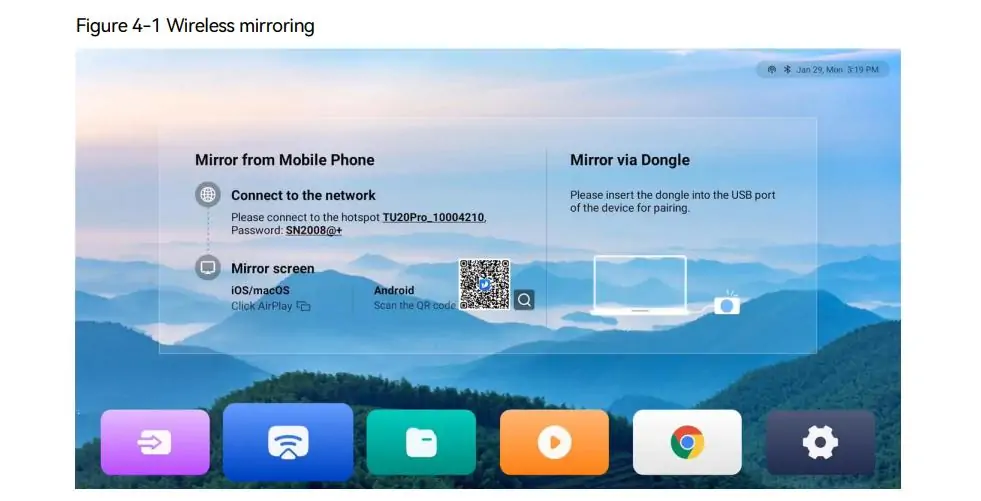
NovaStar TU15 Pro wireless mirroring supports Windows, macOS, iOS, and Android workflows. The shared manual describes a Windows client, macOS AirPlay, and mobile approaches including ViPlex Handy. V1.6.2 updates the tranScreen download link, so use the current manual when preparing managed laptops.
The manual states up to 1080p at 60 fps with latency of 80 ms or less at eight meters under its stated conditions. That is a manufacturer claim, not a guaranteed end-to-end delay in a crowded meeting room. Test the actual presenter devices, network restrictions, antenna placement, and wireless conditions; keep HDMI available as a practical fallback.
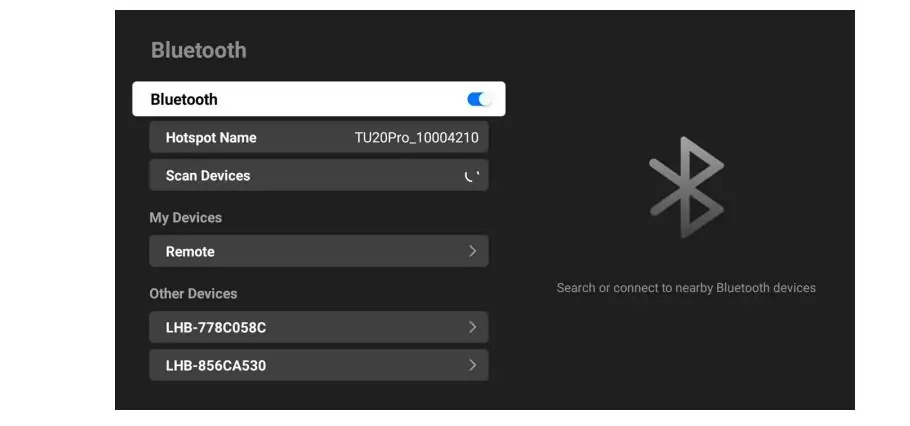
For a NovaStar TU15 Pro guest workflow, agree hotspot use with the client’s IT team. The controller can operate Wi-Fi and hotspot connections simultaneously. After changing its hotspot name or password, pair the mirroring dongle again as the manual directs. Verify discovery with a guest device instead of assuming the installer’s already connected phone represents every user.
6. Accessories, licenses, and NovaStar TU15 Pro price
The NovaStar TU15 Pro price should be evaluated as an installed configuration. An advertised controller price does not tell you whether the project includes wireless accessories, activation codes, receiving cards, cabling, delivery, or commissioning. Request an itemized quotation in the required currency with clear tax and freight treatment.
01. Separate included functions from optional items
| Requirement | Included or optional | Decision to make |
|---|---|---|
| Single-screen wireless mirroring | Included | Confirm the intended source-device workflow. |
| PTB1307 mirroring dongle | Separate purchase | Useful where presenters need a dedicated sharing accessory. |
| Four-split / nine-split mirroring | Separate activation codes | Check readability of each window on the actual wall. |
| Whiteboard function | Separate activation code | Also validate a compatible infrared touch frame. |
| Light or temperature/humidity sensor | Confirm and quote separately | Choose the required sensor and verify compatibility. |
| Bluetooth peripherals | Supported; additional peripherals purchased separately | Test the exact keyboard, mouse, or audio device. |
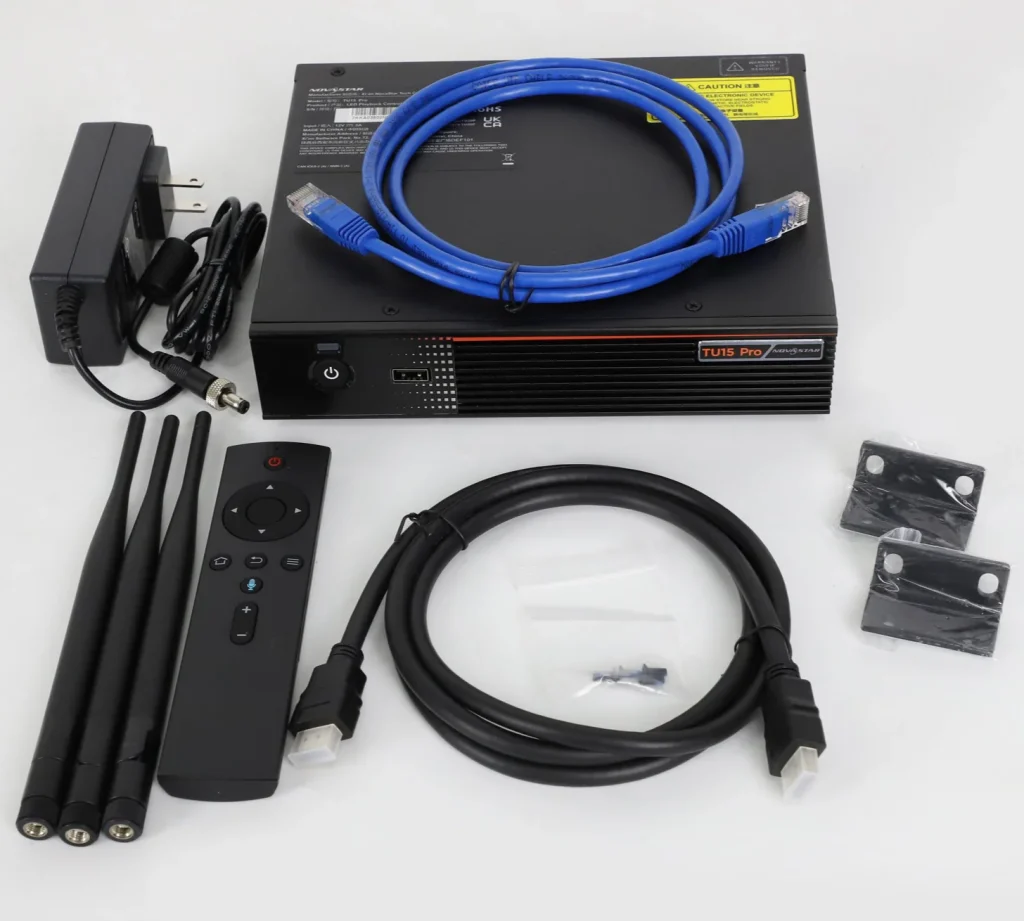
The NovaStar TU15 Pro specification lists the processor, power adapter, Bluetooth voice remote, HDMI cable, Ethernet cable, three antennas, and two hanging brackets among the package contents. The latest packing-list revision removes AAA batteries. Check the shipment against the seller’s confirmed list rather than assuming every accessory shown in an application diagram is supplied.
02. Specify the service as well as the hardware
Whiteboard use requires a real interaction plan: frame size, mounting, touch alignment, software activation, and user training. Third-party Android apps are supported, but that does not certify every conferencing app, camera, or microphone. Validate the exact application and peripherals before promising a complete meeting-room solution.
When requesting a NovaStar TU15 Pro quotation, provide cabinet resolution, layout, receiver model, source devices, content type, and required licenses. Ask who checks the port map, supplies configuration backups, and handles warranty support. Confirm lead time and replacement arrangements. Avoid comparing a bare controller price with a package that includes setup and local support.
7. NovaStar TU15 Pro vs TU20 Pro vs TU40 Pro
Choose between the NovaStar TU15 Pro, TU20 Pro, and TU40 Pro by output mode and connection requirements. More pixels in a headline specification do not necessarily provide the same increase for the internal Android source or pixel-to-pixel operation.
| Specification | TU15 Pro | TU20 Pro | TU40 Pro |
|---|---|---|---|
| Scaled capacity | 2.6 million | 3.9 million | 13 million |
| Pixel-to-pixel capacity | 2.6 million | 2.88 million | 8.8 million |
| Gigabit LED outputs | 4 | 6 | 20 |
| HDMI inputs | 2 × HDMI 1.3 | 2 × HDMI 1.3 | 1 × HDMI 1.3; 2 × HDMI 2.0 |
| Optical outputs | None | None | 2 × 10G OPT |
| Reference datasheet | V1.6.4 | V1.6.4 | V1.2.4 |
The NovaStar TU15 Pro is a candidate when the wall fits its total load, dimensions, and four-port topology. It is not limited to a single standard 1080p shape: a wider compatible canvas can also fit. Conversely, screen area alone says little about controller demand because finer pixel pitch increases the number of pixels in the same physical area.
Read the TU20 Pro specifications and setup guide when six output chains or more scaled capacity are useful. A 2560 × 1440 canvas contains 3,686,400 pixels, so its total fits the TU20 Pro scaled limit but exceeds that model’s pixel-to-pixel and internal-source limit. This distinction should appear explicitly in the system proposal.
The TU40 Pro guide is relevant to larger canvases, HDMI 2.0 sources, and optical-output designs. Its fiber system requires the appropriate modules and receiving equipment. The comparison figures come from the respective NovaStar datasheets available through the manufacturer download center.
For live production, document requirements such as independent layers, source switching, synchronization, redundancy, and measured latency before selecting a model. Do not assume any entire product family automatically meets them. The H-series and VX-series comparison can help frame a more detailed processor assessment.
8. Troubleshooting the NovaStar TU15 Pro
When a NovaStar TU15 Pro system fails, identify whether the fault follows one source or affects every source. Start with a known-good local image and a known-good HDMI signal. Record the symptom and change one variable at a time so the result of each test remains useful.
| Symptom | First check | Next diagnostic step |
|---|---|---|
| No picture on any source | Controller and cabinet power; selected source | Check local output and approved receiving-card configuration. |
| Cabinets display in the wrong order | Port assignment and cable direction | Compare the topology with the installation drawing. |
| Soft, stretched, or cropped text | Source resolution, aspect ratio, scaling | Test a native-size image and inspect content margins. |
| USB drive or file is missing | FAT32/NTFS filesystem and supported format | Try known-good storage and a supported export. |
| Wireless device cannot find the screen | Hotspot/network, client method, isolation rules | Reconnect using the manual and test HDMI separately. |
| Picture works but audio does not | Mute, volume, source audio, sound-system input | Test the selected audio output and external system independently. |
For HDMI problems, verify progressive timing and the source’s color settings. The NovaStar TU15 Pro is HDCP 1.4 compliant with HDCP enabled by default; that does not mean all protected content is automatically blocked. Compatibility still depends on the complete source and connection path. Test the actual required content and adapters during commissioning.
Avoid factory reset as the first response to a minor issue. Preserve receiver parameters, device settings, and working media. If escalation is necessary, send the supplier the firmware version, cabinet map, receiver models, selected source timing, and a precise description of when the fault appears. These details are more useful than “the screen is not working.”
9. NovaStar TU15 Pro FAQ
These answers address documentation, capacity, connectivity, and selection questions. Expand a question to see the answer.
01. Where can I download the NovaStar TU15 Pro manual?
Use the shared TU20 Pro/TU15 Pro User Manual V1.6.2 linked in section 1, together with the separate TU15 Pro datasheet. The manual covers operation; the datasheet defines hardware and media limits. Confirm that the documented workflow matches the firmware installed on your device.
02.How many pixels can the NovaStar TU15 Pro control?
The specified total is 2.6 million pixels for both scaling and pixel-to-pixel operation across four LED outputs. A 1920 × 1080 screen contains 2,073,600 pixels and passes the total-load check. Individual port loads, dimensions, and receiving-card compatibility still require validation.
03. Does the NovaStar TU15 Pro support 4K HDMI input?
Its standard HDMI input maximum is 2048 × 1152 at 60 Hz. Supported 4K files can be decoded internally, but that is a separate capability. A native 3840 × 2160 wall contains 8,294,400 pixels and exceeds this controller’s output capacity.
04.What is the NovaStar TU15 Pro Wi-Fi password?
The shared manual lists SN2008@+ as the default hotspot password and TUxx Pro_xxxx as the default name pattern. The installation may already use different credentials. Ask the administrator for the current details, set an appropriate password during commissioning, and pair the dongle again after changes.
05. Can the controller operate without internet?
Local playback and HDMI presentation can operate offline after configuration. Wireless sharing needs the appropriate local connection. Cloud services and some activation workflows require internet access; the manual specifically calls for internet activation for dongle mirroring. Test the complete offline workflow before handover.
06. Which NovaStar TU15 Pro software should I use?
Use ViPlex Handy for supported content publishing and screen-control tasks, VNNOX Care for configuration and topology, and NovaLCT for supported PC configuration work. Select versions matched to the installed hardware and firmware. A permanently connected playback PC is unnecessary for standalone programs.
07. Are wireless split-screen and whiteboard features included?
Single-screen mirroring is included. Four-split and nine-split mirroring require separate activation codes, and whiteboard operation requires its own activation code and a compatible touch arrangement. The PTB1307 dongle is also optional. Ask for these items separately in the project quotation.
08. Should I choose TU15 Pro or TU20 Pro?
Choose from the actual cabinet map and source workflow. The NovaStar TU15 Pro provides four outputs and 2.6 million pixels. The TU20 Pro provides six outputs, 3.9 million scaled pixels, and 2.88 million pixel-to-pixel pixels. Its larger scaled rating does not apply to every operating mode.
10. Conclusion: choosing the right controller
The NovaStar TU15 Pro is a practical option for a compatible indoor LED screen that needs local content playback, HDMI presentation, and wireless sharing. The strongest reason to select it is that the approved cabinet map and daily workflow fit its capabilities, including the 2.6-million-pixel ceiling and four LED output ports.
Before ordering, check the source timing, software workflow, receiver compatibility, optional licenses, and operator recovery procedure. Use the current NovaStar TU15 Pro manual and specifications together, then test the finished system with real content. For a project assessment, send HonghaiLED your cabinet pixel map and presentation requirements so the controller, accessories, and display can be specified as one working installation.
Related Posts
NovaStar NovaPro HD Review: Specs, Setup and Manual
The NovaStar NovaPro HD combines video processing and LED display…
NovaStar VX2000 Pro vs VX2000: Specs & Price Guide
NovaStar VX2000 Pro vs VX2000 is a comparison that starts…
NovaStar ET1S-G Review: Media Server Specs, Setup and Price
The NovaStar ET1S-G is a compact media server that prepares…

No Comments