
NovaStar TU4K Pro Setup Guide: Specs, Ports & Configuration
The NovaStar TU4K Pro (also written Novastar TU4K PRO) is an all-in-one LED playback control processor that combines an Android 13 media player, a sending card and video processing in one unit. It drives up to 13 million pixels when output scaling is enabled and 8.8 million pixels in pixel-to-pixel mode, and it can be operated from the front-panel LCD, the included Bluetooth voice remote, mobile apps or PC software. In this guide we walk through the complete setup sequence – mounting, signal and screen connections, screen configuration in VNNOX Care or from the LCD menu, first-run initialization, playback options, firmware V1.6.1, verified specifications, troubleshooting, price factors and the differences against the TU20 Pro and TU15 Pro.
NovaStar TU4K Pro at a Glance
| Product type | All-in-one LED playback control processor (Android player + sending card + video processing) |
|---|---|
| Maximum load | 13,000,000 pixels with scaling enabled; 8,800,000 pixels in pixel-to-pixel mode; 8.8 million pixels for the internal Android source |
| LED outputs | 20 x Gigabit Ethernet (RJ45) + 2 x 10G OPT optical outputs |
| Video inputs | 2 x HDMI 2.0 (up to 4096×2160@60Hz) + 1 x HDMI 1.3 (up to 2048×1152@60Hz) |
| Control | 2.0-inch LCD front panel, Bluetooth voice remote, Ethernet, Wi-Fi and hotspot, RS232, relay, IR |
| Software | VNNOX Care, ViPlex Handy, ViPlex Express, NovaLCT V5.8.0 or later |
| Latest firmware | V1.6.1 (released 28 February 2026) |
| Size and weight | 445.0 x 381.8 x 50.1 mm; 4.60 kg net (8.00 kg gross) |
| Power | 100-240V~, 50/60Hz, 2.5A max; rated power consumption 53.9 W |
1. What Is the NovaStar TU4K Pro?
2. Hardware and Port Layout
3. Key Features
4. What Is in the Box
5. NovaStar TU4K Pro Setup: Step by Step
6. NovaStar TU4K Pro Specifications
7. Firmware, Software and Updates
8. Troubleshooting
9. Price and Value
10. Common Applications
11. TU4K Pro vs TU20 Pro vs TU15 Pro
12. FAQs
13. Conclusion
1. What Is the NovaStar TU4K Pro?
The NovaStar TU4K Pro is a playback control processor designed by Xi’an NovaStar Tech Co., Ltd. for LED screen applications. It integrates three functions that used to require separate hardware – an Android 13 media player, a sending card and a video processor – so a single unit can run programmes, switch sources and drive the LED cabinets. Because the sending card is built in, you do not need to add a separate sending card or an external video processor for a standard installation.
Who it is for: system integrators, AV contractors, rental companies and in-house AV teams that need a fixed 4K-capable controller for corporate showrooms, conference rooms, auditoriums, retail spaces and outdoor standalone LED displays. The TU4K Pro is the higher-capacity member of the Taurus Ultra family, above the NovaStar TU20 Pro and the TU15 Pro, and it is often evaluated together with the TU40 Pro playback control processor when an indoor installation needs more than 4 million pixels.
Two load limits to keep in mind: the 13 million pixel figure applies when output image scaling is enabled. In pixel-to-pixel mode the maximum is 8.8 million pixels, and the same 8.8 million limit applies to the internal Android source. This distinction matters at the design stage, because a 12 million pixel project that streams from the HDMI inputs is not the same load case as a 12 million pixel project that plays files from the internal player.
2. Hardware and Port Layout
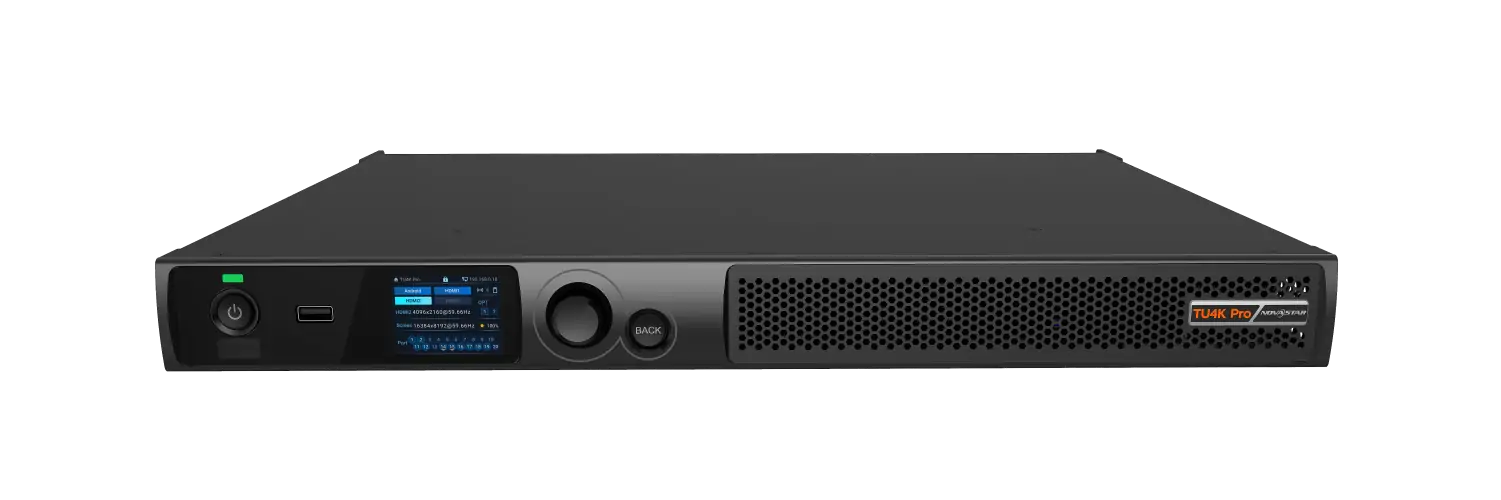
2.1 Front Panel
The front panel gives you local access to everyday operations without a PC:
- USB ports: connect a keyboard, mouse, camera, storage device or USB drive. They are also used for USB playback, firmware updates and exporting logs.
- Status LED: solid red means the device is powered off, solid green means it is running normally or in standby, and off means there is no power supply.
- Power button: press to start or shut down the device, or hold it down to restart. A shutdown starts a 10 second countdown that can be cancelled with the power or BACK button.
- IR receiver: receives the infrared signal from the included remote control.
- LCD screen: a 2.0-inch panel with 320 x 240 resolution that shows device status, menus, submenus and parameter values.
- Knob and BACK button: press the knob on the home screen to open the main menu, rotate it to move between items or change a value, and press to confirm. Holding the knob and BACK together for 5 seconds locks or unlocks the buttons.

2.2 Rear Panel Connectors
| Connector | Details |
|---|---|
| HDMI 1 and HDMI 2 (HDMI 2.0) | Up to 4096×2160@60Hz. HDMI 1 supports ARC audio and does not accept custom resolutions; HDMI 2 accepts custom resolutions. HDCP 1.4 and HDCP 2.2. |
| HDMI 3 (HDMI 1.3) | Up to 2048×1152@60Hz, HDCP 1.4. Interlaced signals are not supported on any input. |
| HDMI 1.3 output | Monitoring and debugging output. |
| Ethernet 1-20 | 20 x RJ45 Gigabit Ethernet outputs that drive the receiving cards of the LED screen. |
| OPT 1-2 | 10G optical outputs for long-distance transmission. OPT 1 carries the data of Ethernet ports 1-10 and OPT 2 carries ports 11-20. Optical modules are not included and OPT outputs take priority over the Ethernet ports. |
| Audio | SPDIF digital audio, 3.5-mm audio (3-conductor connectors only), HDMI ARC and a Phoenix audio output. |
| Control | Gigabit Ethernet control port for the network or ViPlex Express; 12-pin Phoenix connector with RS232 (115200bps, 8 data bits, no parity), IR input and output, 3.3V supply and a relay rated DC 30V 3A or AC 250V 3A. |
| Wireless and sensors | WIFI 1-2 for Wi-Fi AP and Bluetooth antennas, WIFI 3 for a Wi-Fi station antenna, and SENSOR 1-2 for light or temperature and humidity sensors. |
| Power | 100-240V~, 50/60Hz, 2.5A max AC input with a power switch. |

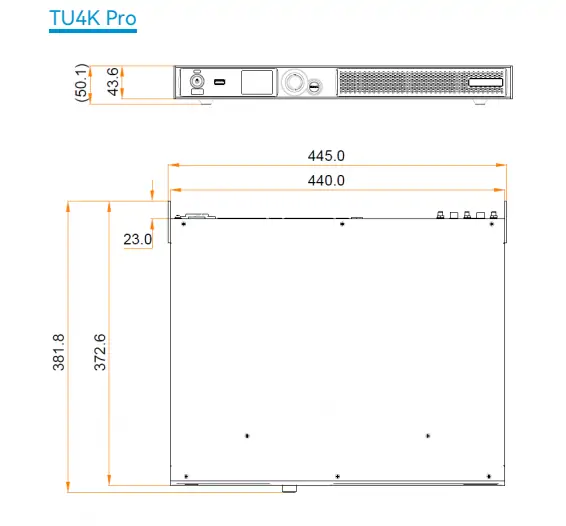
The chassis measures 445.0 x 381.8 x 50.1 mm and weighs 4.60 kg net, so it can sit on a surface, be fixed to a wall, be built into a cabinet or be mounted in a rack. NovaStar recommends at least four M5x12 screws for rack installation and a rack that can carry at least 19 kg. The enclosure is rated IP20, which means it must be kept dry and dust-protected indoors.
3. Key Features
3.1 Processing and Playback Performance
A quad-core A73 plus quad-core A53 ARM processor running at 2.2 GHz, 8 GB of onboard RAM and 128 GB of storage keep the Android interface responsive while programs play. A single device can decode 1 stream of 8K video, 2 streams of 4K, 5 streams of 1080p, 9 streams of 720p, 14 streams of 480p or 15 streams of 360p. Two limits are worth remembering: 8K playback only works with H.265/HEVC (7680×4320 at 24Hz) or VP9 (7680×4320 at 30Hz), and videos between 4K and 8K are not supported at all.
3.2 Image Quality: HDR, AI Enhancement and Display Modes
- HDR10: complies with SMPTE ST 2084 and SMPTE ST 2086, and requires firmware V1.6.1 or later.
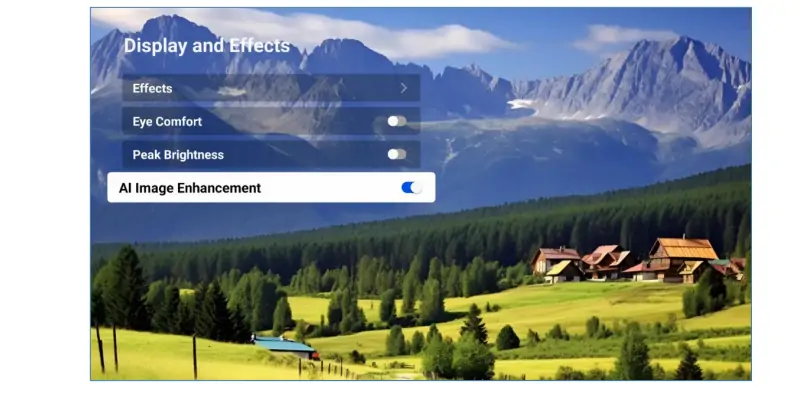
- AI image enhancement: recognises the content being played and tunes colour, brightness, sharpness and motion compensation frame by frame. It works on the internal Android source and on HDMI 1, and it is applied during single-window video playback.
- Peak brightness: analyses each frame and adjusts output dynamically to raise contrast and detail while lowering power consumption. This feature needs an A10s Pro or A8s Pro receiving card.
- Display modes: Standard, Meeting, Vivid and Skin, with brightness, colour temperature, saturation and contrast adjustment.
- Eye comfort mode: adjusts brightness and colour temperature for long viewing sessions.
3.3 Control Options
- Front-panel LCD: since firmware V1.6.1 the LCD menu can also configure the screen and select the signal source, so a screen can be set up without a laptop, tablet or phone.
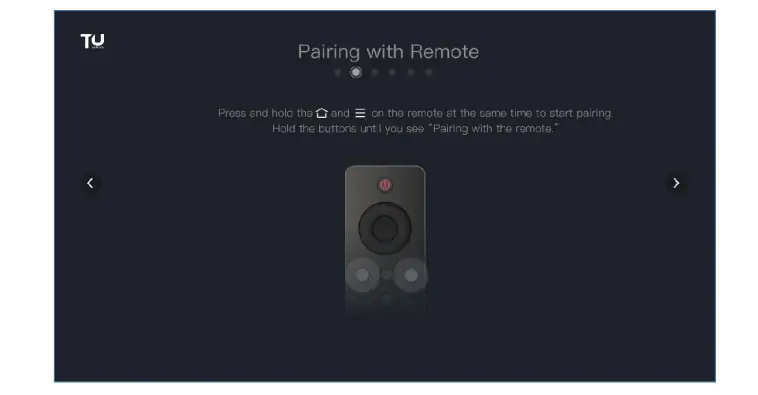
- Remote control: the supplied Bluetooth voice remote handles playback control and simple program editing. Pair it by pointing it at the IR sensor and holding the Home and Menu buttons until the pairing window appears.
- Mobile apps: VNNOX Care covers screen configuration, topology, seam correction and automatic configuration backup. ViPlex Handy covers program editing, publishing, screen control and reverse control of the LED screen from the terminal.
- PC software: the control Ethernet port works with NovaStar control software such as ViPlex Express and NovaLCT V5.8.0 or later.
3.4 Connectivity and Load Capacity
- Dual Wi-Fi modes: the device can join a Wi-Fi network and broadcast its own hotspot at the same time, which keeps remote publishing and local configuration available during commissioning.
- Bluetooth 5.1: up to 7 peripherals, including the voice remote, mouse, keyboard, sound system and infrared touch frame support.
- Free receiving card connection: blank spaces do not consume load capacity and there is no rectangular frame restriction with supported receiving cards, so Ethernet port bandwidth can be used in full.
- Output scaling: width from 64 to 16384 pixels and height from 64 to 8192 pixels, with a total device load of no more than 13 million pixels.
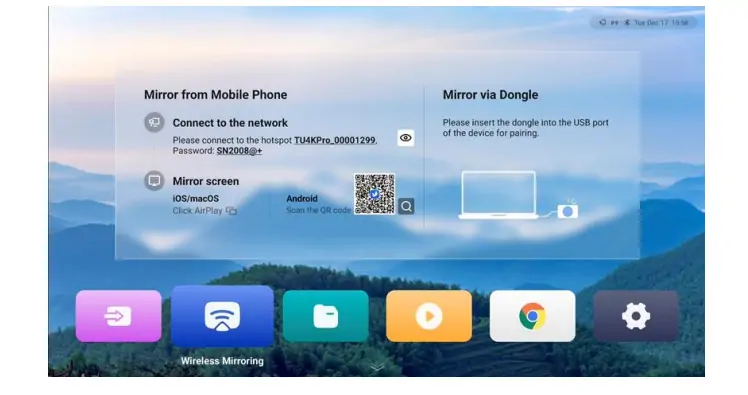
- Wireless mirroring: Windows, macOS, iOS and Android, with 9-split screen mirroring supported by default. Miracast mirroring is available from firmware V1.6.1.
4. What Is in the Box
A new TU4K Pro ships with the processor, a power cord, the Bluetooth voice remote, an Ethernet cable, an HDMI cable, 2 female 6-pin Phoenix connectors, 3 antennas, 2 hanging brackets, a QR code and a certificate of approval. Two items are optional and must be ordered separately:
- PTB1307 mirroring dongle (MEEXUS_Dongle_PTB1307) for wired screen mirroring from a laptop or phone. It has a Type-C port and includes a Type-C to USB adapter so it can also be used in a USB port. Note that the earlier PTB1304 dongle has been removed from the current specification – if a quotation still lists a PTB1304, ask the supplier to confirm the accessory against the latest specification.
- Whiteboard activation code to enable screen drawing and commenting.
The optical ports ship without optical modules, so add 10G modules and fibre if the installation runs long cable distances. A rack installation also needs a connecting piece, which is not part of the product package.
5. NovaStar TU4K Pro Setup: Step by Step
The sequence below follows the commissioning order in the official user manual: physical installation, connections, screen configuration, first-run initialization, then content publishing. Budget 10 minutes for a simple screen configuration once the cabinets are cabled, and more time where the screen is irregular or needs seam correction.
Step 1: Mount and Position the Unit
Choose a dry indoor position within the operating range of -20 °C to +50 °C and 5% to 85% relative humidity. Leave room for airflow and for the Wi-Fi antennas. For wall, surface or cabinet mounting use the supplied hanging brackets; for a rack use at least four M5x12 screws and a rack that can carry at least 19 kg. The unit is IP20, so keep it away from water, and keep the front panel and its knob accessible for local control.
Step 2: Connect the Video Sources
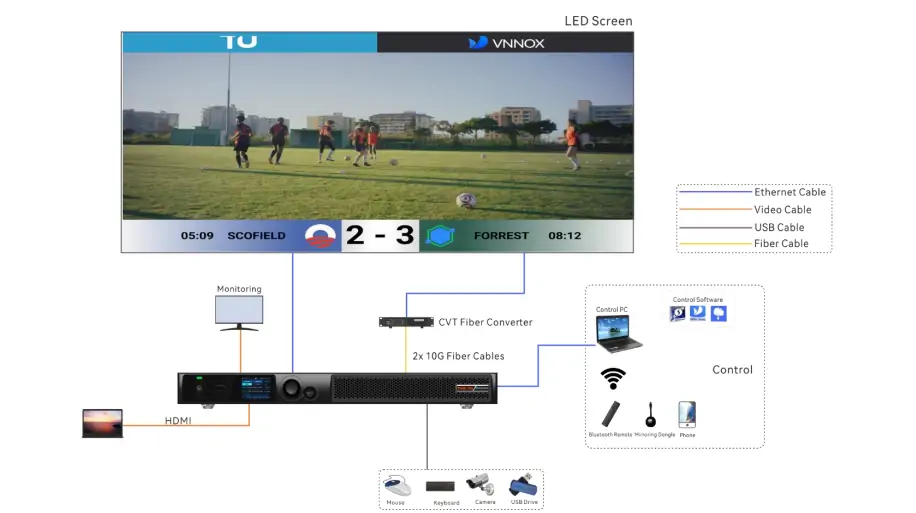
Connect the main 4K sources to HDMI 1 and HDMI 2 (up to 4096×2160@60Hz) and reserve HDMI 3 for a legacy 2K source up to 2048×1152@60Hz. Interlaced signals are not accepted on any input. If the source runs a custom resolution, use HDMI 2, because HDMI 1 does not support custom resolutions. Use the HDMI 1.3 output for a local monitor when you need to check what the processor is receiving.
Step 3: Connect the LED Screen
Run Cat cable from Ethernet ports 1-20 to the receiving cards, following the same port order as the data flow you plan to configure, because the quick configuration menu expects cabinets to be loaded in Ethernet port sequence starting from port 1. For long cable runs use the OPT 1 and OPT 2 fibre outputs instead: OPT 1 carries ports 1-10 and OPT 2 carries ports 11-20, and the optical outputs take priority over the Ethernet ports, so the two connection methods are not interchangeable. If you use 10G optical modules, remember that they are not included with the processor.
Keep per-port and total load inside the specification: a quick configuration assumes the same number of cabinets on every port and no more than 650,000 pixels on Ethernet port 1, while the device totals are 13 million pixels with scaling and 8.8 million pixels in pixel-to-pixel mode. The compact TU15 Pro is a better fit where a project only needs around 2.6 million pixels.
Step 4: Power On and Connect to the Device
Connect the power cord (100-240V~) and switch the unit on. For commissioning, the quickest route is to connect your phone or laptop to the hotspot broadcast by the device; on first use the LCD guides you through selecting the hotspot, and you can also scan the QR code shown on screen to join it. If the site already has a network, connect the control Ethernet port or join the local Wi-Fi instead – the processor can stay on Wi-Fi and broadcast its hotspot at the same time.
Step 5: Configure the LED Screen
There are two supported ways to configure the screen. Use whichever matches the tools you have on site.
Option A – VNNOX Care app:
- Open VNNOX Care and go to the Local Config tab.
- Tap Connect to Hotspot, select the hotspot of the processor and enter the password.
- Tap Quick Start and follow the on-screen instructions to complete the screen configuration.
Option B – Front-panel LCD menu:
- Press the knob on the home screen to enter the main menu.
- Enable Mapping under Screen Configuration if you need the cabinets to display the Ethernet port number and receiving card number while you cable and verify the topology.
- Open Screen Configuration and choose Quick Configuration. Confirm with Yes, then set Cabinet Row Qty, Cabinet Column Qty, Port 1 Cabinet Qty, Data Flow (Front View), H Offset and V Offset.
- When the image looks correct, open Screen Configuration and choose Save to Hardware so the parameters survive a restart.
- If the source resolution does not match the screen, enable Scale under Screen Configuration to scale the playback window.
Quick Configuration assumes a regular screen built from identical cabinets, with data starting at the first cabinet of Ethernet port 1 and the same number of cabinets loaded by every port, and no more than 650,000 pixels on port 1. For irregular screens, mixed cabinet sizes or complex topologies, configure the screen with VNNOX Care or NovaLCT instead – VNNOX Care also covers seam correction and automatic backup of the screen configuration.
Step 6: Complete the First-Run Initialization
On first use, finish the initialization steps on the Android interface, otherwise publishing programmes that combine internal and external sources can behave unexpectedly:
- Select the system language – English, Simplified Chinese, Traditional Chinese, Japanese, Russian, Korean, Portuguese, Spanish and Italian are available.
- Pair the Bluetooth remote by pointing it at the IR sensor and holding Home and Menu until the pairing window appears.
- Read and accept the service agreement.
- Select the time zone so scheduled playback and logs use the correct local time.
- Join the Wi-Fi network (or keep using the wired connection), then finish the setup wizard.
Step 7: Publish and Play Content
- Internal source: build and publish programmes with ViPlex Handy, then play them from the device. HDMI 1 can also be used as programme content so internal and external sources appear at the same time.
- External source: switch the signal source from the remote, the LCD menu or the app.
- USB playback: plug in a drive formatted as FAT32 or NTFS for standalone, plug-and-play playback. Images: JPG, JPEG, BMP, PNG, GIF, WEBP. Video: MP4, MKV, MOV, AVI, M4V, FLV, WEBM. Since firmware V1.6.1, ultra-long-screen programmes can play from a USB drive.
- Wireless mirroring: mirror Windows, macOS, iOS or Android devices over Wi-Fi, or connect the optional PTB1307 dongle for wired mirroring.
6. NovaStar TU4K Pro Specifications
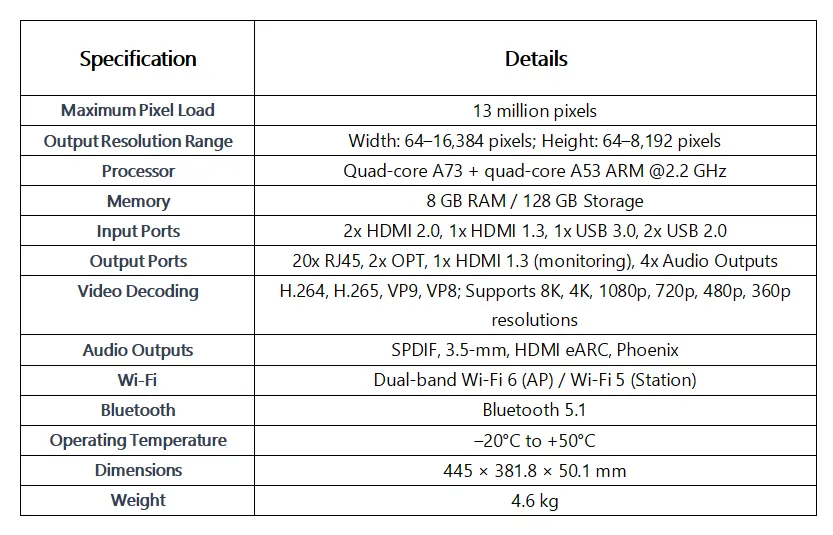
The table below summarises the manufacturer specification (TU4K Pro Specifications V1.2.3). Use it for design checks and for comparison against other processors in the range.
| Item | Specification |
|---|---|
| Maximum load (scaling) | 13,000,000 pixels |
| Maximum load (pixel-to-pixel) | 8,800,000 pixels |
| Internal Android source load | 8,800,000 pixels; custom resolutions width 800-4096, height 600-4096 |
| Output resolution range | Width 64-16384 pixels, height 64-8192 pixels |
| LED outputs | 20 x RJ45 Gigabit Ethernet, 2 x 10G OPT |
| Video inputs | 2 x HDMI 2.0 up to 4096×2160@60Hz, 1 x HDMI 1.3 up to 2048×1152@60Hz, 8-bit and 10-bit sources, no interlaced signals |
| Monitoring output | 1 x HDMI 1.3 |
| Audio outputs | SPDIF, 3.5-mm, HDMI ARC, Phoenix |
| Operating system | Android 13.0, third-party apps supported |
| Processor | Quad-core A73 + quad-core A53 ARM at 2.2 GHz |
| Memory and storage | 8 GB RAM, 128 GB internal storage |
| Video decoding | 1 x 8K, 2 x 4K, 5 x 1080p, 9 x 720p, 14 x 480p, 15 x 360p streams |
| Image formats | JPG, JPEG, BMP, PNG, GIF, WEBP up to 8000×8000 pixels |
| Video formats | MP4, MKV, MOV, AVI, M4V, FLV, WEBM |
| HDR | HDR10, SMPTE ST 2084 / SMPTE ST 2086 (firmware V1.6.1 or later) |
| Display modes | Standard, Meeting, Vivid, Skin |
| Wireless | Dual Wi-Fi modes (network + hotspot), Bluetooth 5.1 with up to 7 peripherals |
| Screen mirroring | Windows, macOS, iOS, Android; 9-split mirroring by default; Miracast from V1.6.1 |
| Power supply | 100-240V~, 50/60Hz, 2.5A max; rated power consumption 53.9 W; standby below 0.5 W |
| Operating environment | -20 °C to +50 °C, 5%-85% RH non-condensing |
| Storage environment | -20 °C to +70 °C, 5%-95% RH non-condensing |
| Dimensions | 445.0 x 381.8 x 50.1 mm |
| Weight | 4.60 kg net, 8.00 kg gross |
| IP rating | IP20 |
| Certifications | CE, FCC, RoHS, IC, NTRA, UL, CB, PSE, MIC, RCM, SIRIM, KC, ANATEL, SABER |
7. Firmware, Software and Updates
The current TU4K Pro firmware is V1.6.1, released on 28 February 2026. It added HDR support, screen configuration and signal source selection from the front-panel LCD, 30Hz and 50Hz frame rates for the HDMI inputs, eye comfort control from the LCD, ultra-long-screen USB playback, Miracast mirroring, mouse-based reverse control of the return function, version downgrade support, and device monitoring in VNNOX Care for web that reports the bit error rate and the number of Ethernet cable disconnections of supported receiving cards.
The matching software versions for this firmware are NovaLCT V5.8.0 or later, VNNOX Care V2.4.1.0401 or later, ViPlex Handy V5.3.6 or later, ViPlex Express V3.0.5.1501 or later, and Visual Intelligent Control Platform V10.2.0 or later. Firmware is installed from a USB drive connected to the processor, using the same USB ports that handle USB playback and log export. Download links for the latest NovaStar control software are collected on our software page, and the TB30 media player guide explains the equivalent update routine for the Taurus media players.
8. Troubleshooting
Most TU4K Pro commissioning problems come down to three things: the screen configuration was never saved, the source is outside the supported signal range, or the requested pixel load is higher than the processor can drive. Work through the table below before assuming a hardware fault.
| Symptom | Likely cause and fix |
|---|---|
| No image on the LED screen | The screen has not been configured, or the parameters were not saved. Run Screen Configuration > Quick Configuration and then Save to Hardware, or complete Quick Start in VNNOX Care. |
| Image is off-centre, cropped or the wrong size | Adjust H Offset and V Offset, and enable Scale under Screen Configuration when the source resolution differs from the screen. |
| HDMI source is not detected | Check the resolution and frame rate against the input limits: 4096×2160@60Hz on HDMI 1 and HDMI 2, 2048×1152@60Hz on HDMI 3. Interlaced signals are not supported, and custom resolutions must use HDMI 2. |
| An 8K file will not play | 8K playback requires H.265/HEVC (7680×4320@24Hz) or VP9 (7680×4320@30Hz). Resolutions between 4K and 8K are not supported, and 2K-to-4K content is automatically converted to 4K. |
| The screen flickers on the optical ports | This was fixed in firmware V1.6.1. Update the processor and retest the OPT link. |
| The screen goes dark or shows artefacts during playback | Check the pixel load and codec. Stay within 13 million pixels with scaling and 8.8 million pixels in pixel-to-pixel mode, and within the supported codecs. |
| It is unclear which cabinet sits on which port | Enable Mapping under Screen Configuration so cabinets display the Ethernet port number and receiving card number. |
| Wireless mirroring is unstable | Move the mirroring source closer to the access point, prefer a 5 GHz network, or use the optional PTB1307 dongle for wired mirroring. |
| The device needs to be reset | System Settings offers Diagnostics, Factory Reset, Export Logs and Language. Export the logs and back up the screen configuration before a factory reset. |
9. Price and Value
The TU4K Pro price varies by region, distributor and order volume, so treat any figure you see from a reseller as an indicative retail price rather than a project price. What actually drives the quotation is the load capacity you need, the accessories you add, the certifications and support terms for your market, and whether the shipment includes optical modules and fibre.
Because the sending card, the Android media player and the video processing are integrated, a TU4K Pro installation avoids the cost and rack space of a separate processor plus sending card combination. Two accessories are usually quoted alongside the unit: the PTB1307 mirroring dongle for wired mirroring and the whiteboard activation code. Both are optional and neither is included in the standard package. For a firm price against a specific pixel load and screen layout, request a quotation from the manufacturer or an authorised distributor rather than comparing retail listings.
10. Common Applications
The TU4K Pro suits installations where a single box must handle playback, source switching and screen control:
- Corporate showrooms and lobbies: scheduled programmes from the internal Android player, with HDMI content switched in for live presentations.
- Conference rooms and meeting spaces: wireless mirroring and the Meeting display mode, with HDMI 1 used as programme content so internal and external sources can be shown together.
- Auditoriums and event venues: large pixel loads with output scaling, and long-distance fibre runs through the OPT ports.
- Outdoor advertising and standalone screens: IP20 electronics installed in a protected enclosure, driving up to 13 million pixels of commercial LED display screen.
- Rental and staging: wireless mirroring, USB playback and fast reconfiguration between shows, paired with a rental LED display stock where quick setup time matters.
For installations that also need a dedicated video processor in front of the wall, the VX1000 Pro LED controller and the H15 in 8K splicing applications are the usual comparisons, while the CX40 Pro covers smaller creative screens.
11. TU4K Pro vs TU20 Pro vs TU15 Pro
All three processors now run the same V1.6.1 firmware generation, so the choice usually comes down to pixel load, port count and physical size rather than features.
| Specification | TU4K Pro | TU20 Pro | TU15 Pro |
|---|---|---|---|
| Maximum load (scaling) | 13 million pixels | 3.9 million pixels | 2.6 million pixels |
| Pixel-to-pixel load | 8.8 million pixels | 2.88 million pixels | 2.6 million pixels |
| Ethernet outputs | 20 x Gigabit + 2 x 10G OPT | 6 x Ethernet | Fewer ports, compact indoor unit |
| Operating system | Android 13.0 | Android 11 | Android 11 |
| Processor | Quad A73 + quad A53 at 2.2 GHz | Quad-core A55 at 1.8 GHz | Compact ARM platform |
| Memory and storage | 8 GB / 128 GB | 4 GB / 32 GB | 4 GB / 32 GB |
| Dimensions | 445.0 x 381.8 x 50.1 mm | 211.7 x 185.0 x 50.6 mm | 211.7 x 185.0 x 50.6 mm |
| Typical use | Large indoor and outdoor walls, 4K and 8K sources | Indoor screens up to 3.9 million pixels | Small indoor screens and creative displays |
Read the full reviews of the TU20 Pro, the TU15 Pro and the TU40 Pro for the smaller members of the family, or compare the wider range through the MCTRL4K controller and the HDR Master 4K video processor where a dedicated processor is preferred.
12. FAQs
➖ How many pixels can the NovaStar TU4K Pro handle?
The TU4K Pro supports up to 13,000,000 pixels when output image scaling is enabled. In pixel-to-pixel mode the maximum is 8,800,000 pixels, and the internal Android source is limited to 8,800,000 pixels as well.
➖ Does the TU4K Pro need a separate sending card or video processor?
No. The sending card, the Android media player and video processing are integrated in the unit, which is what allows a single processor to run programmes, switch sources and drive the LED cabinets without extra hardware in a standard installation.
➖ Can the TU4K Pro play 8K video?
Yes, one stream of 8K is supported with two codecs: H.265/HEVC at 7680×4320 24Hz and VP9 at 7680×4320 30Hz. Videos with resolutions between 4K and 8K are not supported, and 2K-to-4K content is converted to 4K.
➖ Does the TU4K Pro support HDR?
Yes. The TU4K Pro supports HDR10 and complies with SMPTE ST 2084 and SMPTE ST 2086. HDR support was added in firmware V1.6.1, so older units must be updated first.
➖ How do I configure the screen on the TU4K Pro?
Use VNNOX Care (Local Config, then Quick Start) on a phone or tablet, or configure the screen from the front-panel LCD through Screen Configuration and Quick Configuration. In both cases finish by saving the parameters to the hardware so the screen keeps its configuration after a restart, and enable Scale if the source resolution differs from the screen.
➖ What is the difference between the TU4K Pro and the TU20 Pro?
The TU4K Pro drives 13 million pixels with scaling and 8.8 million pixel-to-pixel, against 3.9 million and 2.88 million for the TU20 Pro. It also offers 20 Gigabit Ethernet outputs plus two 10G optical outputs instead of six Ethernet outputs, runs Android 13.0 instead of Android 11, and has 8 GB RAM and 128 GB storage against 4 GB and 32 GB.
➖ Which software and firmware versions work with the TU4K Pro?
Firmware V1.6.1 requires NovaLCT V5.8.0 or later, VNNOX Care V2.4.1.0401 or later, ViPlex Handy V5.3.6 or later, ViPlex Express V3.0.5.1501 or later, and Visual Intelligent Control Platform V10.2.0 or later.
➖ How much does the NovaStar TU4K Pro cost?
The price depends on region, distributor, order volume, certification and support requirements, and on optional items such as the PTB1307 mirroring dongle and the whiteboard activation code. Reseller listings are usually indicative retail prices, so request a project quotation based on your pixel load and screen layout.
13. Conclusion
The NovaStar TU4K Pro combines an Android 13 player, a sending card and video processing in one unit that drives up to 13 million pixels with scaling and 8.8 million pixels in pixel-to-pixel mode. Setup follows a predictable path: mount and connect the unit, cable the cabinets in Ethernet port order, configure the screen through VNNOX Care or the front-panel LCD, save the parameters to hardware, complete the first-run initialization and then publish content from ViPlex Handy, USB or a mirrored device.
If you are planning a screen around the TU4K Pro, check two numbers before ordering – the pixel load with and without scaling, and the number of Ethernet or optical outputs the layout needs – then size the rest of the system around them. For pixel loads below 4 million, the smaller TU20 Pro is usually the more economical choice; above that, the TU4K Pro gives you the headroom.
Specifications in this guide were checked against the NovaStar TU4K Pro Specifications V1.2.3 (10 May 2026), the TU4K Pro User Manual V1.2.1 (31 August 2026) and the TU4K Pro V1.6.1 release notes (28 February 2026). Where earlier versions of this page quoted different figures, the values above follow the current manufacturer documentation.
Related Posts
NovaStar MCTRL1600 LED Display Controller: Specs, Manual and Setup
Looking for NovaStar MCTRL1600 specifications, the manual, or a straight…
NovaStar MCTRL R5: Specs, Price, Manual & Setup Guide
The NovaStar MCTRL R5 is an independent LED display controller…
NovaStar VX600 Pro: Specs, Manual, Setup & Layer Guide
Novastar VX600 Pro isn’t just a video wall controller—it’s the…

No Comments