
NovaStar TU20 Pro Review: Specs, Price & Setup Guide
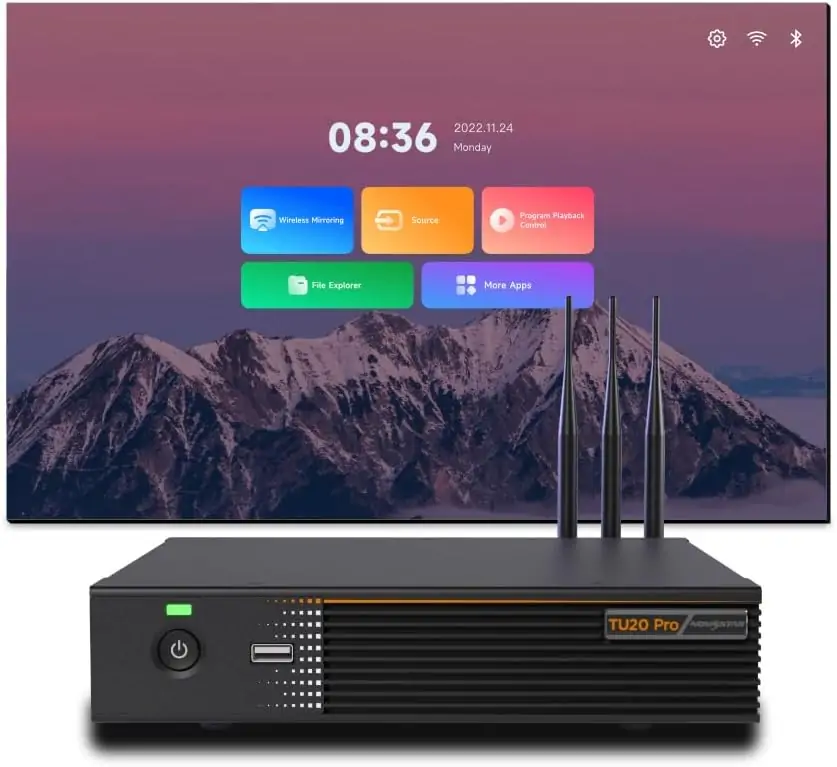
The NovaStar TU20 Pro is an LED playback control processor that combines an Android media player, LED sending functions, and wireless presentation tools. It is designed for indoor meeting rooms, education spaces, exhibition halls, and other fixed LED installations where operators want straightforward daily playback. Its main attraction is reducing the equipment needed between a content source and a compatible LED wall.
This NovaStar TU20 Pro review explains the specifications that affect a real installation: screen capacity, HDMI limits, software, optional licenses, price considerations, and commissioning. The critical distinction is 3.9 million pixels with scaling versus 2.88 million pixels for pixel-to-pixel display. Decoding a 4K media file does not make this a native 4K LED controller.
This is a documentation-based assessment, not a claimed hands-on endurance test. Technical references are NovaStar’s TU20 Pro Specifications V1.6.4, released September 24, 2026, and the shared TU20 Pro/TU15 Pro User Manual V1.6.2. Installation examples below are calculations and planning guidance; receiving-card compatibility and the final port map still need project-specific approval.
1. What is the NovaStar TU20 Pro?
The NovaStar TU20 Pro takes content from its internal Android system, USB storage, HDMI sources, or supported wireless mirroring workflows and sends the image to LED receiving cards. Those receiving cards remain inside the cabinets: integrating the sending function does not eliminate the receiving hardware, module configuration, or cabinet wiring.
For a hotel lobby, staff can run scheduled promotional material without leaving a laptop connected. In a meeting room, presenters can use HDMI or an approved wireless method. These are different operating modes, so the design should identify which one staff will use most often and how they will switch sources.
The NovaStar TU20 Pro is a strong candidate when one indoor screen needs a compact playback and control system. It deserves closer evaluation when the project needs large native-resolution desktops, complex live production, or guaranteed low latency. An all-in-one enclosure simplifies operation, but it also concentrates functions in one device; critical installations should document a recovery process and keep configuration backups.
For the display itself, compare cabinet resolution and service access before choosing an indoor fixed-install LED wall. Controller selection follows the actual pixel map, not just the screen’s physical width.
2. NovaStar TU20 Pro specifications and connections
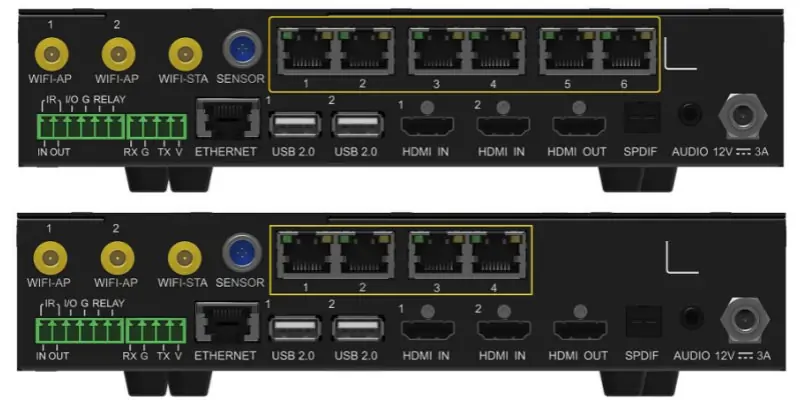
The NovaStar TU20 Pro specifications separate source inputs, LED outputs, and network control. This matters because the six numbered RJ45 sockets serve the LED cabinets, while the separate ETHERNET connection serves management or a control computer. Similar connectors do not imply interchangeable functions.
| Item | Documented specification | Practical implication |
|---|---|---|
| LED loading | 3.9 million scaled; 2.88 million pixel-to-pixel | Check the operating mode before approving the wall. |
| Output dimensions | Maximum width 4096; maximum height 1920 pixels | Dimension limits and total pixel limits apply together. |
| HDMI input | 2 × HDMI 1.3; up to 2048 × 1152 at 60 Hz | Do not specify conventional 4K60 HDMI input. |
| LED outputs | 6 × Gigabit RJ45 | Plan the receiving-card chain for every port. |
| Other connections | 3 × USB 2.0; 1080p HDMI OUT; analog audio; SPDIF | Confirm peripheral and audio compatibility. |
| System | Android 11; quad-core ARM A55; 4 GB RAM; 32 GB storage | Available storage is less than the nominal total. |
| Power and size | 12 V DC, 3 A adapter input; 21 W rated; 211.7 × 185.0 × 50.6 mm | Allow space for connections and ventilation. |
The NovaStar TU20 Pro also provides RS232 and a sensor connection for integration. Confirm the supported command set with the control-system supplier before promising Crestron or other room-control functionality. A physical RS232 port alone does not establish that a ready-made driver covers every required command.
Keep the power adapter rating separate from actual consumption: the processor’s rated 21 W is not the power demand of the LED wall. Cabinets require their own correctly designed electrical supply. Cable bends, antenna clearance, and maintenance access also need more space than the bare enclosure dimensions suggest.
3. How many pixels can the TU20 Pro drive?
Size a NovaStar TU20 Pro installation from the cabinet pixel matrix. Multiply total horizontal pixels by total vertical pixels, then check the selected display mode, width, height, and each output port. Meeting one limit does not mean the entire design is valid.
01. Calculate the physical screen resolution
A theoretical 4 m × 2.25 m P2.5 screen contains 1600 × 900 pixels: divide each dimension in millimeters by 2.5 mm. That is 1,440,000 pixels. Actual cabinets come in fixed module arrangements, so use the supplier’s final drawing rather than rounding a physical measurement to the nearest pixel.
| LED pixel matrix | Total pixels | Initial capacity assessment |
|---|---|---|
| 1600 × 900 | 1,440,000 | Within both total-load limits. |
| 1920 × 1080 | 2,073,600 | Within both total-load limits. |
| 2560 × 1440 | 3,686,400 | Within scaled capacity; exceeds pixel-to-pixel capacity. |
| 4096 × 1920 | 7,864,320 | Exceeds total capacity despite matching separate dimension maxima. |
| 3840 × 2160 | 8,294,400 | Exceeds total capacity and maximum output height. |
02. Check the port map and scaling requirement
These examples are preliminary checks, not approved wiring plans. Each chain must satisfy the receiving-card and port-loading requirements for its configuration. A screen under the total capacity can still fail if too many cabinets are assigned to one output.
The NovaStar TU20 Pro supports flexible receiving-card arrangements in which blank areas need not consume load, but NovaStar explicitly requires confirmation of compatible card models. Do not assume every existing cabinet supports that feature. Spare capacity also does not automatically improve bit depth or scaling quality; those depend on processing settings and the complete display system.
4. Picture quality and display modes
The NovaStar TU20 Pro offers Standard, Meeting, Vivid, and Skin modes in the current specifications, with adjustments such as brightness, contrast, saturation, and color temperature. Treat these as starting points. A preset cannot repair mismatched modules, inaccurate receiver parameters, or a poorly calibrated wall.
For presentations, test small text, spreadsheet gridlines, dark gray backgrounds, and fine diagonals at the normal viewing distance. Scaling can soften a desktop even when video looks acceptable. If sharp text is the priority, compare a native-mapped source with scaled playback before signing off the design.
For promotional video, check highlights and shadow detail using representative content. Excessive contrast can hide dark information, while oversaturation can distort brand colors. Adjust brightness to the room instead of running an indoor wall at its maximum output throughout the day.
The NovaStar TU20 Pro’s eye comfort option is a viewing preference, not a substitute for appropriate brightness and room lighting. Likewise, do not translate image-enhancement claims into an unverified promise of zero latency. Assess the complete source-to-screen path, including wireless transmission, scaling, receiver processing, and the LED modules themselves.
5. NovaStar TU20 Pro wireless screen mirroring
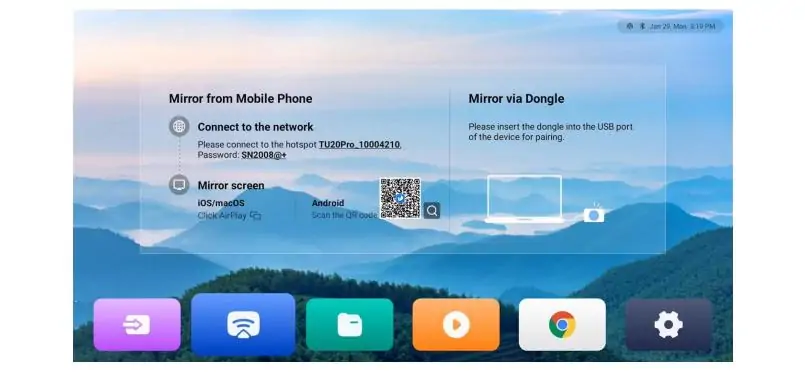
NovaStar TU20 Pro wireless screen mirroring supports Windows, macOS, iOS, and Android workflows. The manual describes up to 1080p at 60 fps with latency of 80 ms or less at 8 m under its stated conditions. This is a manufacturer specification, not a guarantee for every office network or a measurement from our own test room.
01. Choose the correct mirroring method
The documented Windows workflow uses the tranScreen client; macOS can use AirPlay. Mobile workflows vary by platform and may use ViPlex Handy or the device’s supported casting function. Avoid assuming every presenter can connect without software. Managed laptops may restrict app installation or wireless discovery, which should be resolved before a meeting.
For NovaStar TU20 Pro installations, test the actual laptops and phones used on site. Corporate client isolation, firewall rules, busy radio channels, and antenna placement can affect discovery or playback. HDMI is a useful fallback when a guest cannot join the approved wireless workflow.
02. Budget for split-screen activation
Single-screen mirroring is included. Four-split and nine-split operation require separate activation codes; the PTB1307 mirroring dongle is also an optional purchase. Confirm the exact licensed arrangement on the delivered unit. More mirrored windows do not increase the LED wall’s physical resolution, and each smaller window may make detailed documents harder to read.
6. USB playback, video decoding, and media formats
The NovaStar TU20 Pro can play local media without a permanently attached PC. Its decoding support includes H.264 at up to 4K30 and H.265 at up to 4K60, subject to the detailed format limits. This describes file decoding; HDMI input bandwidth and LED output resolution remain separate constraints.
01. Prepare USB storage and files
Use FAT32 or NTFS storage. The documented file-system support excludes exFAT and FAT16. Back up a drive before changing its format, and check the size of individual video files when choosing FAT32. A drive that mounts successfully can still contain video that exceeds a supported codec, frame-rate, or bitrate limit.
For a NovaStar TU20 Pro playlist, test every final export on the intended device. The MP4 extension identifies a container, not the codec inside it. If a file fails, compare its encoding settings with the decoding table in the matching datasheet; changing the filename extension will not convert the media.
02. Build content for the actual canvas
Create layouts using the real screen proportions. Keep logos and legal text inside safe margins, and check whether scaling stretches circles or clips captions. Multi-zone playback should be tested as a complete program: independently playable files do not prove that a combined layout will run smoothly.
The NovaStar TU20 Pro’s startup behavior also deserves testing. Verify which program returns after a power cycle, whether audio starts at the expected level, and what appears when a USB drive is removed. These details determine whether staff can operate the display without calling an installer.
7. Meeting room functions and third-party apps
The NovaStar TU20 Pro supports third-party Android apps, so a blanket claim that it cannot run conferencing apps is inaccurate. However, Android support is not a compatibility guarantee for every app version, camera, microphone, login method, or corporate security policy.
For an important meeting room, validate the exact conferencing application and peripherals before purchase. An external, supported meeting-room computer connected through HDMI may provide a more predictable workflow where the organization already manages conferencing software centrally. Include the return audio path and microphone echo handling in the system design.
The NovaStar TU20 Pro’s whiteboard function needs a separately purchased activation code and a compatible infrared touch frame. Match the frame to the display dimensions and mounting arrangement, then test touch alignment around the corners as well as the center. A working picture alone does not verify interactive operation.
Specify who controls the room: a handheld remote, a phone, or a central control panel. Give ordinary presenters access to source selection and volume while leaving cabinet configuration to trained staff. A short operating card beside the screen often prevents more support calls than adding another rarely used feature.
8. NovaStar TU20 Pro software, manual, and firmware
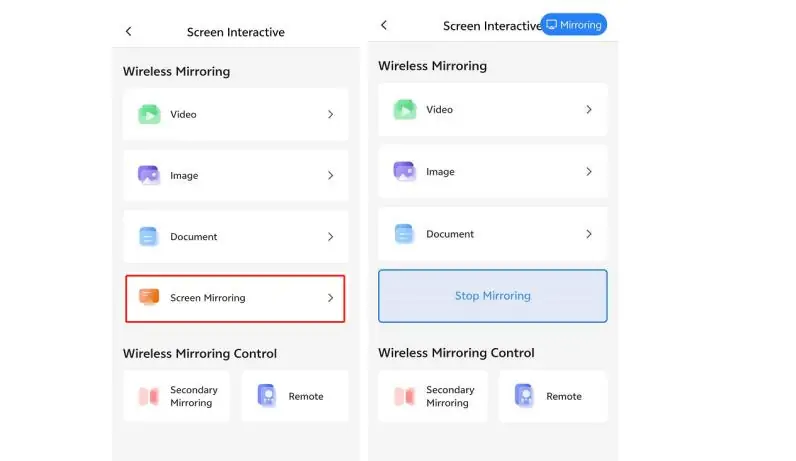
NovaStar TU20 Pro software serves distinct tasks. ViPlex Handy handles daily content and screen-control workflows. VNNOX Care handles screen configuration, topology, and related maintenance functions. NovaLCT on a control PC remains relevant to supported configuration work; saying a PC is never involved would be misleading.
01. Find the manual and appropriate software
Start with the NovaStar software download guide, then match the tool and version to the controller and receiving cards. For the NovaStar TU20 Pro manual, request the current shared TU20 Pro/TU15 Pro User Manual and the separate TU20 Pro datasheet. The manual explains operation, while the datasheet defines hardware and media limits.
Record the model, serial number, firmware version, receiver models, screen dimensions, and topology before changing settings. Store a copy of the working configuration somewhere other than the processor itself. This makes replacement and remote support much more practical.
02. Manage firmware and remote access
Update NovaStar TU20 Pro firmware during a maintenance window after reviewing release notes and compatibility. Avoid making an untested change immediately before a conference or a scheduled advertising campaign. Keep stable power available throughout the update.
Cloud publishing and remote diagnostics depend on network access and the configured service. Confirm the account owner, permissions, connectivity, and available functions during commissioning. Local playback and cloud management are different requirements; internet availability should not be assumed just because a phone can connect to the device’s hotspot.
9. TU20 Pro vs TU15 Pro vs TU4K Pro
Compare the NovaStar TU20 Pro with adjacent models by required source resolution, physical output ports, and native screen capacity. Choosing only by the headline pixel number can result in unnecessary hardware or an under-specified system.
| Requirement | TU15 Pro | TU20 Pro | TU4K Pro |
|---|---|---|---|
| Maximum total load | 2.6 million | 3.9 million scaled; 2.88 million pixel-to-pixel | 13 million |
| LED RJ45 outputs | 4 | 6 | 20, plus 2 × 10G optical |
| HDMI inputs | 2 × HDMI 1.3 | 2 × HDMI 1.3 | 2 × HDMI 2.0 plus 1 × HDMI 1.3 |
| Typical selection reason | Smaller compatible indoor wall | More output ports or scaled capacity | Larger wall or HDMI 2.0 source requirement |
The current TU15 Pro datasheet lists 2.6 million pixels for both scaling and pixel-to-pixel operation. If the wall and port map fit, the TU15 Pro integrator guide is the next comparison to read. Four versus six cable chains can matter as much as the total pixel difference.
Consider the TU4K Pro setup guide when HDMI 2.0 sources or a larger pixel canvas are required. The NovaStar TU20 Pro should not be selected for a native 3840 × 2160 wall. Confirm the complete system specification before treating any larger model as a direct replacement.
10. NovaStar TU20 Pro price and purchase checklist
The NovaStar TU20 Pro price depends on region, supply channel, accessories, taxes, freight, and commissioning support. As a dated reference, a Nova Processors listing reviewed on September 29, 2026 advertised the unit at US$989. This is one reseller’s advertised price, not a global average, an HonghaiLED quotation, or a confirmed delivered project cost.
To compare NovaStar TU20 Pro quotes fairly, request separate line items for the processor, split-screen activation, mirroring dongle, whiteboard activation, touch frame, receiving cards, cabling, and setup. A lower controller price can become a higher installed cost if required functions or local support are excluded.
Ask whether the seller will verify the cabinet map before shipment, supply a configuration backup, and assist with firmware or receiver compatibility. Confirm warranty handling, lead time, replacement arrangements, currency, and tax treatment in writing. Local stock may simplify delivery, but it does not mean import costs have disappeared from the supply chain.
For a project-specific NovaStar TU20 Pro price, request a controller and LED wall quotation with the cabinet resolution, row and column count, pixel pitch, source devices, and required functions. That information is more useful than a screen area alone and helps prevent a quote for an incompatible configuration.
11. How to set up the NovaStar TU20 Pro
A reliable NovaStar TU20 Pro setup starts with an approved cabinet map and the correct receiver configuration. Use the matching manual alongside the screen supplier’s instructions; a generic tutorial cannot replace parameters for a specific LED module.
01. Connect and configure the LED wall
- Document the layout. Record cabinet resolution, receiving-card model, cable direction, and the first cabinet on each output.
- Connect the hardware. Follow the planned output-port order. Keep LED output cables separate from the LAN-control connection, and connect the appropriate power adapter.
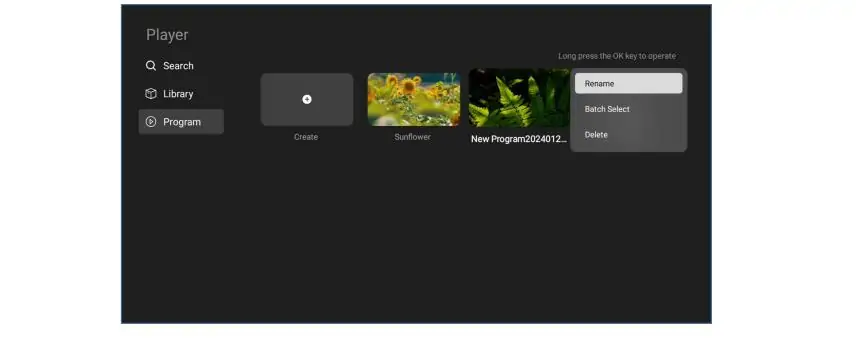
- Initialize the device. Select language and time zone, pair the remote using the manual, choose the required network, and give the unit a recognizable room name.
- Configure the screen. Use VNNOX Care’s local configuration workflow and the supplied receiver parameters. Verify cabinet order with an identification pattern before displaying normal content.
02. Test each operating mode and hand over
On the NovaStar TU20 Pro, first confirm a simple local image, then test HDMI, wireless mirroring, audio, and the intended playlist separately. This makes faults easier to isolate. Run small text and full-screen color patterns to identify mapping errors, seams, or unexpected scaling.
Finally, restart the complete installation and confirm recovery without installer intervention. Save the working configuration, label cables, and show staff how to select a source and recover from a disconnected laptop. HonghaiLED’s TU20 Pro video-mapping tutorial provides additional context for content placement.
12. Troubleshooting and common design mistakes
When a NovaStar TU20 Pro installation misbehaves, isolate the problem by testing a known-good local image and a known-good HDMI source. Change one variable at a time. A fault visible on every source usually deserves a different investigation from a problem that appears only during wireless casting.
| Symptom | First checks | Next action |
|---|---|---|
| No picture | Power, selected source, cable connection, screen power | Test a known-good source and confirm the cabinet configuration. |
| Wrong cabinet order | Port assignment and receiving-card topology | Correct the map using the documented cable route. |
| Soft or cropped text | Source resolution, scaling, aspect ratio | Compare native mapping and inspect content margins. |
| USB file will not play | File system, codec, resolution, bitrate | Test a supported export on known-good storage. |
| Wireless source not found | Network connection, client method, isolation rules | Test the approved hotspot workflow and HDMI fallback. |
| No audio | Source audio, mute, volume, selected output | Test the external sound system independently. |
Avoid three common assumptions about the NovaStar TU20 Pro: maximum width and height cannot be multiplied into an allowed total load; 4K file decoding does not establish 4K HDMI input; and a spare RJ45 output is not automatically a configured backup link. Redundancy requires a specifically supported design.
Do not reset the controller or overwrite receiver parameters as a first response to a minor fault. Preserve the working file, photograph the wiring labels, and record when the issue occurs. Those details help support distinguish a content problem from a mapping, signal, or hardware problem.
13. NovaStar TU20 Pro FAQ
01. Can the NovaStar TU20 Pro work without internet?
Yes, local USB playback and HDMI operation can work offline. Wireless mirroring still needs the appropriate local connection. Cloud publishing, downloads, and some activation workflows require internet access. Complete and test the intended setup before moving the controller to an offline location.
02. Does the NovaStar TU20 Pro support native 4K?
It can decode supported 4K media files, but it cannot drive a native 3840 × 2160 LED wall within its output limits. Its HDMI inputs are specified up to 2048 × 1152 at 60 Hz. File decoding, input timing, and LED loading are three separate specifications.
03. How many receiving cards can it control?
There is no single useful card-count answer without the receiving-card model, cabinet resolution, and port topology. The NovaStar TU20 Pro has six LED output ports, but total load, per-port constraints, and supported receiver arrangements all need checking. Ask the screen supplier to validate the complete map.
04. Does the NovaStar TU20 Pro need a PC?
A permanently connected playback PC is unnecessary for supported standalone workflows. A PC may still be used as an HDMI source, for the documented Windows mirroring client, or for supported NovaLCT configuration tasks. Choose the workflow around the installation and the operator.
05. Which software and manual should I use?
Use ViPlex Handy for everyday content and control tasks and VNNOX Care for screen configuration and topology. Consult the shared TU20 Pro/TU15 Pro manual together with the TU20 Pro datasheet. Firmware and tool compatibility should be checked against the actual hardware before installation.
06. Is multi-screen mirroring included in the price?
Single-screen mirroring is included; four-split and nine-split activation are separate options in the current specifications. The PTB1307 dongle and whiteboard activation are additional purchases too. Ask for itemized pricing so the quoted system includes the presentation functions you require.
07. Can I install it outdoors or use any receiving card?
The NovaStar TU20 Pro is designed for indoor LED applications. Do not treat a temperature specification as an outdoor protection rating. Confirm environmental protection and the precise receiving-card compatibility with the supplier; connector shape alone does not establish compatibility between control ecosystems.
14. Conclusion: is the TU20 Pro right for your screen?
The NovaStar TU20 Pro is worth considering for a compatible indoor LED wall that needs local playback, HDMI presentation, and wireless sharing in a compact system. The purchase decision should begin with native resolution and port mapping, followed by the source workflow, software requirements, and optional licenses.
Choose the NovaStar TU20 Pro when those requirements fit its verified limits. Compare a smaller TU15 Pro when four outputs and 2.6 million pixels are sufficient, or investigate a larger processor when the project needs native 4K or HDMI 2.0 input. Before ordering, request a checked cabinet map, a complete accessory list, and a demonstrated operating workflow. That provides a much stronger basis for a dependable installation than headline specifications alone.
Related Posts
NovaStar NovaPro HD Review: Specs, Setup and Manual
The NovaStar NovaPro HD combines video processing and LED display…
NovaStar VX2000 Pro vs VX2000: Specs & Price Guide
NovaStar VX2000 Pro vs VX2000 is a comparison that starts…
NovaStar ET1S-G Review: Media Server Specs, Setup and Price
The NovaStar ET1S-G is a compact media server that prepares…

No Comments