
Colorlight VX20 LED Video Controller: Setup, Specs and Capacity
The Colorlight VX20 LED video controller combines video processing and LED sending in one 2U unit. It accepts HDMI, DisplayPort and SDI sources, then delivers screen data through Ethernet or fiber connections. Its published maximum is 13.1 million pixels at 8-bit, 60 Hz output; the usable wall size also depends on each port’s load, the cabinet layout and the selected operating mode.
This Colorlight VX20 guide focuses on decisions that matter during installation: choosing the right input, calculating cabinet loads, opening the web interface, mapping receiving cards and testing backup paths. It also explains why a 4K source, a 4K LED wall and a controller’s maximum pixel capacity are different specifications. Worked examples are planning calculations, not measurements from a completed installation.
Technical figures below reference Colorlight’s VX20 Specification V1.20, dated March 29, 2025, hosted by HonghaiLED. Confirm the delivered hardware, firmware and receiving-card capabilities before ordering. For a shorter product overview, see our Colorlight VX20 specifications and features page; this article provides the commissioning workflow and troubleshooting guidance.
1. Colorlight VX20 at a glance
The Colorlight VX20 is intended for LED walls that need source selection, image scaling, layered layouts and integrated sending. Think of it as the connection between the content equipment and the screen’s receiving cards. It does not determine the screen’s physical resolution: that comes from the modules and cabinet arrangement.
A suitable system must satisfy four checks together: the source timing is supported, the screen fits the output capacity, every cabinet chain stays within its port budget, and the receiving cards support the required functions. Passing only the total-pixel check is insufficient. For example, a wall can fit the controller overall while one long chain overloads a single Ethernet output.
Choose the Colorlight VX20 for its workflow as well as its headline capacity. Previewing a layout before sending it live, recalling a known preset and recovering from a cable failure can matter more at an event than an unused maximum resolution. Define those requirements before selecting accessories.
2. Colorlight VX20 specifications
The following Colorlight VX20 specifications identify the connections and limits most relevant to system design. Input connectors, monitoring outputs and LED data outputs perform different jobs; they should not be counted as interchangeable screen connections.
| Item | Published specification | Planning implication |
|---|---|---|
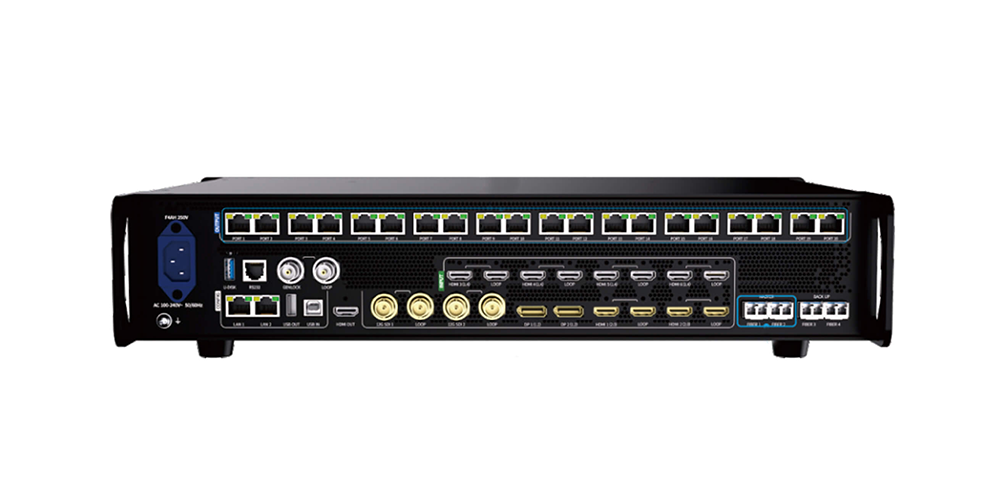
| Video inputs | 2 HDMI 2.0; 2 DP 1.2; 2 12G-SDI; 4 HDMI 1.4 | Ten physical inputs; supported timings and simultaneous-use restrictions vary. |
| 4K input | Up to 4096 × 2160 at 60 Hz on suitable HDMI 2.0, DP 1.2 and SDI formats | Check the format table for frame rate, chroma and bit depth together. |
| LED outputs | 20 Gigabit Ethernet ports; four 10G fiber ports | Fiber routes primary or backup data; it does not add a separate pixel budget. |
| Maximum dimensions | 16,384 pixels wide; 8,192 pixels high | Independent dimension limits, subject to the total load ceiling. |
| Output color depth | 8-bit or 10-bit | Higher output depth reduces available pixel capacity. |
| Processing | Three 4K video layers in Video Processor mode | Plan Main, PIP1 and PIP2 separately from backgrounds and logos. |
| Monitoring | HDMI 2.0 output for preview and monitoring | Connect an operator monitor, not an LED receiving-card chain. |
| Control | Front panel, web interface and iSet | Use the LAN control connections for browser access. |
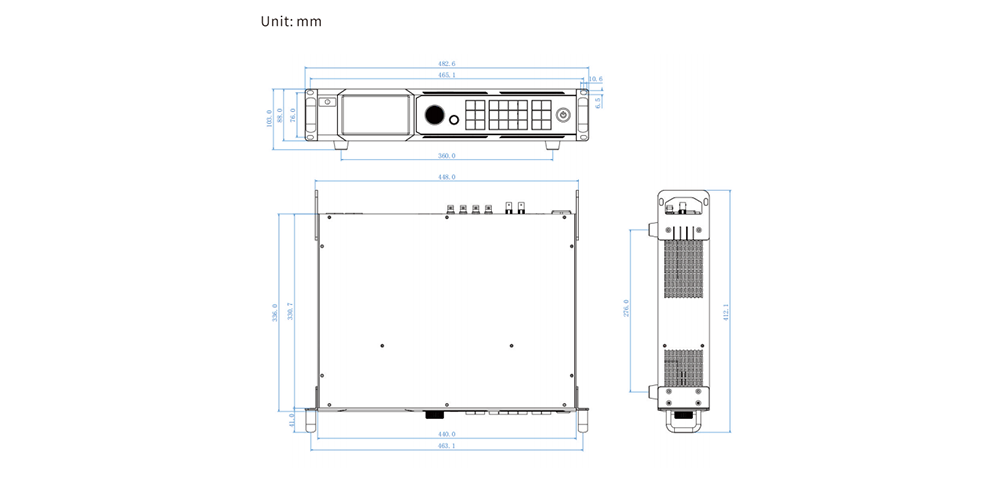
| Mechanical | 482.6 × 88.0 × 412.1 mm; 2U; 5.65 kg net | Allow additional rack depth for plugs and cable bends. |
| Power | AC 100–240 V, 50/60 Hz; listed consumption 92 W | This is controller power, not the LED wall’s power requirement. |
Specification versions can differ. The Colorlight VX20 V1.20 document lists 1,000 presets and three video layers, whereas some summaries online use other counts. Identify the document revision when comparing quotations, and verify the available functions on the actual unit instead of combining figures from different revisions.
3. Load capacity and pixel planning
Size the Colorlight VX20 using pixel dimensions, not screen area alone. A smaller fine-pitch wall can contain more pixels than a larger coarse-pitch wall. Start with each cabinet’s exact pixel width and height, then multiply by the cabinet columns and rows.
| Output setting | Published total | 3840 × 2160 wall: 8,294,400 pixels |
|---|---|---|
| 8-bit, 60 Hz | 13.1 million pixels | Fits total capacity; check port allocation. |
| 10-bit, 60 Hz | 9.8 million pixels | Fits total capacity; verify reduced per-port limits. |
| 8-bit, 120 Hz | 6.55 million pixels | Exceeds this setting’s total capacity. |
| 10-bit, 120 Hz | 4.9 million pixels | Exceeds this setting’s total capacity. |
The table uses V1.20’s 60 Hz and 120 Hz values. For 240 Hz projects, obtain confirmation of the applicable total and per-port limits: published documents contain differing 8-bit figures. Do not size a purchased system around an unresolved number. Output frame rate also differs from an LED module’s advertised PWM refresh rate; a screen marketed with a 3840 Hz refresh rate does not require 3840 video frames per second.
01. Calculate the wall and each cabinet chain
Suppose a cabinet contains 192 × 192 pixels and the wall uses 20 columns by 10 rows. The result is 3840 × 1920, or 7,372,800 pixels. At 8-bit, 60 Hz, V1.20 specifies up to 650,000 pixels per Ethernet port. Seventeen such cabinets use 626,688 pixels; eighteen use 663,552 and exceed that figure.
A practical illustrative map uses two cabinet columns per output: 20 cabinets would overload a port, so split each pair into two groups of ten. Each ten-cabinet chain carries 368,640 pixels, and twenty chains serve all 200 cabinets. This leaves capacity headroom but consumes all twenty outputs. A different wiring plan may use fewer ports; verify its actual geometry and receiving-card limits before deciding.
02. Check dimensions and reserve requirements
A 16,384 × 8,192 rectangle contains 134,217,728 pixels and cannot be driven simply because each dimension matches a published maximum. Likewise, 7680 × 2160 contains 16,588,800 pixels and exceeds the quoted 13.1-million-pixel capacity at 8-bit, 60 Hz. Redesign the resolution or divide the wall across appropriately synchronized processors; do not assume lowering the source frame rate automatically makes it supported.
For the Colorlight VX20, calculate every output separately after reserving the connections needed for your chosen redundancy topology. Averages hide overloaded chains. Our 4K LED screen guide explains how physical dimensions and pixel pitch relate to native resolution.
4. Front panel and rear panel
The Colorlight VX20 front panel provides local control when a laptop is unavailable. Learn the relationship between the layer selection, input selection and live output before an event. The same button press can have different consequences depending on whether you are editing a preview or the program canvas.
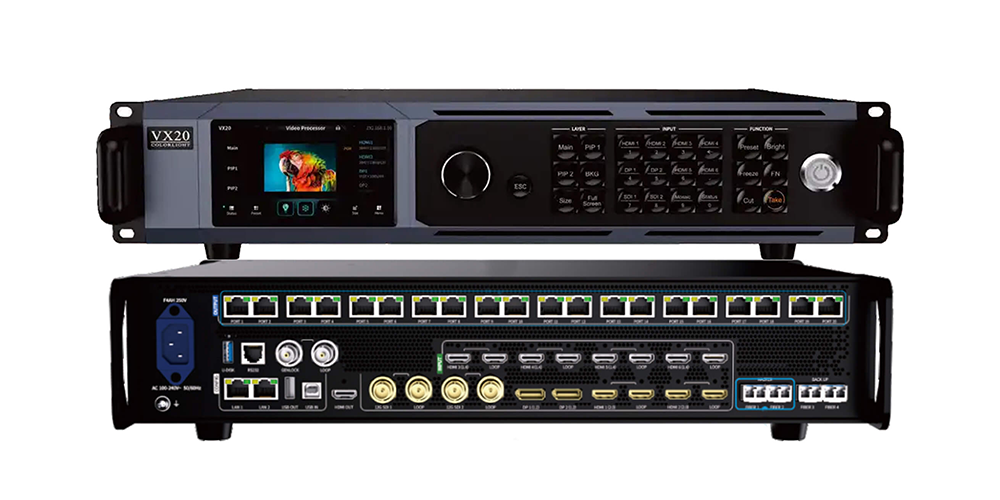
Main, PIP1 and PIP2 select video layers. The input keys assign a source to the selected layer, while Size and Full Screen control its placement. Preset recalls saved layouts; Freeze holds a frame. Cut transfers a preview directly to program, while Take applies a transition. Confirm the active canvas before operating either control.
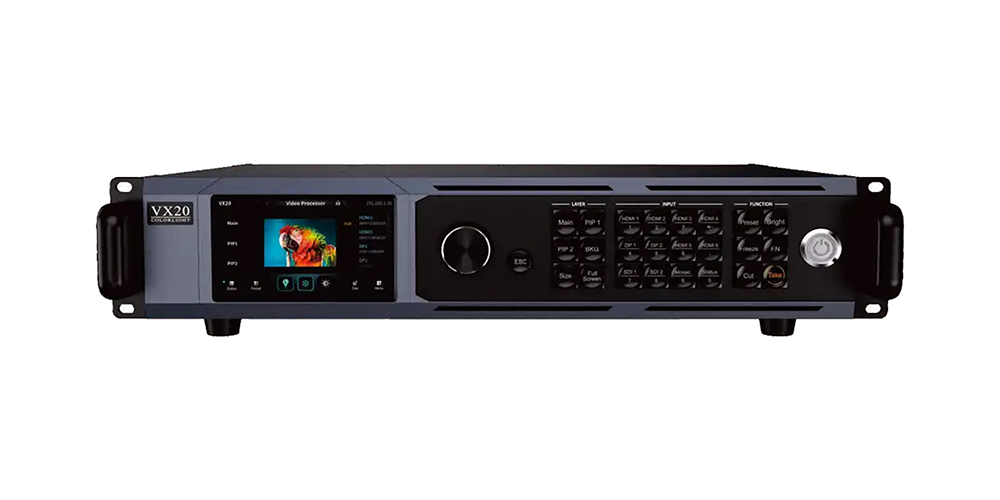
On the rear panel, distinguish LAN1/LAN2 control sockets from the twenty numbered LED outputs. Label both ends of every cable with the port and cabinet-chain destination. Keep the processor’s power, control, source and LED-output paths clear in the rack drawing so another technician can trace a fault without guessing.
5. Inputs, outputs and signal paths
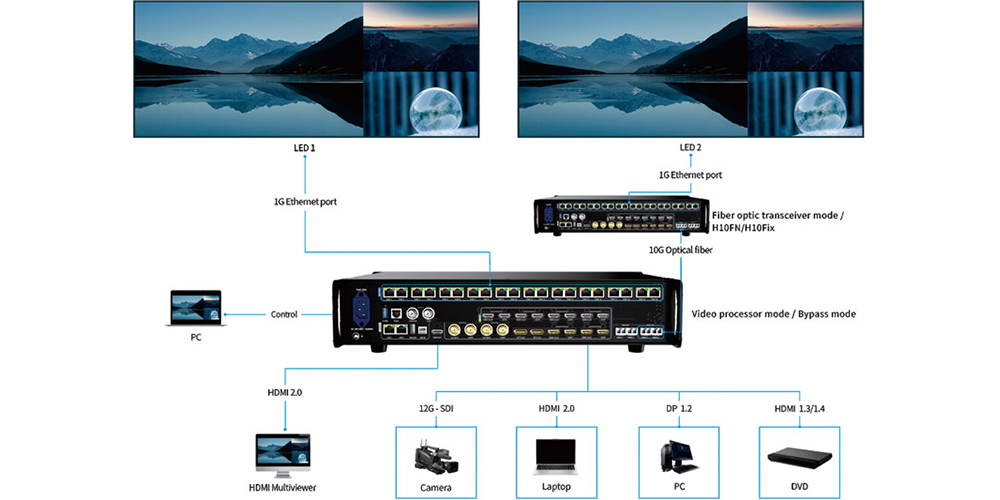
A Colorlight VX20 signal chain usually follows source → controller → receiving cards → LED modules. Fiber adds a compatible optical transport stage between the controller and the receiving cards. A monitoring display is a separate branch of that chain.
01. Match source formats to the input
HDMI 2.0 and DP 1.2 are the main choices for high-resolution computer sources. The Colorlight VX20 accepts HDR10 and HLG on these inputs, but maximum resolution, frame rate, bit depth and chroma format are not automatically available in every combination. Use the reference signal-format tables when setting a media server’s output.
The four HDMI 1.4 connectors have a lower bandwidth ceiling: the specification lists 4096 × 2160 at 30 Hz or 4096 × 1080 at 60 Hz. It also notes simultaneous use of two HDMI 1.4 or four HDMI 1.3 inputs. Verify the complete source list before promising four independent high-bandwidth feeds. HDMI and DP require progressive input; consult the SDI-specific formats for interlaced sources.
Loop-through is documented for HDMI and SDI. Do not assume DP loop outputs exist. A loop connection shares a source with another device; it is not an additional processed LED output.
02. Plan fiber and copper correctly
Colorlight VX20 Fiber 1 corresponds to Ethernet outputs 1–10 and Fiber 2 to outputs 11–20; fiber takes priority for the corresponding group when used. Fiber 3 and Fiber 4 provide backup or copies of the primary links. Select the intended behavior explicitly rather than relying on a default remembered from another firmware version.
Use compatible optical modules, fiber type, connectors and remote hardware. Distance depends on the optical modules and link budget. The specification recommends a maximum CAT5e run of 100 meters, but cable quality and installation conditions still matter. Treat LED data outputs as manufacturer-specific display links; do not route them through an ordinary office network without explicit support for that topology.
6. Three operating modes
The Colorlight VX20 offers three operating modes. Select the mode according to the task the unit performs at that point in the signal chain.
01. Video Processor mode
Use this mode when the Colorlight VX20 must scale, crop or combine video sources. It supports three video layers, with a published one-frame processing delay. At 60 frames per second, one frame represents approximately 16.7 milliseconds. Camera, switcher, transport and display delays remain additional parts of the complete system.
02. Bypass mode
Bypass turns the Colorlight VX20 into a sender for one selected video input, with a published zero-frame processing delay. This is useful when the upstream equipment already creates the correct image. It does not guarantee zero camera-to-screen latency. Prepare the source layout and verify the available scaling and composition functions before changing modes.
03. Fiber Optic Transceiver mode
In this mode, Fiber 1 and Fiber 2 receive compatible optical display data and the Colorlight VX20 provides twenty Ethernet outputs near the wall. This reverses the role of those primary fiber ports compared with normal processor operation. Confirm which unit is sending and which is receiving before connecting a long-distance system.
7. Step-by-step Colorlight VX20 setup
Commission the Colorlight VX20 in a controlled sequence, proving one stage before adding the next. Keep the cabinet supplier’s known-good receiving-card file and the original processor configuration available throughout setup.
01. Record hardware and connect a test system
Record the Colorlight VX20 firmware version, receiving-card models, cabinet pixel dimensions and intended output settings. Confirm power and rack ventilation against the equipment instructions. Connect one known-good source, an operator monitor and a small representative cabinet chain before building the complete wall. Avoid changing receiving-card scan or driver settings by trial and error; use parameters supplied for the actual modules.
Start with a supported progressive source timing and straightforward full-screen content. Use a test image with corner labels, a pixel grid and readable text. This makes unexpected cropping, stretching and reversed cabinet order easier to identify than a moving promotional video.
02. Open the Colorlight VX20 web interface
Connect the computer to a control LAN port. Read the controller’s current IP address from its local settings and configure the computer for the same subnet with a different, unused address. Enter the controller address in a browser. Do not assume a universal factory IP address or confuse an LED output socket with a control connection.
If the browser cannot connect, check the cable, adapter address, subnet mask and active network route. Temporarily selecting the intended wired adapter can help isolate a routing problem. The Colorlight VX20 web interface supports cross-platform operation; use a compatible iSet version when the project requires its desktop workflow.
03. Map cabinets and verify geometry
Set the canvas width and height in pixels, then reproduce the physical cabinet order for every output chain. Confirm receiving-card parameters, port loads, start coordinates and data direction. Display solid colors and a numbered grid, then inspect every cabinet boundary. A correct-looking preview does not prove that the physical wall is mapped correctly.
Once mapping is stable, configure the source crop, aspect ratio and layer position. Preserve proportions for camera images and presentation slides unless deliberate stretching is part of the design. Check small text at the intended viewing distance, not only on the control monitor.
04. Save, restart and rehearse
Save the screen parameters, device configuration and required presets using the appropriate controls. A saved layout is not a substitute for a receiving-card configuration backup. Restart the test system during commissioning and confirm that the expected configuration returns. Record the startup sequence and recovery steps for the operator.
Finally, test the full Colorlight VX20 system at the intended output depth and frame rate. Rehearse normal transitions and an intentional primary-path disconnection before the audience arrives. Confirm the wall recovers correctly, then restore the primary path and verify that the final operating state is documented.
8. Layers, presets and redundant control
Colorlight VX20 PVW means preview: the canvas where a layout can be prepared. PGM means program: the image intended for output. In PVW/PGM operation, inspect the preview before Take or Cut. In PGM Only operation, edits affect the live screen, so the operator must know which workflow is active.
Name presets by purpose, such as presentation, camera with slides, holding screen and emergency message. Verify source assignments when moving between venues: a recalled layout can point to the wrong socket even when its geometry is correct. Keep a simple recovery preset that requires as few working sources as possible.
Redundancy should address an identified failure. Input hot backup covers a lost source; fiber backup covers a transport path; Ethernet redundancy covers supported output-chain failures; processor redundancy requires another correctly configured unit. These mechanisms do not protect against every common power, cabling or configuration fault.
For a Colorlight VX20 installation, draw primary and backup paths separately and identify shared components. Test one failure at a time, observe the physical wall and record recovery behavior. Genlock can coordinate timing, but it does not duplicate content, repair mapping errors or replace a backup processor. Match source content and configurations across redundant devices.
9. Troubleshooting the Colorlight VX20
Troubleshoot the Colorlight VX20 by isolating source, processing, transport and cabinet stages. Begin with a known-good cable and simple test pattern. Change one setting at a time and record the result so a temporary improvement does not hide the original cause.
| Symptom | First checks | Next isolation step |
|---|---|---|
| Source not detected | Input selection, source timing, cable and connector | Test a supported lower-bandwidth progressive format directly. |
| Preview works; wall is black | Blackout, brightness, output assignment and cabinet power | Test one known-good cabinet chain on the intended output. |
| Cabinets appear scrambled | Connection order, coordinates and cabinet dimensions | Compare a numbered test grid with the wiring drawing. |
| Failure after changing output settings | Total capacity and each port’s revised load | Restore the last verified setting, then recalculate the map. |
| Fiber path fails | Module compatibility, link direction and primary/backup mode | Check the remote receiver and corresponding Ethernet group. |
| Image looks washed out | HDR/SDR selection, signal range and color format | Compare a known reference image through the complete chain. |
| Browser control unavailable | Control LAN socket, IP address and subnet | Use a direct wired connection and verify local front-panel control. |
Before requesting support, collect the Colorlight VX20 firmware version, source format, output settings, receiving-card model, affected port numbers and photographs of the fault. Include whether the problem appears on the monitor, the wall or both. These details help distinguish a processing issue from a downstream wiring or module problem.
10. Where the Colorlight VX20 fits
The Colorlight VX20 fits rental stages, exhibitions and fixed LED installations where its capacity, interfaces and operating workflow match the project. For camera-facing walls, also test the receiving cards, driver settings, brightness, shutter behavior and actual camera. Controller features alone cannot guarantee a camera-ready image.
When comparing the Colorlight VX20 with another processor, use the same wall resolution, output depth, frame rate and redundancy requirement. Compare usable ports after backup allocation, supported source combinations, local support and configuration recovery. A similar model name or port count is not evidence of equivalent compatibility.
A Colorlight VX20 price quotation should identify the controller, optical modules, remote transceiver if required, flight case, receiving cards, cables and support scope. Ask which accessories are included, what hardware revision will ship and whether the proposed wall map has been checked. Avoid treating a bare-unit price as the cost of a working control system.
For cabinet options, review HonghaiLED’s rental LED display range. Provide the exact cabinet matrix and signal plan with your inquiry so the screen and control package can be assessed together.
11. Colorlight VX20 downloads
Use the Colorlight VX20 manual for menu workflows and the specification for connection, timing and load limits. Keep a copy with the project documentation so technicians can identify the version used during commissioning.
- Colorlight VX20 Specification V1.20 PDF: manufacturer document dated March 29, 2025; connection details, reference signal formats and rated limits.
- Colorlight VX20 User Manual V1.0 PDF: operating and configuration reference hosted by HonghaiLED.
- Colorlight software and firmware downloads: check the model and release compatibility before selecting a package.
These are identified document revisions, not a claim that every file is the newest available. Before firmware changes, back up the working configuration, read the release notes and confirm the supported upgrade procedure. Schedule changes when the display can be tested fully. Do not assume an update preserves every preset or receiving-card setting.
12. Colorlight VX20 FAQs
These answers summarize the main Colorlight VX20 selection and setup questions. Apply the stated output settings and compatibility checks when using the figures for a real project.
01. What is the Colorlight VX20?
The Colorlight VX20 is a video processor with integrated LED sending for compatible receiving-card systems. It provides source selection, layered processing and Ethernet or fiber display-data transport. Its three operating modes support processing, bypass sending and optical transceiver duties. Choose the mode that matches its role in your installation.
02. How many pixels can the Colorlight VX20 control?
The published maximum is 13.1 million pixels at 8-bit, 60 Hz output. At 10-bit, 60 Hz, the listed total is 9.8 million. The wall must also fit the independent width and height limits and each output port’s capacity. Cabinet wiring can make the practical limit lower than the headline total.
03. Can the Colorlight VX20 drive a 4K LED wall?
A 3840 × 2160 wall contains 8,294,400 pixels, which fits the published total capacity at either 8-bit or 10-bit, 60 Hz. That calculation alone is not approval for the installation: verify cabinet-chain loads, receiving-card compatibility and the supported input format. The same wall exceeds the listed 120 Hz totals.
04. How do I access the Colorlight VX20 web interface?
Connect the computer to LAN1 or LAN2, read the controller’s configured IP address and use a compatible address on the same subnet for the computer. Open the controller address in a browser. If access fails, check the wired adapter and routing before changing display parameters.
05. Does the Colorlight VX20 support HDR?
HDR10 and HLG are listed for HDMI 2.0 and DP 1.2 inputs. Verify the exact combination of resolution, chroma, bit depth and frame rate. Correct HDR reproduction also depends on source settings and the LED system; enabling an HDR option alone does not establish calibrated brightness or color performance.
06. Is Bypass mode completely latency free?
Colorlight specifies zero-frame processing delay for the Colorlight VX20 in Bypass mode. That describes the controller’s processing stage, not the entire camera-to-display chain. Other equipment still contributes delay. Test the full system when lip synchronization or live image magnification is important.
07. Can I connect any receiving card to the VX20?
Do not assume compatibility because a card uses an RJ45 connector. Confirm the receiving-card model, firmware and required functions with the cabinet supplier. A wall built for another control ecosystem may require hardware changes. Advanced monitoring and image functions can also depend on particular compatible receiving cards.
08. Do four fiber ports increase the total pixel capacity?
No. Colorlight VX20 Fiber 1 and Fiber 2 carry the primary output groups; Fiber 3 and Fiber 4 provide backup or copies. They do not create four independent additional canvases. Include compatible optical modules and remote receiving equipment in the design, and confirm the selected backup or copy behavior.
09. Where is the Colorlight VX20 manual PDF?
The downloads section above links the Colorlight VX20 User Manual V1.0 and Specification V1.20 hosted by HonghaiLED. Use the manual for operating procedures and the specification for supported formats. Record the revisions used, then confirm any firmware-dependent differences before commissioning.
10. What determines the Colorlight VX20 price?
The quoted cost depends on the supplied configuration and commercial terms. Request an itemized package covering optical modules, transport hardware, case, cables, receiving cards where needed, shipping and support. Provide the wall resolution, cabinet matrix, source formats and backup requirements so the quotation reflects a usable system.
13. Conclusion: plan the complete LED control system
The Colorlight VX20 works best when the source formats, native wall resolution, cabinet mapping and backup plan are designed together. Begin with exact pixel counts, verify every output chain and prove the complete system at the intended settings. Clear presets and configuration backups then make operation and recovery easier.
To specify a Colorlight VX20 control package, send HonghaiLED your cabinet layout, receiving-card model, video-source list, cable distances and redundancy requirements through our LED display project contact page. Those details support a meaningful compatibility check and an itemized quotation.
Related Posts
LED Screen vs LCD Screen: Differences & How to Choose
LED screen vs LCD screen is a comparison of two…
How to Choose the Best LED Lamp Beads for LED Displays
Choosing the best LED lamp beads for LED displays starts…

LED Packaging Technology: SMD, COB, GOB & MIP Guide
LED packaging technology determines how light-emitting chips are connected, supported,…

No Comments