
NovaStar ViPlex Express: Download, Setup & FAQ Guide
Quick answer: ViPlex Express is NovaStar’s Windows PC software for creating, scheduling and playing content on LED displays and LCD screens. It has two working modes: Studio mode plays content synchronously from the connected PC, while async mode manages NovaStar Taurus series media players. A finished solution can also be exported to a USB drive for plug-and-play playback.
ViPlex Express is the content side of a NovaStar LED system: NovaLCT and SmartLCT configure and calibrate the screen, and ViPlex Express decides what the screen shows.
What this guide covers
1. What is ViPlex Express?
2. How to download and install ViPlex Express
3. Working modes: Studio mode vs async mode
4. How to connect ViPlex Express to your LED display
5. Basic functions and device status
6. Create and manage a playback solution
7. Play content from a USB drive
8. Troubleshooting common ViPlex Express problems
9. ViPlex Express FAQ
10. NovaLCT vs SmartLCT vs ViPlex Express
11. Getting the right LED display hardware
1. What is ViPlex Express?
ViPlex Express is NovaStar’s PC software for publishing and playing content on LED displays and LCD screens. You use it to build a “solution” — the layout of images, video, text, clocks and other media — and then either play that solution from the PC in Studio mode, or hand it to a NovaStar Taurus series player in async mode.
| Item | Detail |
|---|---|
| Vendor | NovaStar (part of the ViPlex software family) |
| Purpose | Creating, scheduling and playing display content |
| Platform | Windows PC application |
| Working modes | Studio mode (synchronous) and async mode (Taurus series players) |
| Typical hardware | Sending devices and cards such as the NovaStar MCTRL4K; Taurus series media players |
| Output options | Live playback from the PC, or an exported solution on a USB drive |
What is NovaStar software?
NovaStar’s software product portfolio includes NovaLCT, SmartLCT and ViPlex Express, all designed for LED display management, configuration and calibration. ViPlex Express handles the content; NovaLCT and SmartLCT handle the screen itself. Together they let you edit, adjust, monitor and remotely control an LED display.
If you need the other NovaStar utilities as well, see our NovaStar LED control software download page.
2. How to download and install ViPlex Express
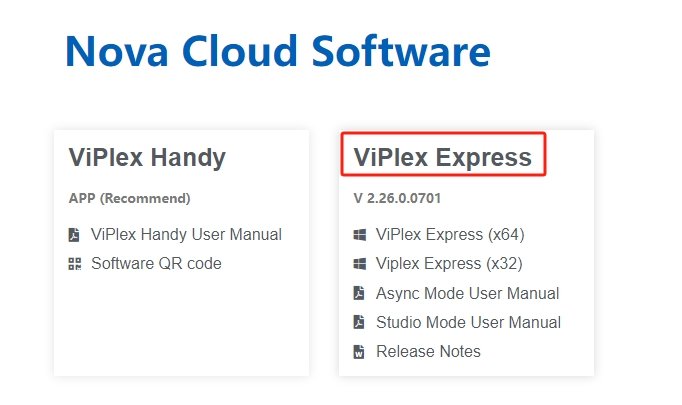
ViPlex Express is NovaStar’s own software. It is not sold or licensed by HonghaiLED and it is not bundled with our hardware, so always take the installer from NovaStar’s official website.
- Open the official NovaStar download area.
- Find the current ViPlex Express release. Version numbers change over time, so take the newest build listed there rather than a mirrored file from a third-party site.
- Download the Windows installer.
- Run the installer and follow the on-screen prompts.
- Launch ViPlex Express from the desktop shortcut or the Start menu. On first launch the software asks you to select a working mode, which is covered in the next section.
Before you install: close the other NovaStar tools (NovaLCT, SmartLCT) and any screen-configuration software that is talking to the sending card, so the installer is not fighting a running process.
A note on mirrors: third-party pages offering a “Viplex Express download” often repackage an older build. Installing from the official source keeps the software, the user manual and the release notes on the same version.
3. Working modes: Studio mode vs async mode
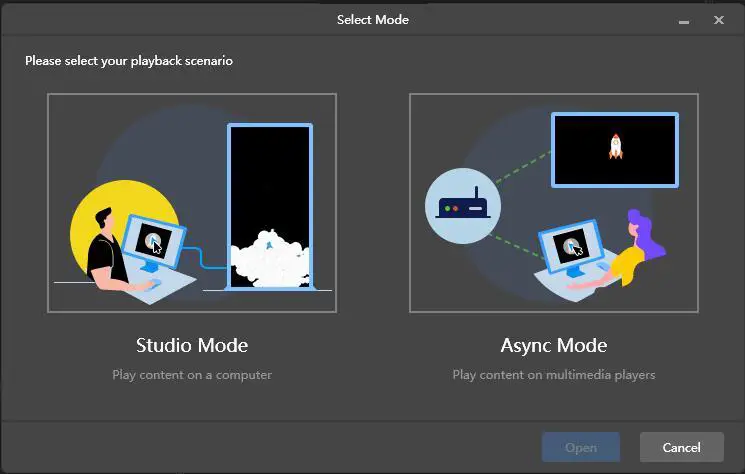
When you open ViPlex Express for the first time, a dialog box asks you to select a working mode. The right choice depends on where the content lives while it is playing.
| Studio mode | Async mode | |
|---|---|---|
| Also called | Synchronous mode | Asynchronous mode |
| Where the content is stored | On the PC | On a NovaStar Taurus series player |
| Does the PC stay connected? | Yes — the PC is the video source | Only while uploading or managing content |
| Hardware in the path | Sending device or sending card, for example MCTRL4K | Taurus series media player, or a USB drive prepared in the software |
| Typical use | Live playback driven by a control computer | Scheduled playback that runs without a PC |
Studio mode is the synchronous mode, and the NovaStar Taurus series uses asynchronous mode. When you update a solution, the solution data in async mode is synchronised to Studio mode.
Three steps to get an image or video on screen
- Select the mode — choose Studio mode when the PC drives the screen.
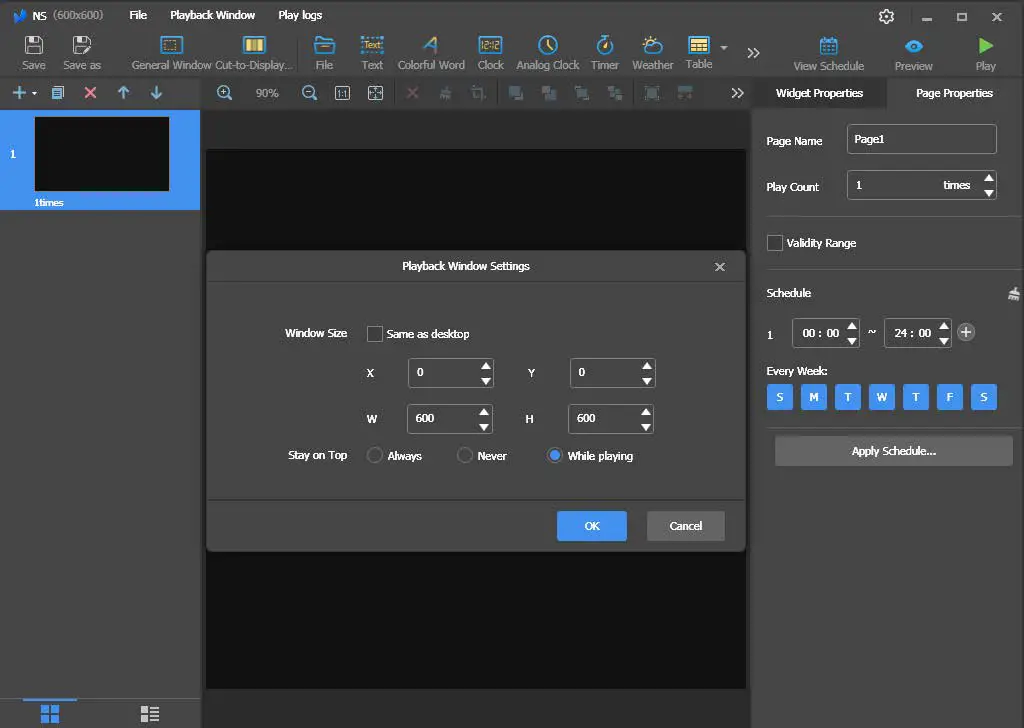
- Match the canvas to the screen — click Play Window and set the width and height to the same size as your LED screen.
- Add the media — drag images or video into the solution, and use the full-screen button so each item fills the canvas.
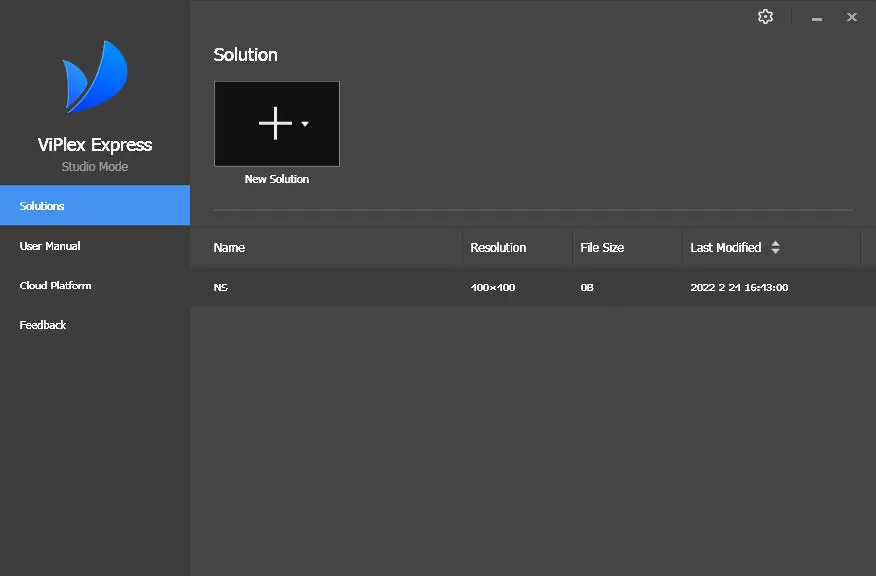
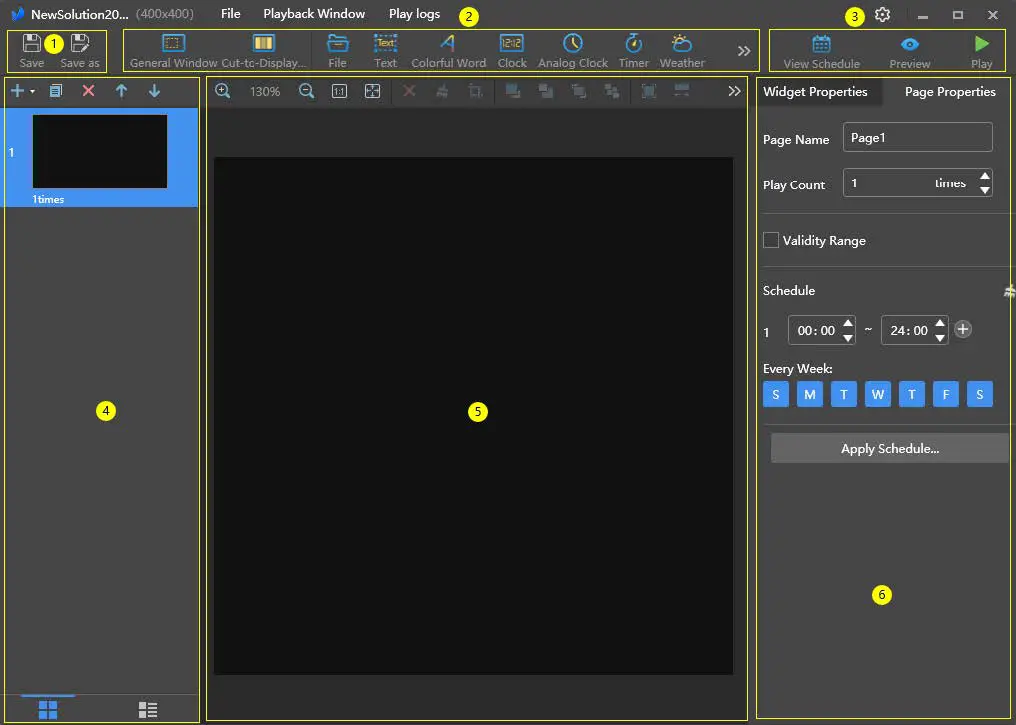
After you select Studio mode you reach the startup page, where you can choose a regular screen or an extra-long screen. Selecting the general screen opens the solution edit page. On the pop-up that follows, resize the canvas to the same size as the screen — 600 by 600 pixels in the example below.
When you create a main screen plan in Studio mode, the plan editing page appears with widgets such as files, text, clocks, analog clocks and timers. You can resize and reposition each playback window, and show or hide it.
For asynchronous playback the content is uploaded to a NovaStar Taurus series player such as the TB50 media player, which then runs the schedule on its own.
4. How to connect ViPlex Express to your LED display
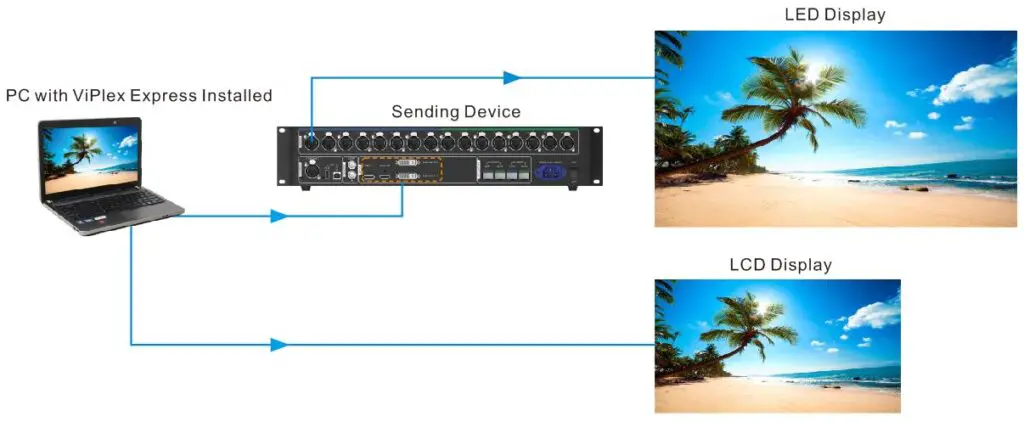
ViPlex Express is installed on a PC that acts as the video source. In Studio mode the PC connects to the screen through a sending card or sending device — for example the NovaStar MCTRL4K shown below — and the screen displays what the PC plays.
The same arrangement works for an LCD: ViPlex Express runs on the PC, the PC is connected to the LCD, and the PC is the video source for that display.
For asynchronous playback you connect to a player instead of a sending card. Put the player and the PC on the same network, then use the device list described in the next section to refresh by IP address and connect. Our guide to connecting a rental LED panel to a NovaStar Taurus media player walks through the hardware side.
5. Basic functions and device status
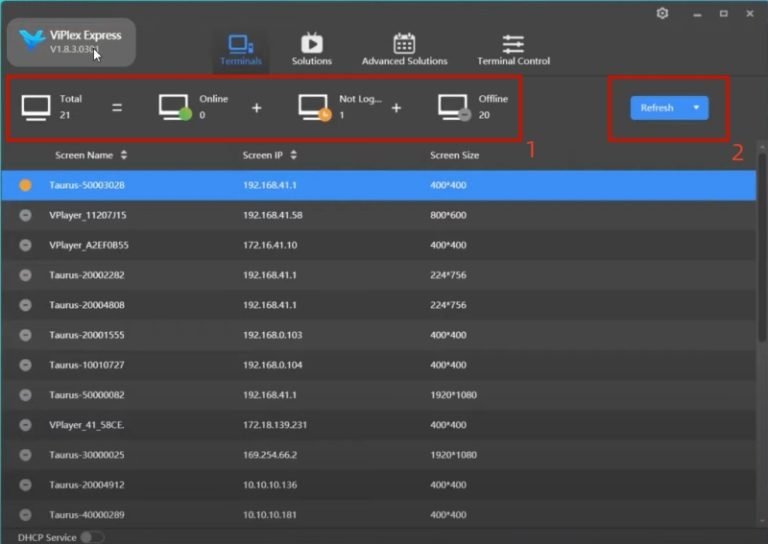
The device list is where you see every player the software knows about and where you manage the connections.
- Total — the total number of devices in the list.
- Online — the Taurus device is connected to the PC and logged in.
- Not logged in — the device has not been connected to the computer, or it is connected but not logged in. Log in to the device before you use it.
- Offline — if this status is shown, check whether the connection is stable.
Refresh by IP address. Click Refresh and enter the player’s IP address to search for Taurus devices on the network.
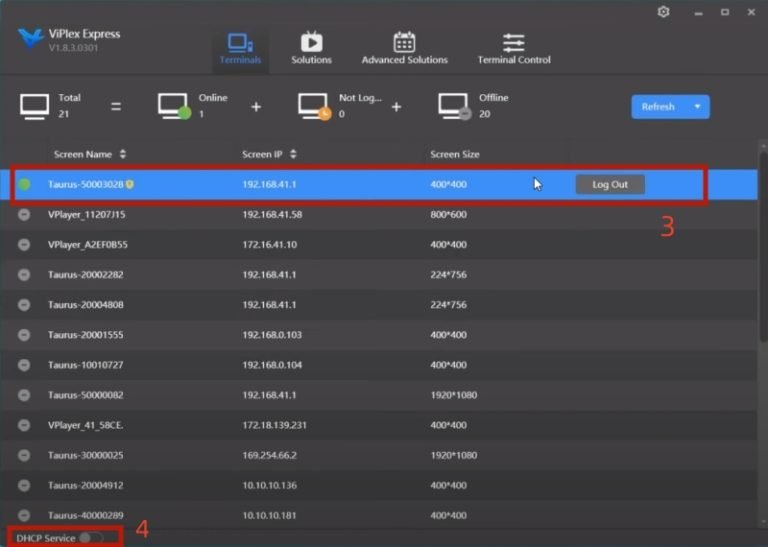
Device entry. Each row shows the name of the screen, its IP address and its size. Click Connect to establish the connection with the screen; when the connection succeeds, Log Out appears. The drop-down list on the right of the row contains options such as Rename, Change Password and Forgot Password.
DHCP service. If you have problems connecting a Taurus series device to the PC through an Ethernet cable, enable the DHCP service to help solve the problem, and read the pop-up prompts.
6. Create and manage a playback solution
A solution is one complete piece of content: its pages, its media, its playback mode and its schedule.
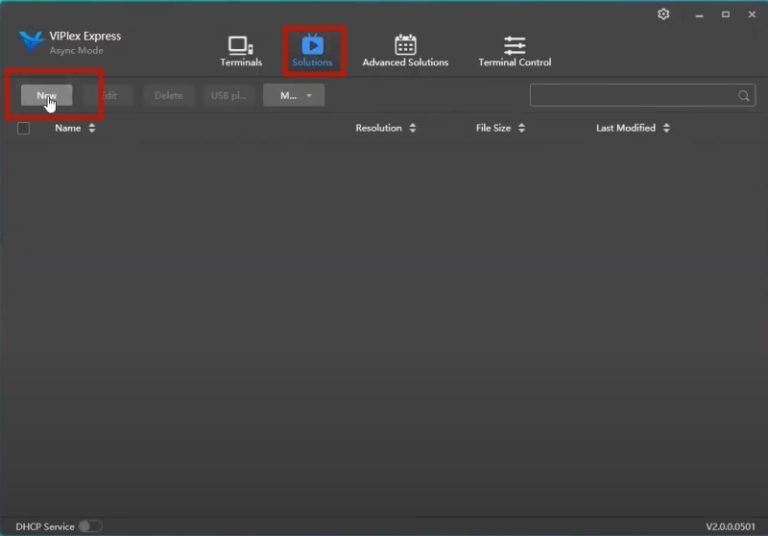
Click Solution to open the interface, then click New to add and name a solution. You can also choose the end device so that ViPlex Express sets the resolution automatically.
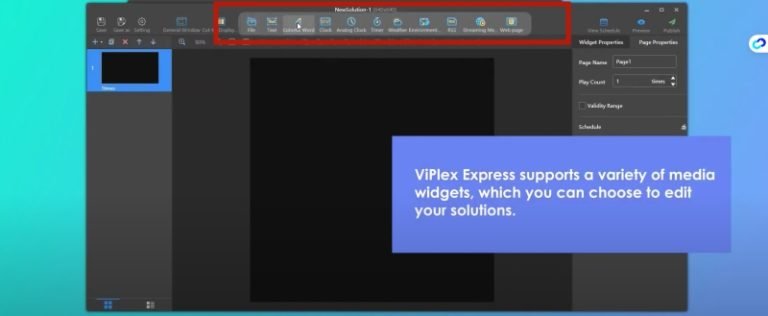
In the solution editing interface you can:
- add media widgets such as files, pictures, text and clocks;
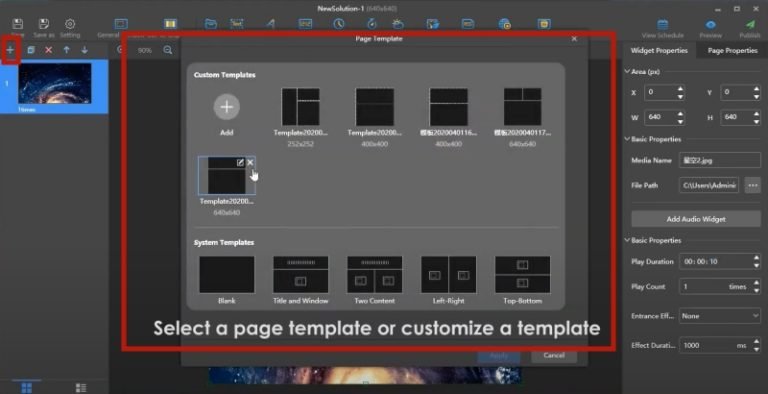
- start from a page template or build your own, inserting different media types into each section;
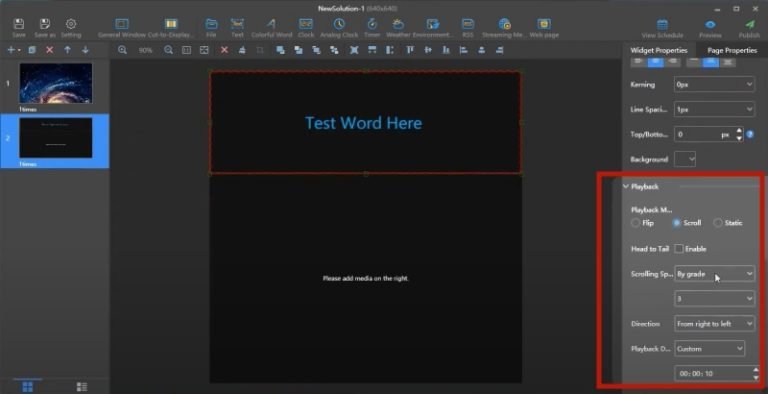
- scroll down the right-hand panel to set the playback mode of the solution;
- open the page properties to schedule each page and build a scheduling list for the whole solution.
When the settings are complete, click Preview in the upper-right corner of the interface to see the effect of the solution.
7. Play content from a USB drive
USB playback exports a finished solution to a USB flash drive so a player can run it without a PC. It is the usual choice when the display has no network connection and no permanently attached computer.
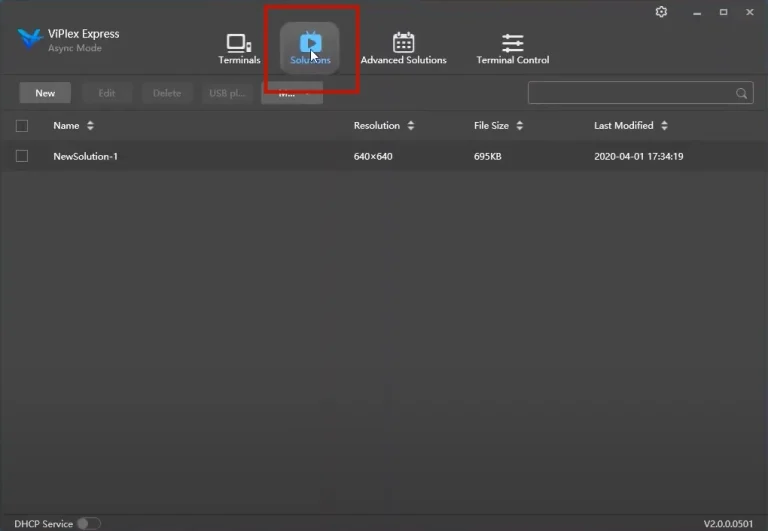
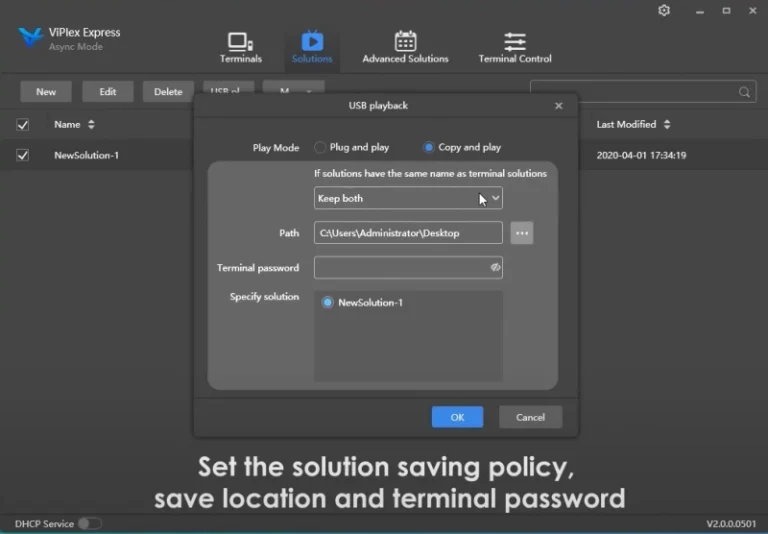
- Click Solution, then select USB Playback.
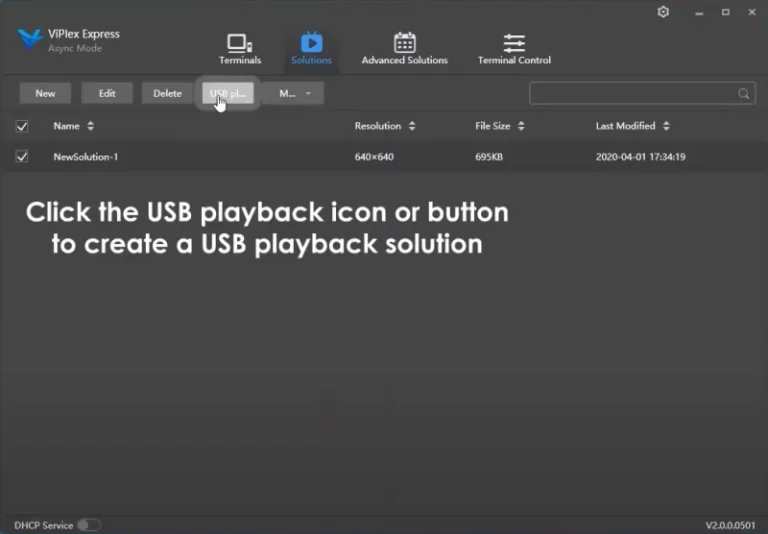
- Click the USB Play icon or button to create a USB play solution.
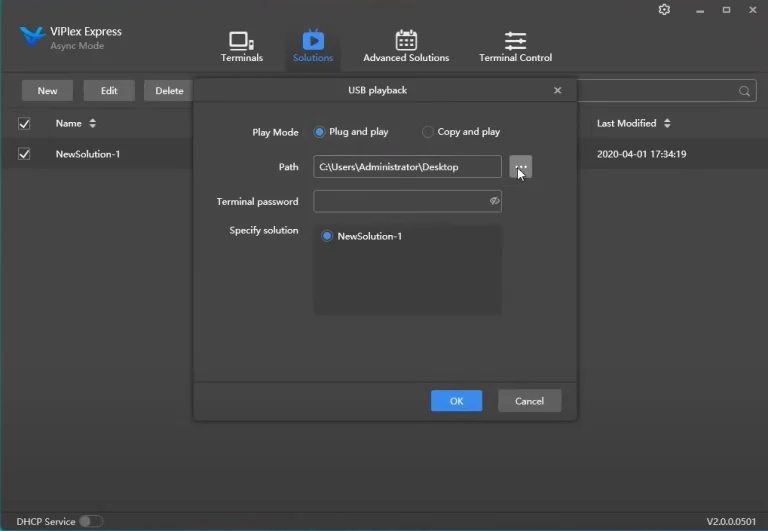
- In the pop-up window, select Plug and Play.
- Select the USB flash drive that will store the solution.
- Enter your Taurus player login password, then click OK to export the solution.
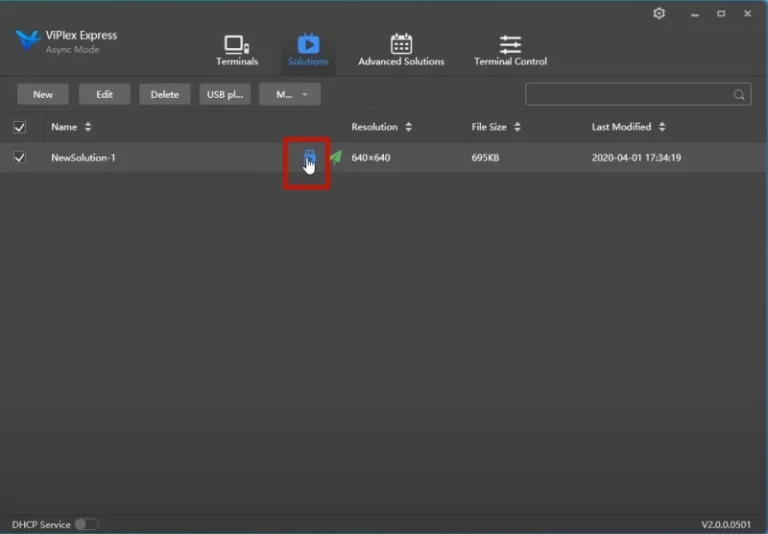
- Back in the solution list, click the export icon highlighted below, choose Copy and Play and set the save policy, save location and terminal password for the solution.
- Click OK to export.
If the player does not pick up the content, re-export the solution and confirm that you selected the correct drive before copying the files.
8. Troubleshooting common ViPlex Express problems
| Symptom | What to check |
|---|---|
| The device shows “Not logged in” | Log in to the Taurus device from the device list. The device also needs a working connection to the PC. |
| The device shows “Offline” | The network link is unstable or the IP address has changed. Click Refresh and enter the player’s current IP address. |
| Cannot connect over an Ethernet cable | Enable the DHCP service and follow the pop-up prompts, then connect again. |
| A video file will not play | The container may be supported while the codec is not. Convert the clip to MP4 and try again. AVI files encoded as DX50 or MP4V cannot be played. |
| Content does not fill the screen | Set the canvas to the same width and height as the screen, and use the full-screen button for each media item. |
| Studio mode opens with the wrong layout | Re-check the canvas size on the Play Window pop-up. The canvas and the LED screen must match. |
If your problem is with the screen rather than the content, the answer is usually in the sending card settings. Our RCFG and RCGFX screen configuration file page explains where those files come from.
9. ViPlex Express FAQ
What is ViPlex Express used for?
ViPlex Express is used to create, schedule and play content on LED displays and LCD screens from a Windows PC. In Studio mode it plays the content straight from the PC; in async mode it manages NovaStar Taurus series players that store and play the content themselves.
Is ViPlex Express free?
NovaStar publishes ViPlex Express as a free download from its official website, and HonghaiLED does not sell or license this software. It is a NovaStar product, so the current licence terms are always the ones published by NovaStar.
Where can I download the latest ViPlex Express version?
Download it from NovaStar’s official website. Version numbers change, so check the current release on the official download page rather than a third-party mirror. Our NovaStar LED control software download page gathers the related NovaStar tools in one place.
Does ViPlex Express run on Windows or on a Mac?
NovaStar documents ViPlex Express as a PC application for Windows. If you work on macOS, check NovaStar’s current download page for the platforms supported by the latest release — platform support is set by NovaStar, not by HonghaiLED.
What is the difference between Studio mode and async mode?
Studio mode is synchronous: the PC stays connected and acts as the video source for the display. Async mode is used with NovaStar Taurus series players, which store the solution and play it without a PC. The comparison table in section 3 lists the differences side by side.
How do I connect a NovaStar Taurus player to ViPlex Express?
Put the player and the PC on the same network, open the device list, click Refresh and enter the player’s IP address, then click Connect. If the connection fails over an Ethernet cable, enable the DHCP service and try again.
I forgot the login password for my player. What can I do?
ViPlex Express asks for your Taurus player login password when you connect to a device or export a USB solution. In the device list, open the drop-down list on the right of the player row: it contains options such as Rename, Change Password and Forgot Password. If you still cannot get in, contact NovaStar support or the supplier of the player with its serial number.
What video formats does Studio mode support?
According to NovaStar’s ViPlex Express user manual, Studio mode supports *.3g2, *.3gp, *.3gp2, *.3gpp, *.amv, *.asf, *.avi, *.bik, *.bin, *.divx, *.drc, *.dv, *.f4v, *.flv, *.gvi, *.gxf, *.iso, *.m1v, *.m2v, *.m2t, *.m2ts, *.m4v, *.mkv, *.mov, *.mp2, *.mp4, *.mp4v, *.mpe, *.mpeg, *.mpeg1, *.mpeg2, *.mpeg4, *.mpg, *.mpv2, *.mts, *.mxf, *.mxg, *.nsv, *.nuv, *.ogg, *.ogm, *.ogv, *.ps, *.rec, *.rm, *.rmvb, *.rpl, *.thp, *.tod, *.ts, *.tts, *.txd, *.vob, *.vro, *.webm, *.wm, *.wmv, *.wtv and *.xesc.
Why will a video not play even though the format is listed?
Containers and codecs are different things. AVI, for example, is supported only with MPEG-2, MPEG-4, MPEG-4 ASP, H.264, DivX 4/5/6, XviD, SV1, 3ivX D4, H.264/MPEG-4 AVCMKV, AMR, Web Medium, WMV and MP3. AVI files in DX50 or MP4V cannot be played. When a file is not supported, convert it to MP4 with a conversion tool and load it again.
Can ViPlex Express run a playlist without a PC connected?
Yes, in two ways. A NovaStar Taurus series player can run the solution you upload to it, and USB playback exports the solution to a USB flash drive for plug-and-play use. Both remove the need for a permanently connected control computer.
What is the difference between ViPlex Express, NovaLCT and SmartLCT?
NovaStar’s software portfolio includes NovaLCT, SmartLCT and ViPlex Express. NovaLCT and SmartLCT are used for LED display configuration and calibration, while ViPlex Express handles content publishing and playback. The table in section 10 summarises the split; see our NovaLCT software download list for the configuration tools.
Do I need a sending card to use ViPlex Express?
In Studio mode the PC connects to the screen through a sending device or sending card — the NovaStar MCTRL4K is one example — and the PC acts as the video source. For asynchronous playback you connect to a Taurus series player instead, so the sending card belongs to the screen and the player handles the content.
10. NovaLCT vs SmartLCT vs ViPlex Express
The three NovaStar programs are usually installed on the same control computer, and each one does a different job.
| Software | What it is used for |
|---|---|
| ViPlex Express | Content publishing and playback: building solutions, controlling Taurus series players, exporting USB playback |
| NovaLCT | LED display configuration and calibration from a PC |
| SmartLCT | LED display configuration and calibration from a PC |
Roles are summarised from NovaStar’s software documentation. Because features differ between hardware revisions, confirm the exact tool and version for your sending card or player with NovaStar before you rely on it in a live installation.
11. Getting the right LED display hardware
ViPlex Express is only one part of a working LED display. The screen, the sending device and the media player all have to match the way you plan to publish content — a PC-driven synchronous installation, a player-based asynchronous installation, or a USB solution with no network at all.
If you are choosing hardware for a project, these pages cover the components most often used with ViPlex Express:
- NovaStar MCTRL4K LED display controller — the sending device shown in this guide.
- NovaStar TB50 Taurus series media player — asynchronous playback.
- NovaStar TU40 Pro playback control processor — for larger playback projects.
- NovaStar LED control software download — the rest of the software stack.
If you would rather talk it through, tell us about the project and we will recommend a display, a controller and a playback method that work together.
Related Posts
NovaStar TB60: Full Introduction and User Manual
The NovaStar TB60 represents the pinnacle of multimedia player technology…
NovaStar VX4S LED Controller: Specs, Setup, Manual and FAQs
Quick answer: The NovaStar VX4S is an all-in-one LED display…
NovaStar VX2000 Pro: Specs, Manual, Price & Downloads
The NovaStar VX2000 Pro is NovaStar’s 20-port all-in-one 4K LED…

No Comments